
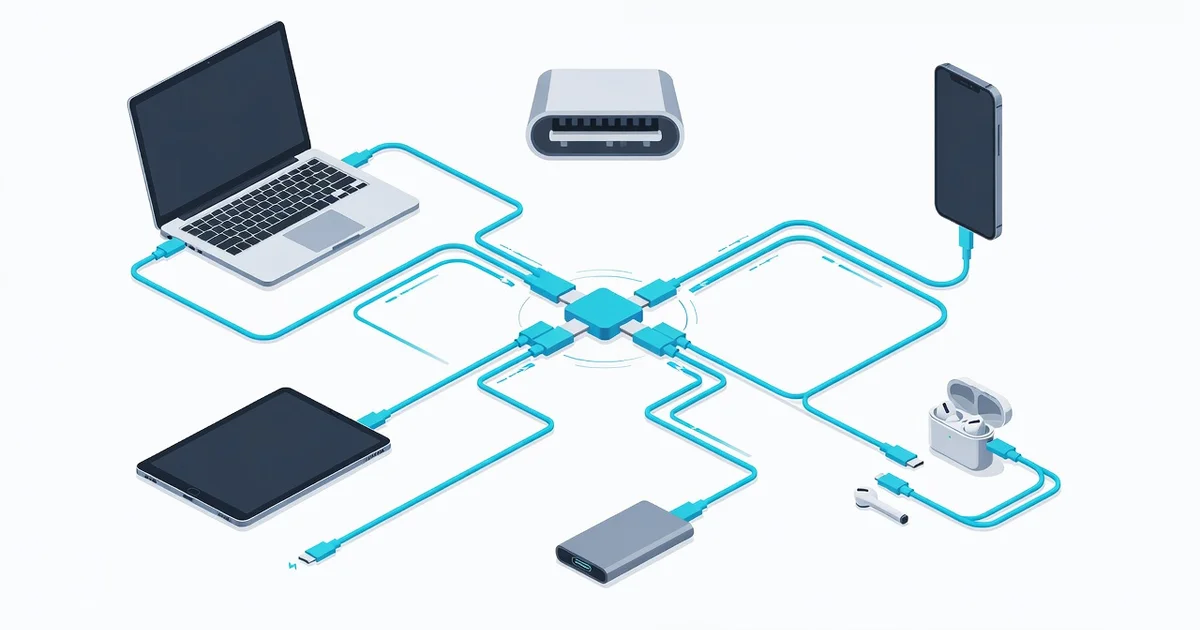
USB-C has become the universal connector we reach for every day, but many people still wonder what makes it so different from the ports that came before. This small, oval-shaped plug can carry power, data, and video at the same time, which is why it shows up on phones, laptops, tablets, and even gaming consoles.
Understanding what is USB-C and how it works across devices helps you charge faster, transfer files quicker, and choose the right cables and chargers without confusion. In this guide, we break down the basics in plain language so you can get the most from every device you own.
Introduction
USB-C has become the standard connector on phones, laptops, tablets, monitors, and countless accessories. It is small, reversible, and capable of carrying power, data, and video over a single cable. But not all USB-C ports and cables are equal. This article explores What Is USB-C and How Does It Work Across Devices with clear, practical guidance. By the end, you will understand the fundamentals, know how to assess your own devices, and be able to choose the right cables and chargers for reliable performance.
Understanding the fundamentals of What Is USB-C and How Does It Work Across Devices helps you make informed decisions. Whether you are buying a new laptop, replacing a lost cable, or trying to connect a monitor, the details matter. Reliable information and consistent habits lead to better long-term outcomes, from faster charging to fewer compatibility headaches.
Key Concepts
USB-C is a connector shape, not a performance standard. The oval, reversible port can support many different protocols. What it actually does depends on the device, the cable, and the power source. Here are the core concepts you need to know.
- Form factor: The physical plug and port. USB-C is about 8.4 mm by 2.6 mm, smaller than USB-A and symmetrical, so it plugs in either way.
- USB versions: USB 2.0, USB 3.2 Gen 1, USB 3.2 Gen 2, USB 3.2 Gen 2×2, and USB4. Each version has different data speeds, from 480 Mbps to 40 Gbps or more.
- Power Delivery (USB PD): A standard for negotiating power. USB PD can deliver up to 100 watts over standard cables, and up to 240 watts with USB PD 3.1 and EPR (Extended Power Range) cables.
- Alternate modes: USB-C can carry DisplayPort, HDMI, Thunderbolt, and other signals. This is how one port can drive a monitor while charging a laptop.
- Thunderbolt: Thunderbolt 3, 4, and 5 use the USB-C connector. They offer high data speeds and video output, but only on devices that support them.
- USB-C vs. USB-A: USB-A is the older rectangular connector. USB-C is newer and more capable, but many devices still include USB-A ports for backward compatibility.
The key takeaway: the port shape tells you what will fit, not what will work. Always check the specifications of your device and cable.
Deep Dive
To understand how USB-C works across devices, you need to look at three layers: power, data, and video. Each layer has its own requirements and common pitfalls.
Power Delivery and Charging
USB-C charging relies on USB Power Delivery. When you plug in a charger, the device and charger communicate to negotiate voltage and current. A phone might request 5V/3A (15W), while a laptop might request 20V/5A (100W). If the charger cannot supply what the device wants, the device may charge slowly or not at all.
Not all USB-C chargers support USB PD. Some cheap chargers use USB-C physically but only provide basic 5V power. Always look for “USB PD” or “Power Delivery” on the label. Also check the wattage. A 30W charger will charge a phone quickly but may barely maintain a laptop’s battery.
Data Transfer Speeds
Data speed is where USB-C gets confusing. The same port can support USB 2.0 (480 Mbps) or USB4 (40 Gbps). The cable matters as much as the port. Many cables bundled with phones are USB 2.0 only, even if they have USB-C connectors on both ends.
To get fast data transfers, you need a cable rated for the speed you want. For example, a USB 3.2 Gen 2 cable supports 10 Gbps. A USB4 cable supports 40 Gbps. If you use a USB 2.0 cable with a USB4 port, you will only get USB 2.0 speeds.
Video Output and Docks
USB-C can carry video using DisplayPort Alternate Mode or HDMI Alternate Mode. This lets you connect a monitor directly with a USB-C cable, or through a dock. However, not every USB-C port supports video output. Some laptops have USB-C ports that only do data and power.
Thunderbolt ports always support video, and they can daisy-chain multiple devices. If you need to drive two 4K monitors, check for Thunderbolt 4 or USB4 with DisplayPort 1.4 support.
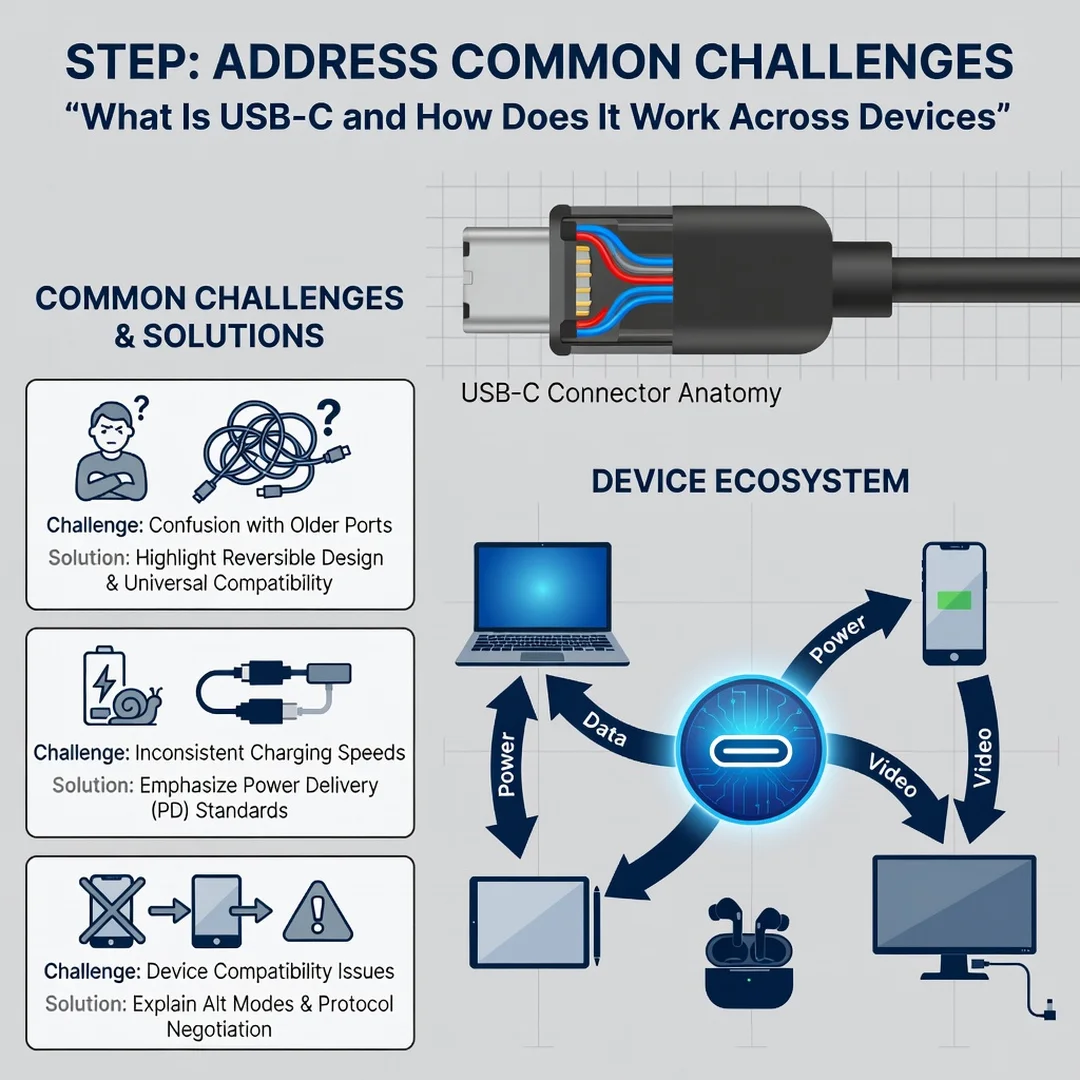
Common Compatibility Issues
- Charging but no data: The cable may be power-only. Some cables lack data wires.
- Slow charging: The charger or cable does not support USB PD at the required wattage.
- No video: The port does not support Alternate Mode, or the cable is not rated for video.
- Intermittent connection: Dust or debris in the port, or a worn cable connector.
These issues are rarely about the USB-C shape itself. They are about the underlying standards and the quality of the cable or adapter.
Best Practices
Follow these habits to get the most from USB-C across your devices.
- Buy certified cables: Look for USB-IF certification or Thunderbolt certification. This ensures the cable meets safety and performance standards.
- Match the cable to the task: Use a 100W USB PD cable for laptop charging, a USB4 cable for fast data and video, and a basic USB 2.0 cable for phone charging if speed does not matter.
- Check port capabilities: Read your device manual or specifications. Know which ports support power delivery, data, and video.
- Label your cables: Use a small label or colored tape to mark high-wattage and high-speed cables. This prevents mixing them up.
- Keep ports clean: Use compressed air to remove dust. Never insert sharp objects.
- Use reputable chargers: Cheap chargers can damage devices or cause fires. Stick to brands with good reviews and safety certifications.
- Update firmware: Some USB-C docks and laptops benefit from firmware updates that improve compatibility.
Reliable information and consistent habits lead to better long-term outcomes. A few minutes spent checking specifications saves hours of frustration.
Step-by-Step Guide
Use this process to master USB-C across your devices.
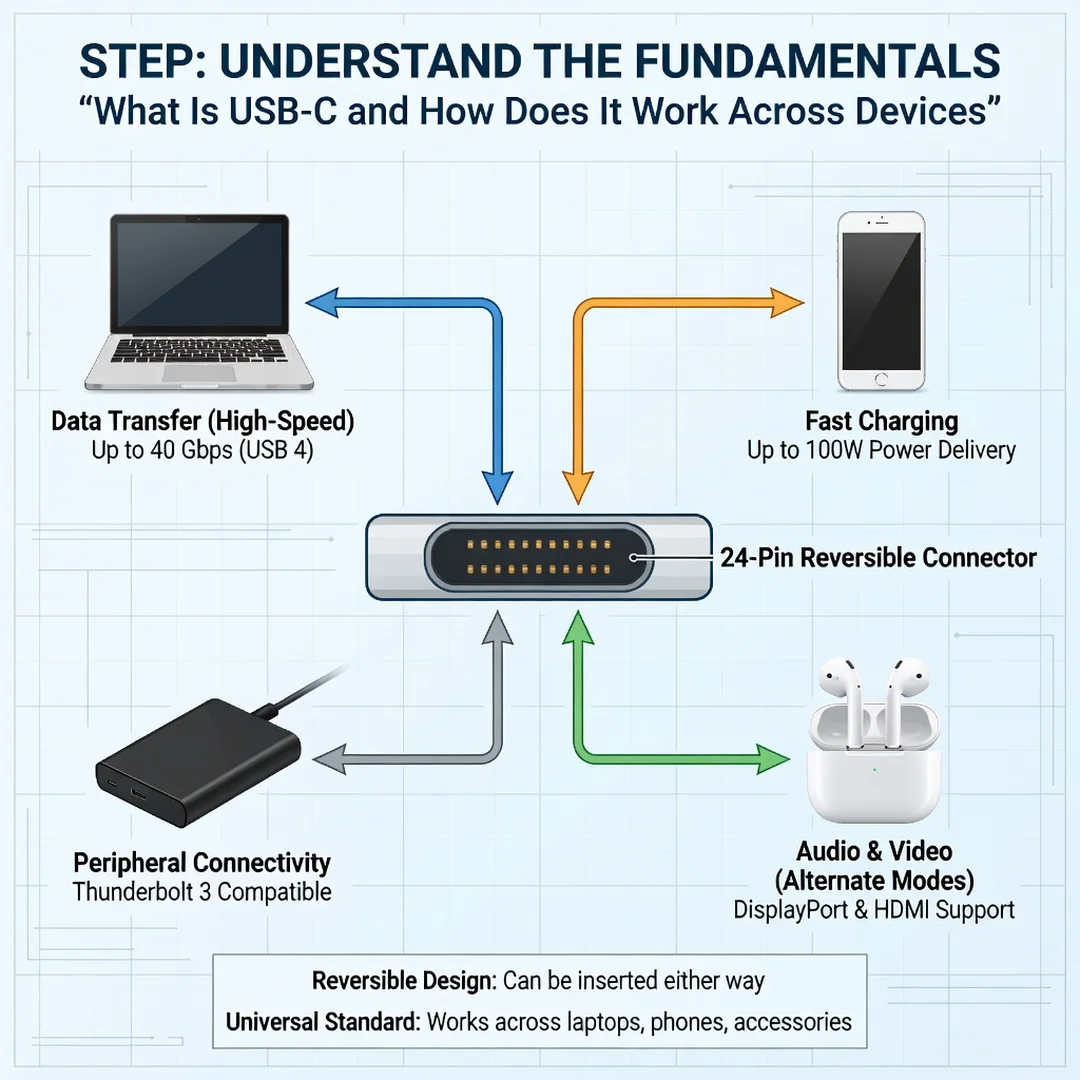
Step 1: Understand the fundamentals
Learn the difference between the connector shape and the standards it carries. Know that USB-C can support USB 2.0, USB 3.2, USB4, Thunderbolt, and USB PD. Understand that cables and ports have specific capabilities. This foundation helps you ask the right questions when buying or troubleshooting.
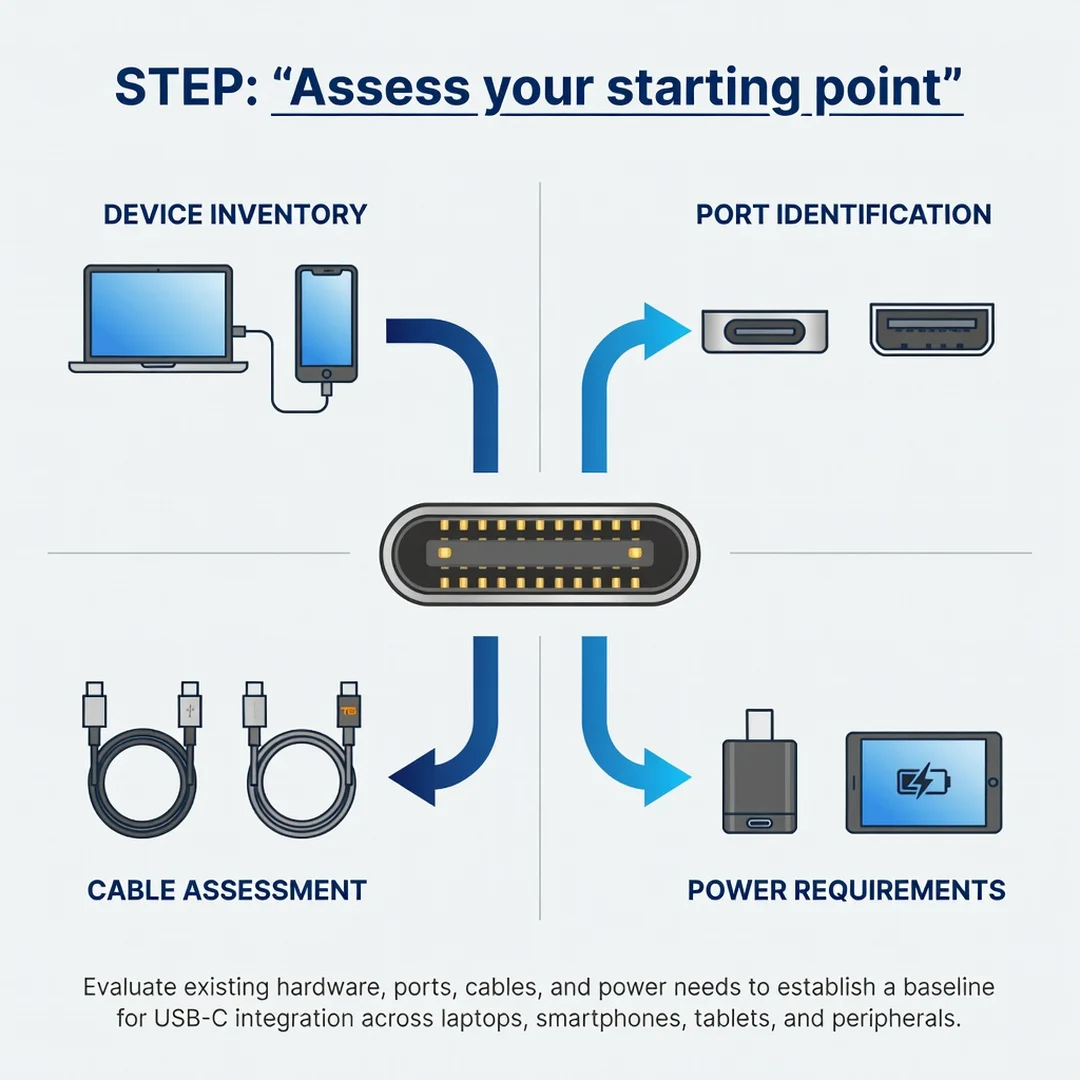
Step 2: Assess your starting point
List all your devices with USB-C ports. For each, note the port’s capabilities: charging wattage, data speed, and video support. Check your current cables. Identify which ones are power-only, which are USB 2.0, and which are high-speed. This inventory reveals gaps.
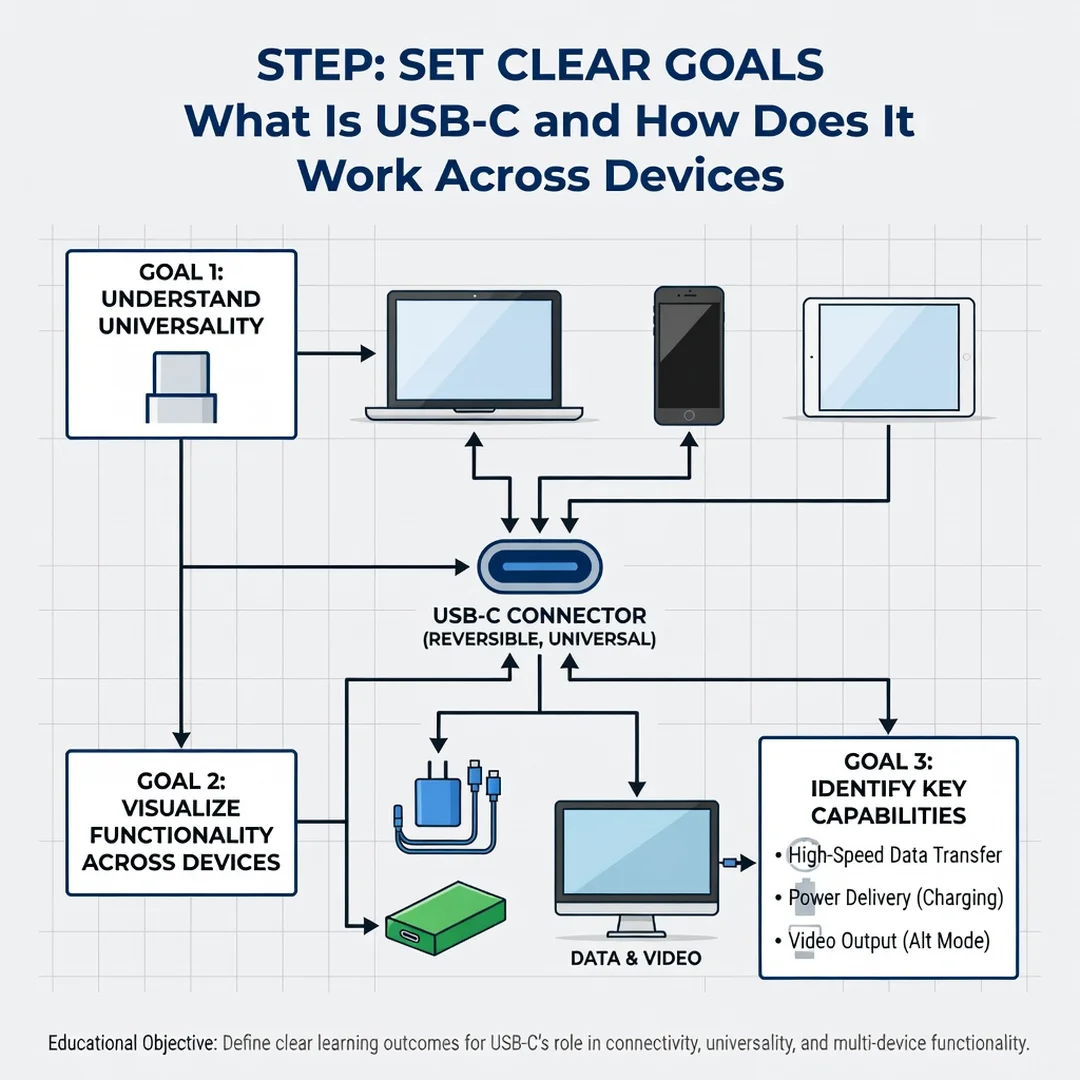
Step 3: Set clear goals
Decide what you want to achieve. Examples: charge a laptop at full speed, transfer large files quickly, connect an external monitor, or reduce cable clutter. Write down your goals. This guides your purchases and prevents buying unnecessary accessories.
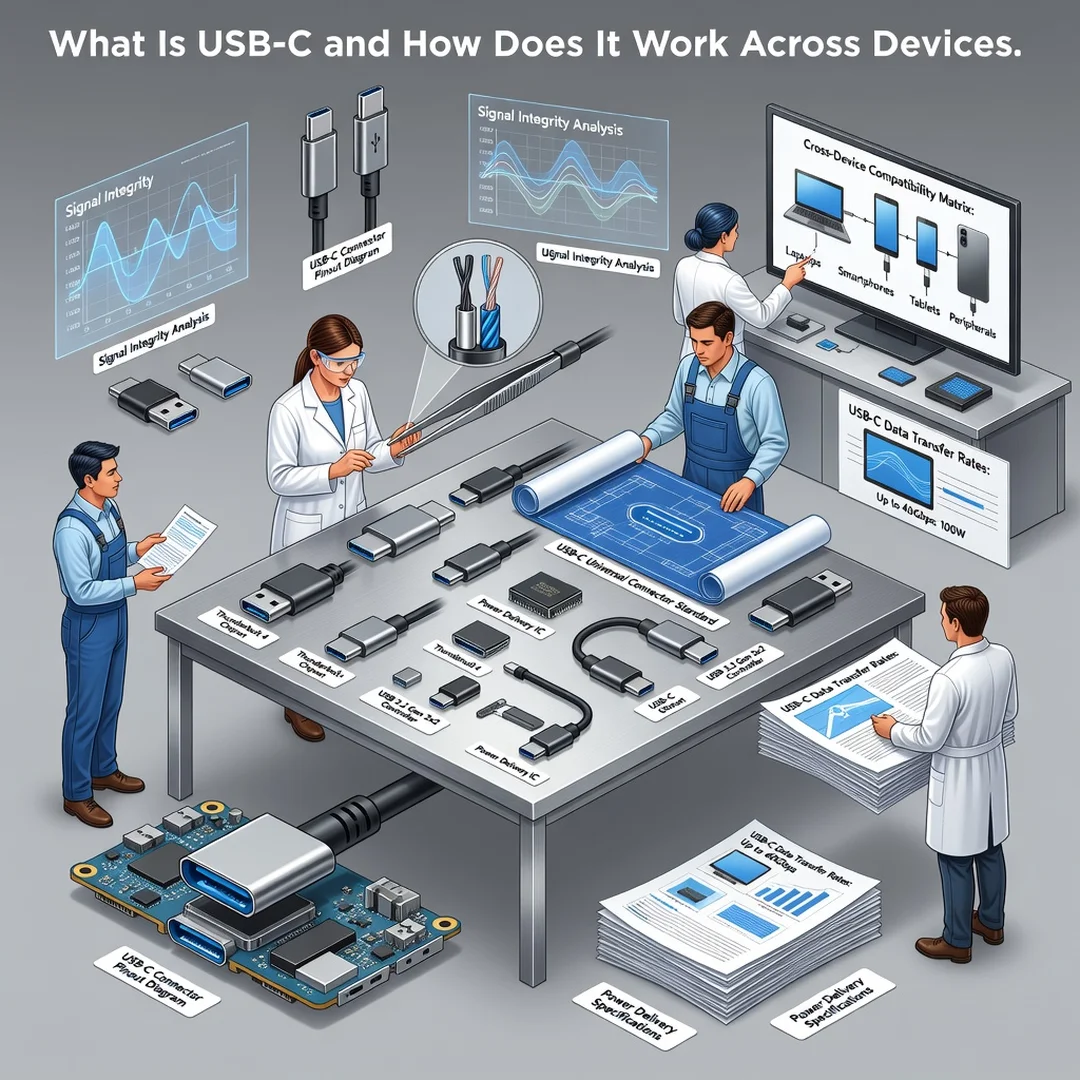
Step 4: Gather necessary resources
Based on your goals, acquire the right cables, chargers, and adapters. For laptop charging, get a USB PD charger with enough wattage and a 100W cable. For video, get a USB-C to DisplayPort or HDMI cable that supports your resolution and refresh rate. For data, get a USB4 or Thunderbolt cable. Keep a small pouch for travel cables.
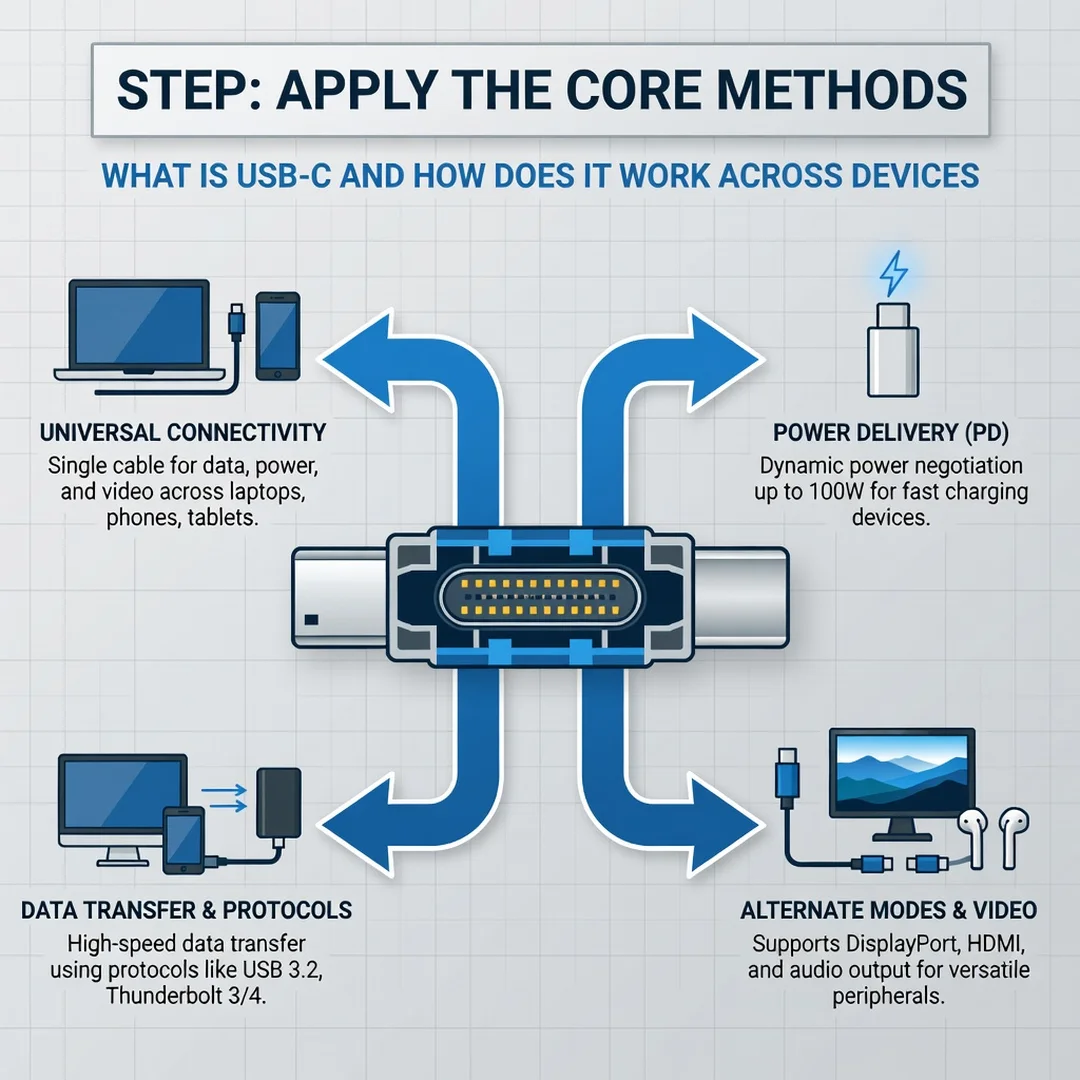
Step 5: Apply the core methods
Connect your devices using the correct cables and chargers. Test each function: charging, data transfer, and video output. If something does not work, swap the cable or port to isolate the issue. Use a USB power meter to check charging wattage. For data, run a speed test with a large file. For video, check display settings.
Step 6: Monitor your progress
Periodically review your setup. Are your cables still working reliably? Have your needs changed? Replace worn cables and upgrade when new standards become common. Keep a note of which cable works for which device. This ongoing maintenance ensures long-term satisfaction.
FAQ
What should I know about What Is USB-C and How Does It Work Across Devices?
You should know that USB-C is a connector shape, not a guarantee of speed or power. The same port can support different USB versions, power delivery levels, and video modes. Always check the specifications of your device and cable. Look for USB PD for charging, USB 3.2 or USB4 for data, and DisplayPort Alternate Mode or Thunderbolt for video. Not all cables are created equal, so buy certified products and match them to your needs.
Who is this guide for?
This guide is for anyone who uses USB-C devices and wants to make better decisions. That includes students, professionals, travelers, and home users. If you have ever been confused by slow charging, missing video output, or tangled cables, this guide is for you. It is also useful for people buying new laptops or phones who want to understand what the ports can actually do.
Conclusion
USB-C simplifies connections by using one small, reversible port for power, data, and video. But its flexibility also creates confusion. By understanding the key concepts, assessing your devices, setting clear goals, and following best practices, you can avoid common pitfalls. Remember that the cable and charger matter as much as the port. Reliable information and consistent habits lead to better long-term outcomes. With the step-by-step approach in this guide, you can confidently manage USB-C across all your devices and get the performance you expect.
Frequently Asked Questions
What should I know about What Is USB-C and How Does It Work Across Devices?
This guide covers the essentials of What Is USB-C and How Does It Work Across Devices with practical steps you can apply right away.
Who is this guide for?
Anyone looking for a clear, structured overview without unnecessary complexity.
You now have a solid foundation for What Is USB-C and How Does It Work Across Devices. Apply the best practices above and revisit this guide as your needs evolve.