
Few things are as frustrating as a Bluetooth device that refuses to connect right when you need it. Whether it’s your headphones dropping mid-playlist or your mouse lagging during a meeting, these glitches can disrupt your entire day. The good news? Most issues have simple fixes you can apply in minutes.
In this guide, we’ll walk you through how to fix common Bluetooth connection problems step by step — from pairing failures to constant disconnects. You’ll learn practical troubleshooting tips that work across phones, laptops, and accessories, so you can get back to seamless wireless connections fast.
Introduction
Bluetooth has become the invisible thread that connects our phones, laptops, earbuds, speakers, keyboards, and even cars. When it works, you barely notice it. When it fails, it can feel like a small but maddening roadblock in your day. You tap the pairing button, wait, and nothing happens. Or your headphones connect but the audio sounds choppy and distant. Or your device keeps dropping the connection every few minutes.
These problems are common, but they are also almost always fixable. The trick is to stop guessing and start troubleshooting in a logical order. This article explores How to Fix Common Bluetooth Connection Problems with clear, practical guidance. You do not need to be a tech expert. You just need a basic understanding of what Bluetooth is doing behind the scenes and a willingness to check a few settings.
Whether you are trying to pair a new device, restore a stable connection, or prevent future dropouts, the steps below will help you move from frustration to a reliable connection. Understanding the fundamentals of How to Fix Common Bluetooth Connection Problems helps you make informed decisions, and that is exactly what this guide is designed to do.
Key Concepts
Before you start changing settings, it helps to understand a few core ideas. Bluetooth is a short-range wireless technology that operates in the 2.4 GHz frequency band. That band is also used by Wi-Fi, cordless phones, microwaves, and many other devices. This shared space is often the root of connection problems.
Here are the key concepts you should know:
- Pairing vs. connecting: Pairing is the one-time exchange of security keys between two devices. Connecting is the ongoing link that allows them to communicate. A device can be paired but not connected, and that distinction matters when troubleshooting.
- Profile compatibility: Bluetooth devices use profiles for specific tasks, such as audio playback, hands-free calls, or file transfer. If a device does not support the right profile, it may pair but not function as expected.
- Interference: Because Bluetooth shares the 2.4 GHz band, physical obstacles and other wireless signals can weaken or disrupt the connection.
- Range and power: Most consumer Bluetooth devices work best within about 30 feet (10 meters) with a clear line of sight. Walls, metal, and even your body can reduce that range.
- Battery and power management: Low battery on either device, or aggressive power-saving settings, can cause dropouts.
- Software and firmware: Outdated drivers, operating system bugs, and stale firmware are frequent culprits.
Keeping these concepts in mind will help you diagnose problems faster. For example, if your headphones work fine next to your phone but cut out when you walk into another room, interference or range is the likely issue. If they never pair at all, you may be dealing with a compatibility or pairing-mode problem.
Deep Dive
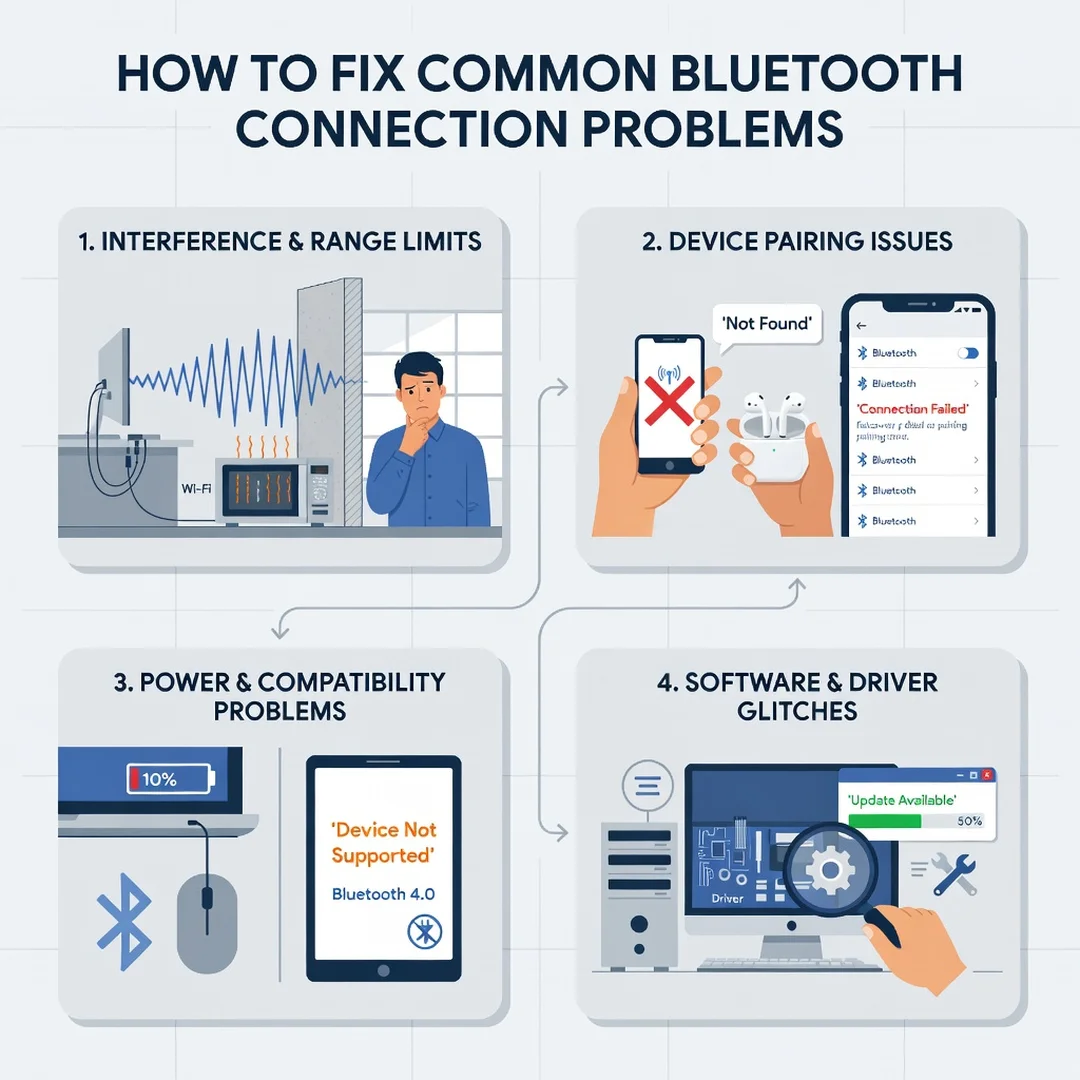
Now let us look at the most common Bluetooth problems and the specific fixes that resolve them. You can work through these in order, or jump to the issue that matches your situation.

Problem 1: The device will not pair
This is the classic “it just will not show up” problem. Start by making sure the device is in pairing mode. Many devices only become discoverable for a short window, often 30 to 60 seconds. If you miss that window, turn the device off and back on to restart pairing mode.
Next, check that Bluetooth is actually turned on and that your phone or computer is not already connected to too many devices. Some systems limit the number of simultaneous connections. Also, move the devices closer together during pairing. If it still fails, remove or “forget” old pairings for that device and try again. Stale pairing records are a surprisingly common cause of failure.
Problem 2: The device pairs but will not connect
If pairing succeeds but the connection never completes, the issue is often a profile mismatch or a software glitch. Try deleting the pairing from both devices and starting over. On computers, check that the correct Bluetooth service is enabled. On phones, make sure the device is not set as “unavailable” for calls or media. Restarting both devices clears temporary errors more often than people expect.
Problem 3: Audio is choppy, delayed, or distorted
Choppy audio usually points to interference or weak signal. Move the connected device closer to the source. Keep the path between them clear of walls and metal. If you are using a laptop, try a different USB port for any Bluetooth adapter, and avoid placing the adapter behind the laptop where the body blocks the signal.
You can also reduce interference by turning off nearby devices that use 2.4 GHz, such as cordless phones or older Wi-Fi routers. If your router supports it, switching your Wi-Fi to the 5 GHz band for other devices can free up the 2.4 GHz band for Bluetooth.
Problem 4: The connection keeps dropping
Frequent dropouts are often caused by power management. On Windows, open Device Manager, find your Bluetooth adapter, and check the Power Management tab. Disable the option that allows the computer to turn off the device to save power. On phones, check battery optimization settings for the app or accessory and set it to unrestricted.
Low battery in the accessory itself is another common cause. Charge it fully and test again. If dropouts happen only at a certain distance, the issue is range, not software.
Problem 5: One device works, another does not
If your headphones connect to your phone but not your laptop, the problem is almost always on the laptop side. Update the Bluetooth driver and the operating system. Some laptops have known Bluetooth issues that are fixed by driver updates from the manufacturer. If no update is available, uninstall the Bluetooth adapter in Device Manager, restart, and let the system reinstall it.
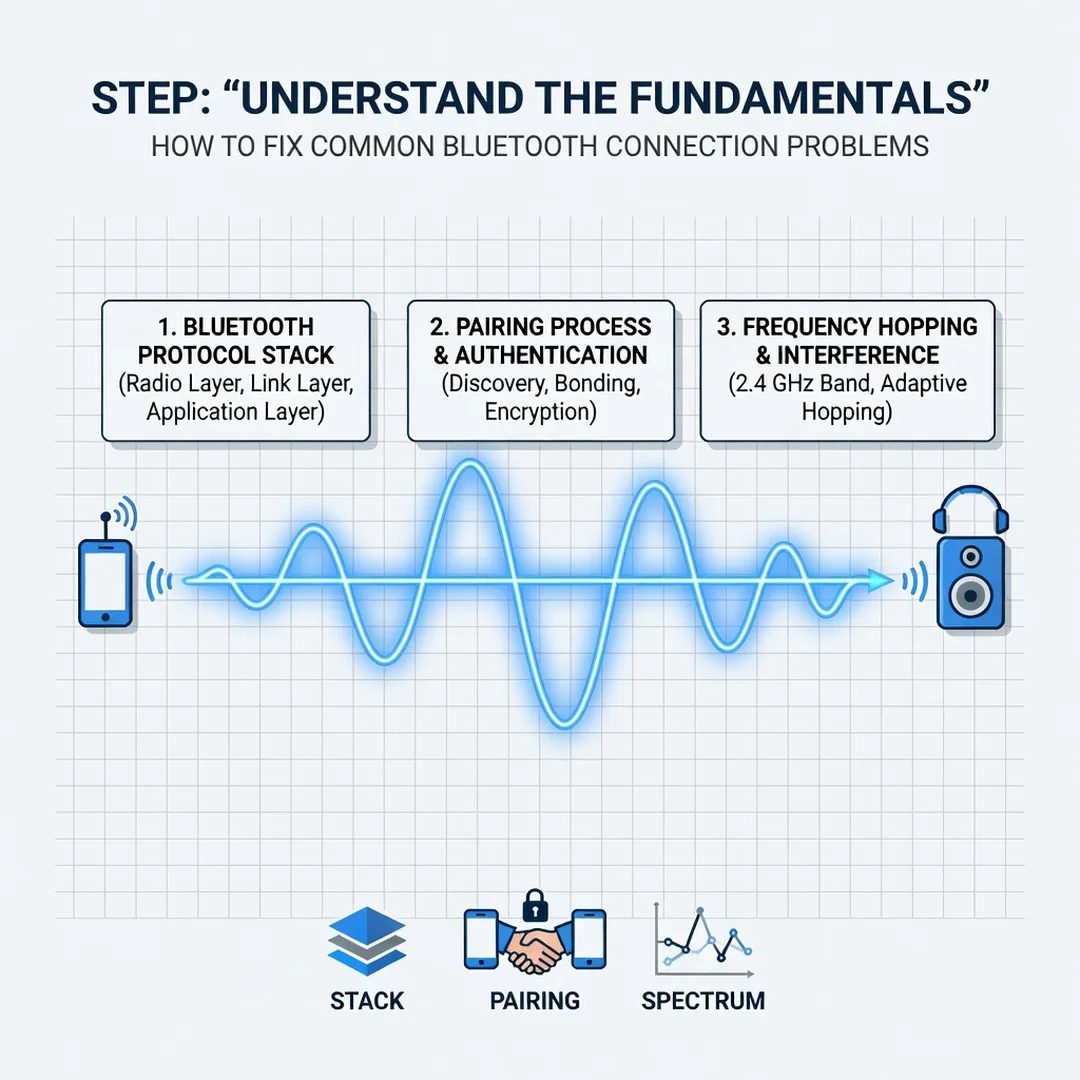
Step 1: Understand the fundamentals
Start by confirming what Bluetooth is and what it is not. It is a short-range, low-power wireless link, not a long-distance network. It shares airspace with Wi-Fi and other signals. Understanding this prevents you from expecting performance it cannot deliver and helps you focus on the right fixes.
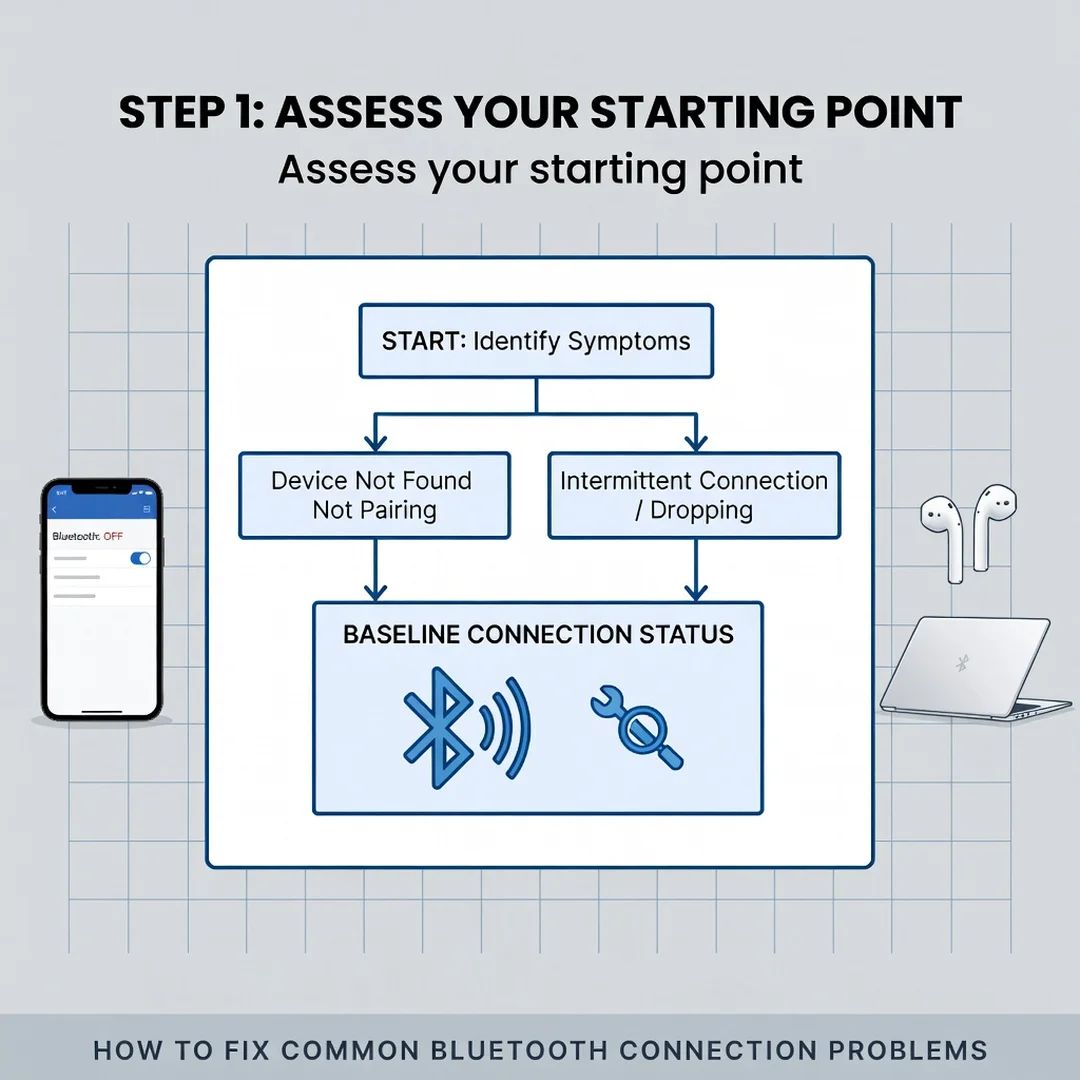
Step 2: Assess your starting point
Write down exactly what happens. Does the device not appear? Does it pair but fail to connect? Does it connect and then drop? Does audio stutter? The more specific your description, the easier it is to find the matching fix. Also note when the problem started and whether anything changed, such as a new router, a move, or a software update.
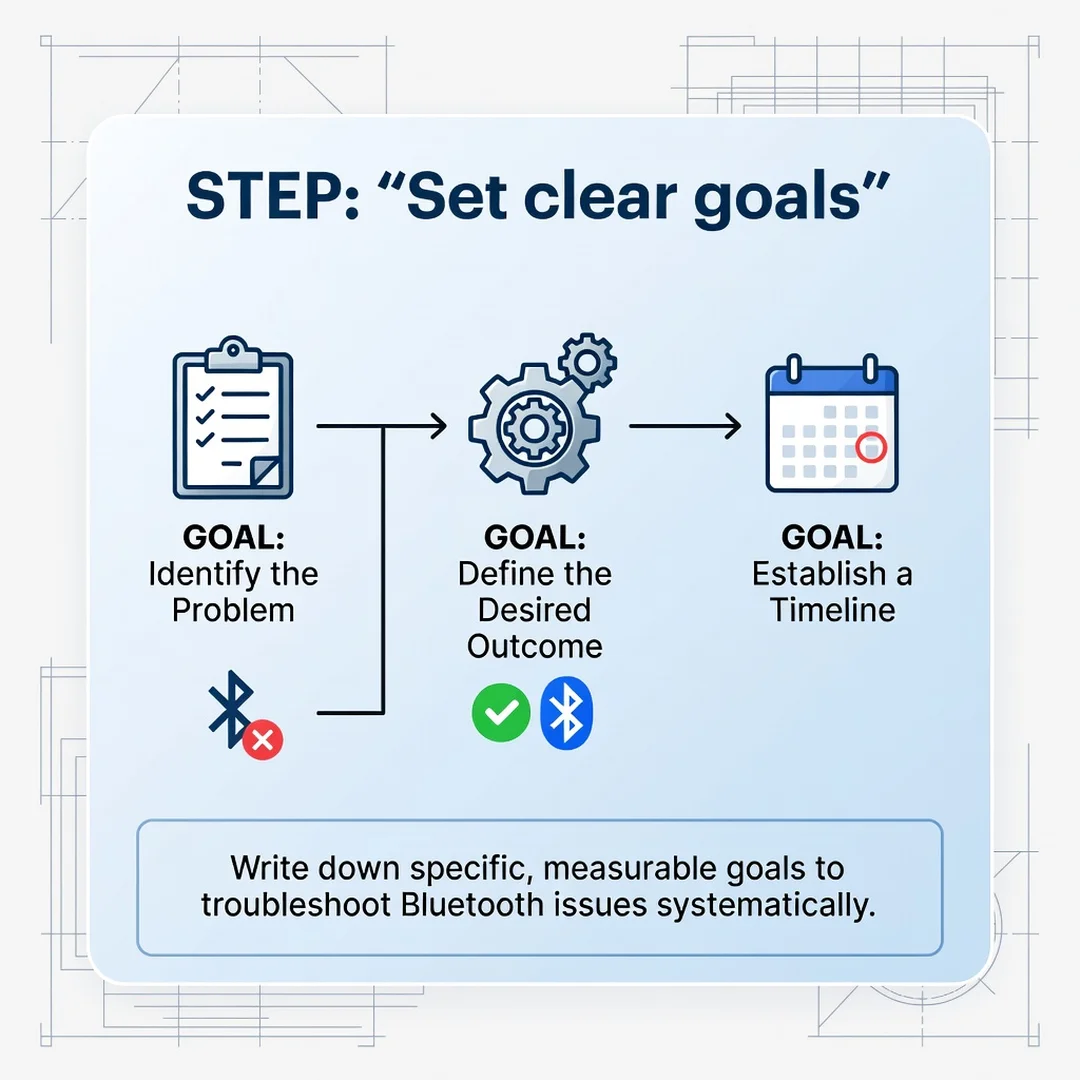
Step 3: Set clear goals
Decide what a successful outcome looks like. For most people, it means a stable connection with clear audio and no unexpected dropouts within a normal range. If you only need occasional file transfer, your standard may be different. Clear goals keep you from over-troubleshooting.
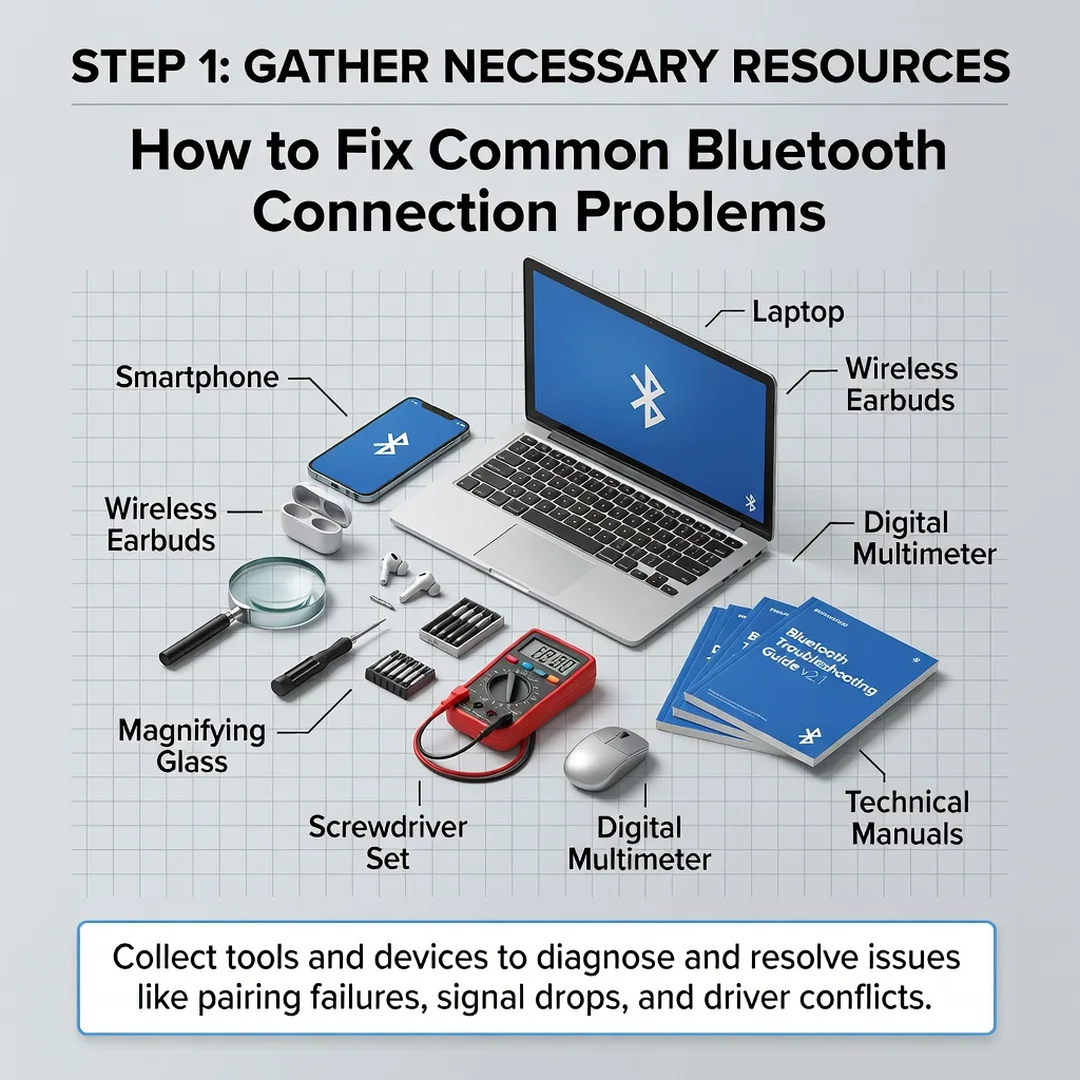
Step 4: Gather necessary resources
Collect what you need before you start: the device manuals, access to your operating system settings, and the manufacturer support pages for driver and firmware updates. A charged device and a quiet, low-interference room will make your tests more reliable.
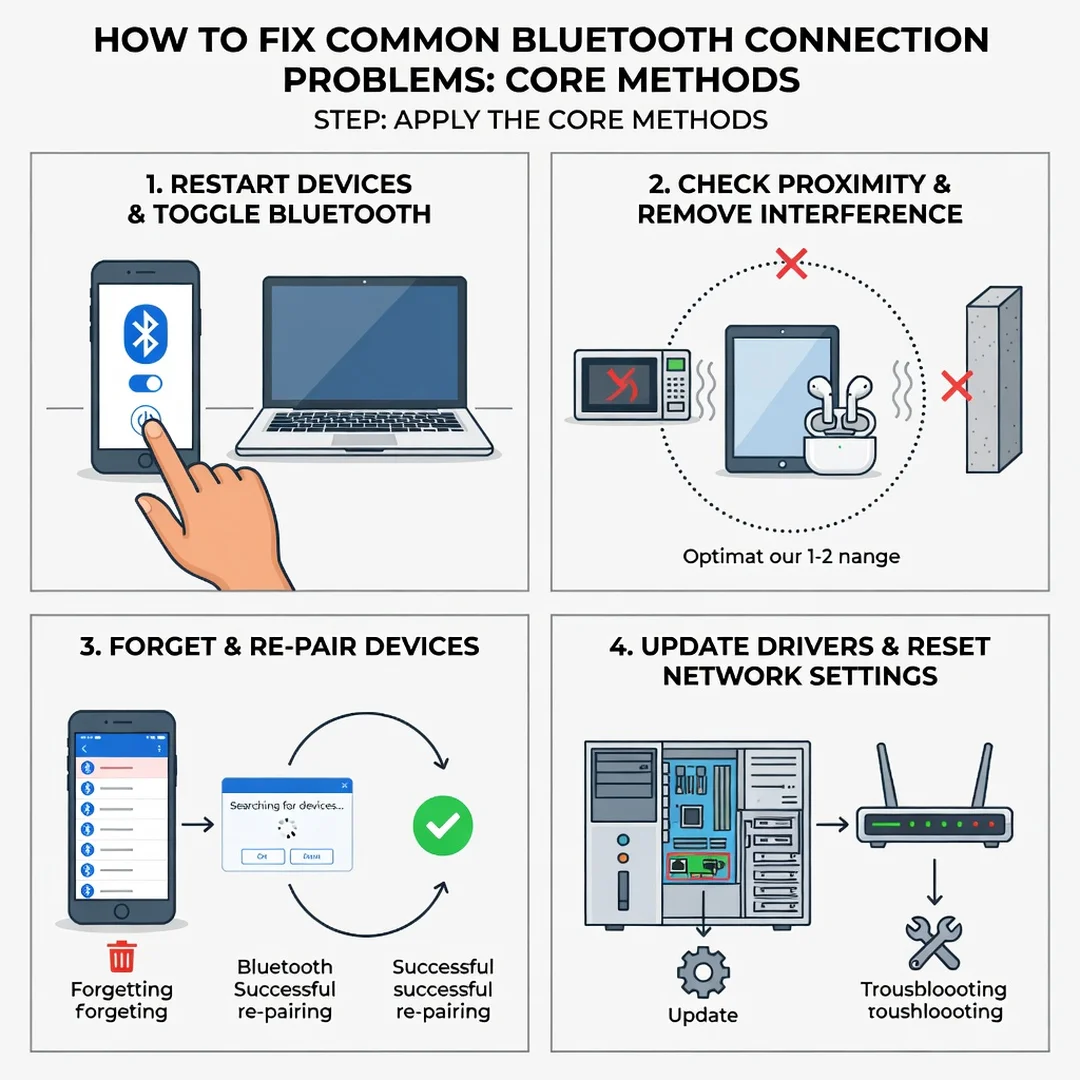
Step 5: Apply the core methods
Work through the fixes in order of least disruption. First, restart both devices and confirm Bluetooth is on. Second, remove and re-pair the device. Third, update software and firmware. Fourth, check power management and battery settings. Fifth, reduce interference by moving devices and disabling competing 2.4 GHz signals. Sixth, test range and line of sight. This sequence resolves the vast majority of common problems.
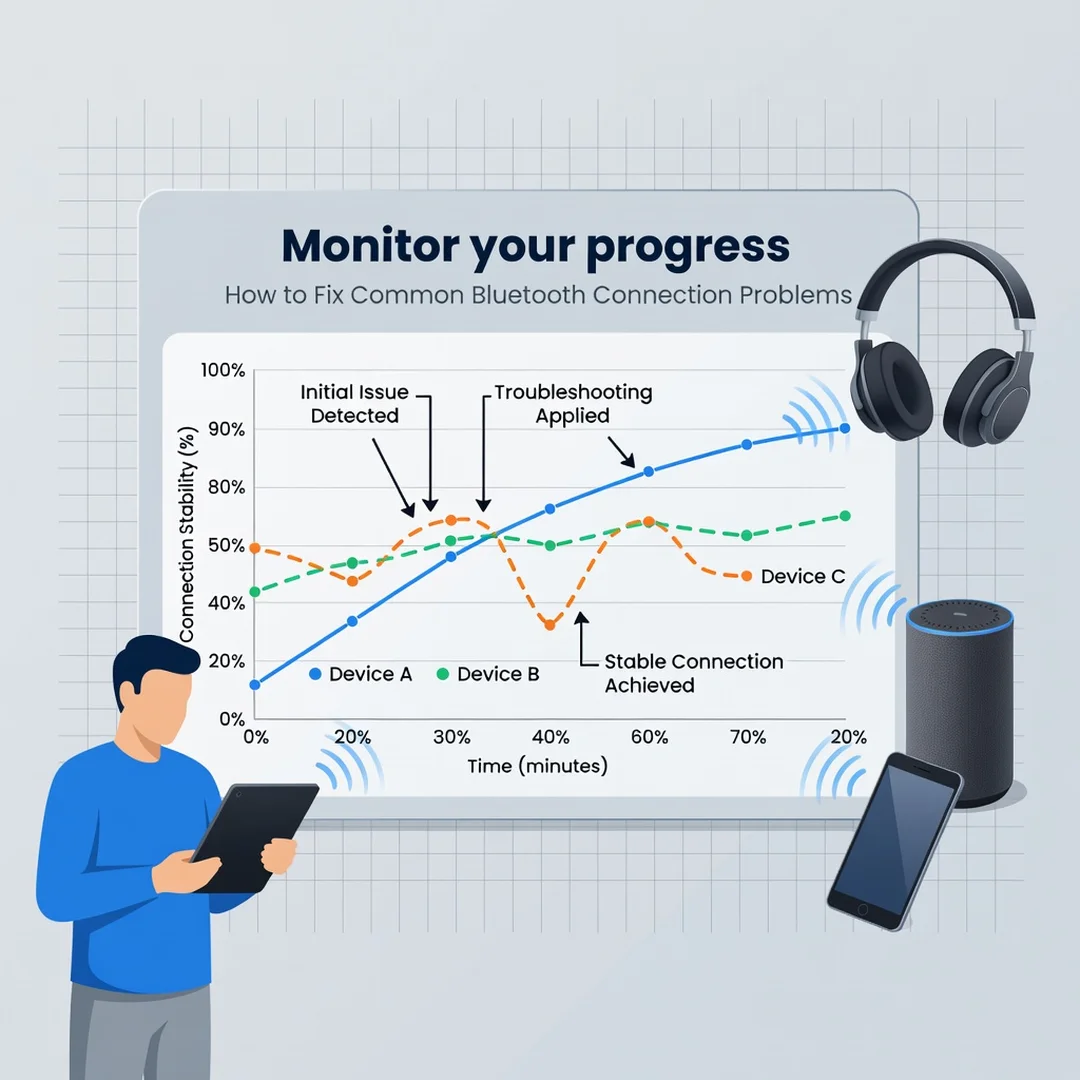
Step 6: Monitor your progress
After each change, test the connection for several minutes. Note whether the problem improves, stays the same, or gets worse. If a fix works, keep a record of what you did so you can repeat it later. If nothing works, you may have a hardware fault, and it is time to contact the manufacturer or try a different device.
Best Practices
Prevention is easier than repair. These habits will keep your Bluetooth connections stable over time.
- Keep firmware and drivers updated: Manufacturers release fixes for known Bluetooth bugs. Check for updates every few months.
- Remove unused pairings: A long list of paired devices can slow down discovery and cause conflicts. Forget devices you no longer use.
- Keep devices charged: Low battery is a leading cause of dropouts and pairing failures.
- Manage interference: Place your router and Bluetooth devices with some separation, and prefer 5 GHz Wi-Fi where possible.
- Stay within range: Keep connected devices within about 30 feet and avoid thick walls or metal enclosures.
- Restart regularly: A simple restart clears temporary glitches in both the accessory and the host device.
- Use one connection at a time when possible: Some devices struggle when connected to multiple hosts simultaneously.
Reliable information and consistent habits lead to better long-term outcomes. You do not need to become a Bluetooth expert, but a few good routines will save you a lot of frustration.
FAQ
What should I know about How to Fix Common Bluetooth Connection Problems?
Most Bluetooth problems come down to pairing errors, interference, outdated software, power management, or range. You can fix the majority of them by restarting devices, removing and re-pairing, updating software, disabling power-saving settings, and reducing interference. Understanding these fundamentals helps you make informed decisions instead of guessing.
Who is this guide for?
This guide is for anyone who uses Bluetooth devices and wants practical, non-technical solutions. It is written for general readers, whether you are pairing earbuds for the first time or trying to stabilize a connection that used to work perfectly. No advanced technical knowledge is required.
Conclusion
Bluetooth problems are rarely mysterious once you break them down. The connection fails because of pairing issues, interference, outdated software, power savings, or distance, and each of those has a clear fix. By working through the steps in order and applying the best practices above, you can restore a stable connection and keep it that way. Reliable information and consistent habits lead to better long-term outcomes, so take a few minutes to update, re-pair, and reduce interference today. Your devices.
You now have a solid foundation for How to Fix Common Bluetooth Connection Problems. Apply the best practices above and revisit this guide as your needs evolve.