
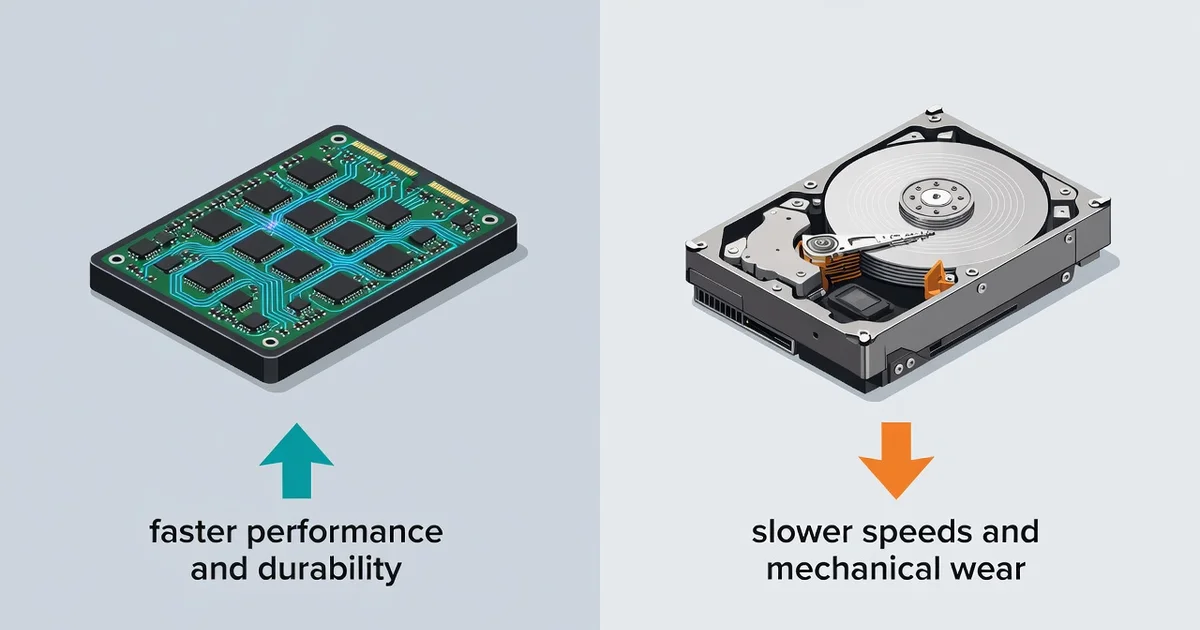
Choosing the right storage drive can make or break your computer’s speed, capacity, and overall value. The debate of SSD vs HDD comes down to a simple trade-off: lightning-fast performance versus budget-friendly space. Each technology excels in different situations, so the “better” option depends entirely on how you use your device.
In this guide, we break down speed, price, durability, and real-world use cases so you can pick the right drive with confidence—whether you’re upgrading a laptop, building a PC, or buying external storage.
Introduction
Every computer, laptop, game console, and server needs a place to store its data. For decades, the hard disk drive (HDD) was the only realistic option for most people. Then solid-state drives (SSDs) arrived, and the storage landscape changed permanently. Today, anyone buying a new machine or upgrading an existing one faces a genuine choice: SSD vs HDD — which storage technology is better for you?
This article explores SSD vs HDD with clear, practical guidance. Rather than declaring one technology the universal winner, it walks through how each drive works, where each one excels, and how to match the right storage to your actual needs. Understanding the fundamentals of this comparison helps you make informed decisions instead of relying on marketing claims or outdated assumptions. Reliable information and consistent habits lead to better long-term outcomes — whether you are choosing a drive for a gaming rig, a family laptop, a home server, or a professional workstation.
By the end, you will know the trade-offs in speed, capacity, durability, power use, and cost, and you will have a repeatable process for making the right call.
Key Concepts
Before comparing the two technologies, it helps to understand what each one actually is and the vocabulary used to describe them.
What is an HDD?
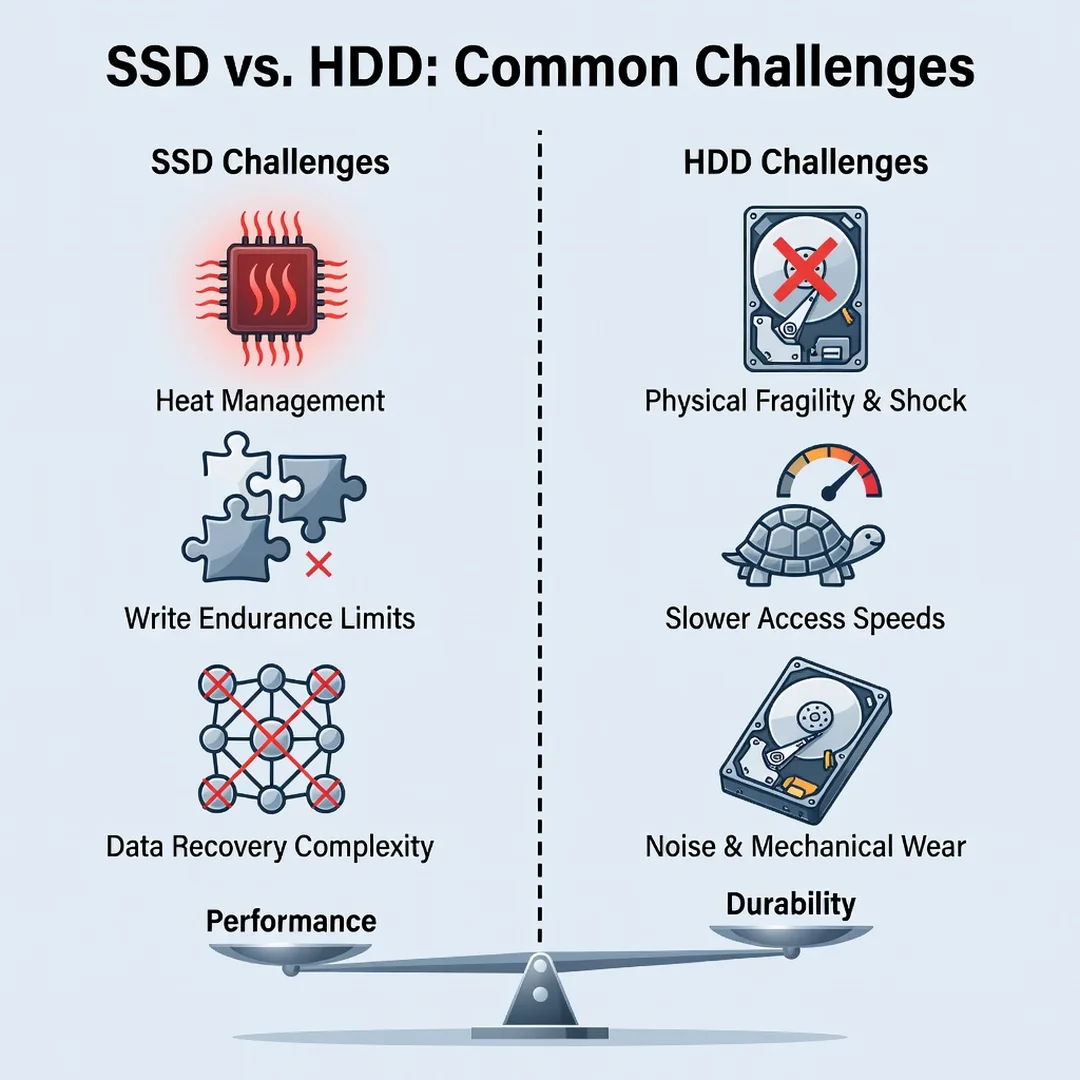
A hard disk drive stores data magnetically on one or more spinning platters. A mechanical arm with a read/write head moves across the platters to access information, much like a record player needle. Because physical parts must move, HDDs are sensitive to shock, generate noticeable noise and heat, and consume more power. Their great strength is cost per terabyte: large capacities remain remarkably cheap.
What is an SSD?
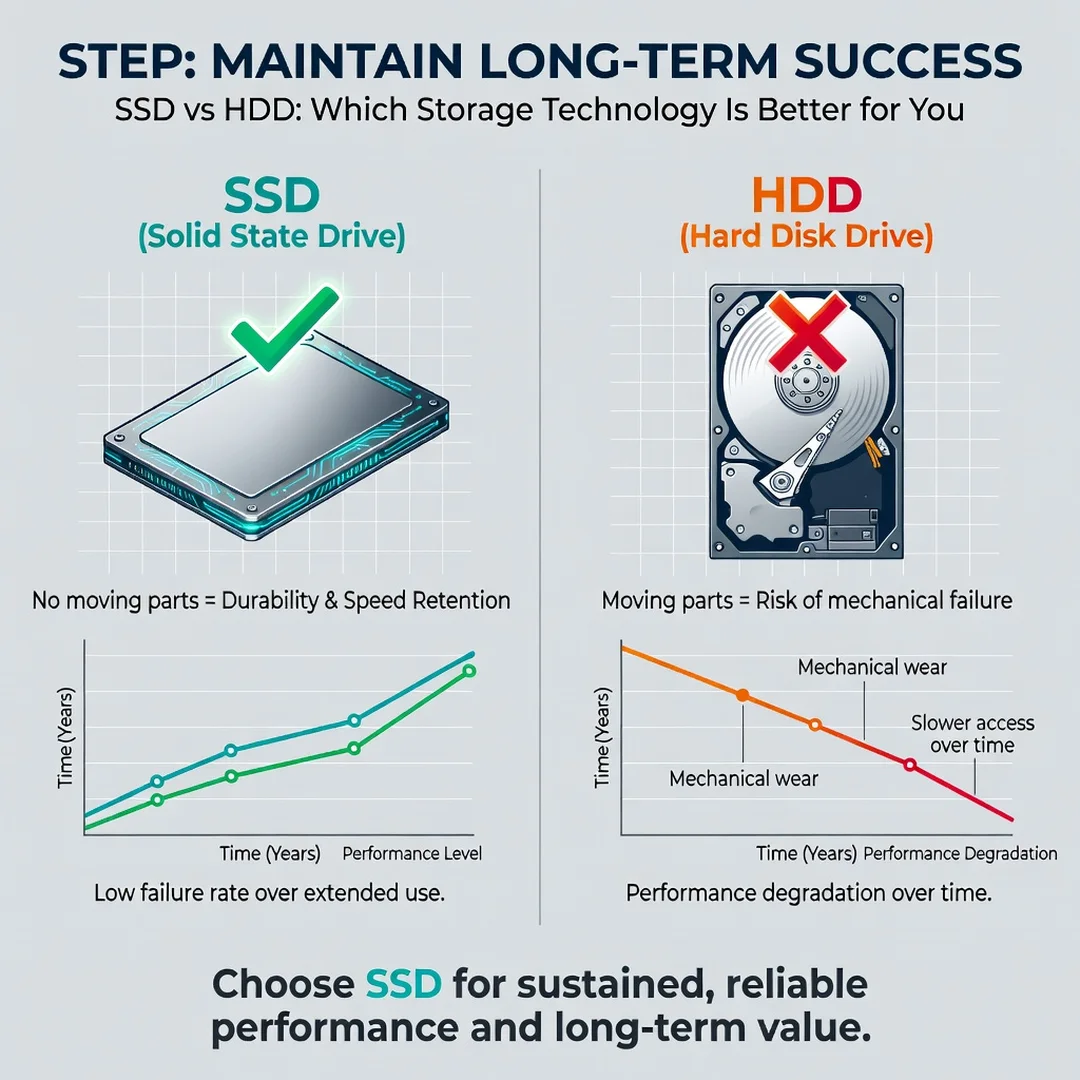
A solid-state drive stores data in flash memory chips with no moving parts. Access is entirely electronic, so it happens almost instantly. SSDs are silent, shock-resistant, and energy-efficient. The trade-off has traditionally been price: SSDs cost more per gigabyte, though that gap has narrowed considerably.
Interface and form factor
Both drive types connect through standard interfaces. SATA is the older, slower standard shared by many HDDs and some SSDs. NVMe drives connect directly through the PCIe bus and deliver far higher speeds. Form factors include 3.5-inch and 2.5-inch drives for desktops, plus M.2 sticks that slot directly into a motherboard.
Key performance terms
- Sequential speed: how fast large files transfer — important for video editing and big backups.
- Random access: how quickly small scattered files load — crucial for operating systems and applications.
- Latency: the delay before data begins transferring; SSDs win by a wide margin.
- Endurance: how much data can be written over a drive’s lifetime, measured in terabytes written (TBW).
Deep Dive
With the basics covered, the real question is how these differences play out in daily use.
Speed and responsiveness
This is the most dramatic difference. A SATA SSD is roughly five to ten times faster than a typical HDD for random operations. An NVMe SSD can be many times faster again. In practice, an SSD makes a computer boot in seconds rather than minutes, opens applications almost instantly, and keeps the system responsive during heavy multitasking. For most users, this single factor is the strongest argument for an SSD.
Capacity and cost
HDDs still win on raw capacity per dollar. If you need to store many terabytes of video, photo archives, or backups, a large HDD is far more economical. SSDs, however, have become affordable at the 1TB–2TB range, which covers the needs of most households and professionals. The sensible modern approach is often a hybrid: a fast SSD for the operating system and active projects, plus a spacious HDD for bulk storage.
Durability and reliability
Because SSDs have no moving parts, they tolerate drops, vibration, and travel far better — a major advantage for laptops. HDDs can fail from physical shock or mechanical wear. That said, both technologies can fail, and neither removes the need for backups. SSDs have a finite write endurance, but for typical users that limit is rarely reached before the drive becomes obsolete.
Power, noise, and heat
SSDs draw less power, run cooler, and produce no sound. This matters for laptops (longer battery life), for quiet home theaters, and for compact builds where airflow is limited. HDDs are audibly spinning and clicking, and they add heat inside small cases.
Use-case scenarios
- General home or office PC: SSD for the system drive; add an HDD only if you store large media libraries.
- Gaming: SSDs dramatically reduce load times and eliminate texture pop-in; NVMe is ideal for modern titles.
- Video editing and creative work: fast NVMe SSD for active projects, large HDD or NAS for archived footage.
- Home server or NAS: HDDs offer the best capacity per dollar; a small SSD cache can speed up frequent files.
- Laptop on the move: SSD only — durability and battery life outweigh the cost.
The pattern is consistent: use SSDs where speed and responsiveness matter, and HDDs where bulk capacity at low cost matters. Understanding these fundamentals helps you make an informed decision rather than following blanket advice that may not fit your situation.
Best Practices
Choosing storage is easier when you follow a few proven habits.
- Match the drive to the workload. Buy speed for system and application drives, capacity for archives.
- Never rely on a single drive. Keep at least one backup, ideally following the 3-2-1 rule: three copies, two media types, one off-site.
- Leave free space. Both SSDs and HDDs perform better and last longer when not filled to the brim; aim to keep 10–15% free.
- Check compatibility first. Confirm your motherboard supports the M.2, SATA, or NVMe drive you intend to buy.
- Buy from reputable brands. Warranty length and TBW ratings are useful indicators of quality.
- Monitor drive health. Tools like SMART reporting warn you before a failure becomes data loss.
- Plan for growth. Storage needs tend to grow, not shrink; choose a path that lets you add capacity later.
Step-by-Step Guide to Choosing Your Storage
Step 1: Understand the fundamentals
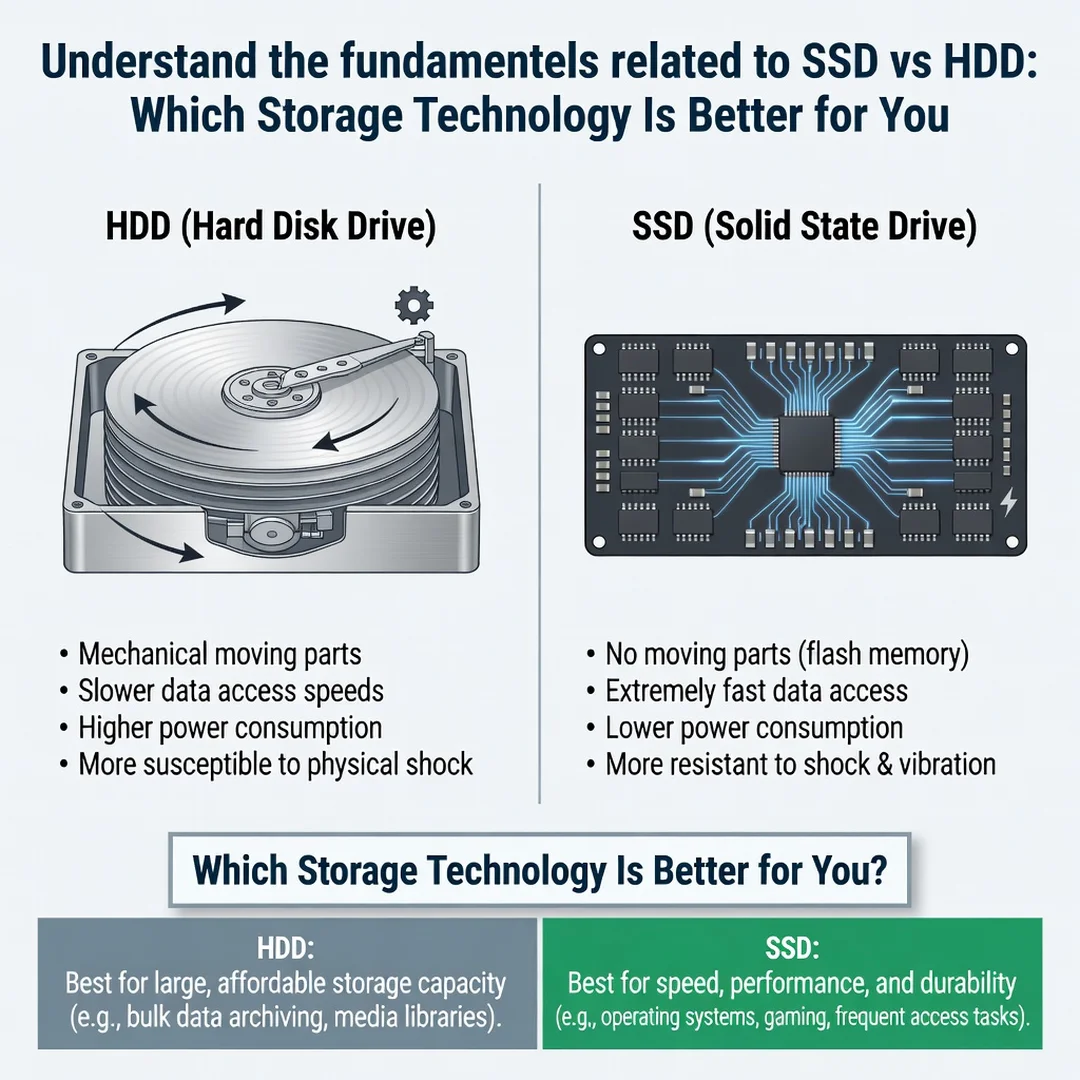
Start by recalling the core distinction: HDDs offer large capacity at low cost, while SSDs offer speed, silence, durability, and efficiency at a higher price per gigabyte. Write down which of these factors matters most in your situation. If you are unsure, remember that responsiveness is what most people notice day to day, while capacity is what they notice when a drive fills up.
Step 2: Assess your starting point
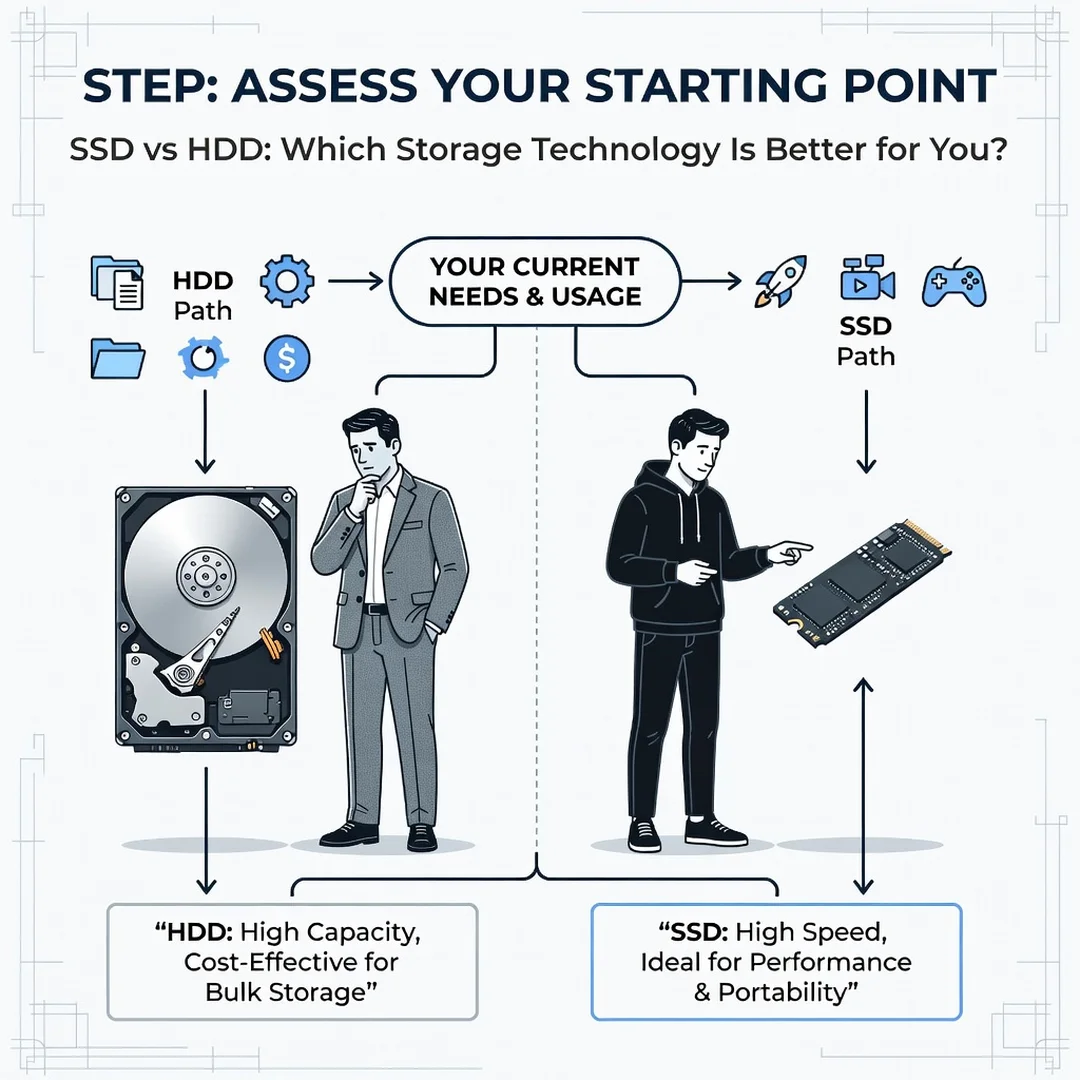
Examine the device you are upgrading or buying. What interface does it support — SATA, M.2 SATA, or M.2 NVMe? How much storage do you currently use, and how much of that is active versus archived? Identify your bottlenecks: does the machine feel slow when opening apps (a speed problem), or are you constantly deleting files to free space (a capacity problem)? A clear diagnosis prevents overspending.
Step 3: Set clear goals
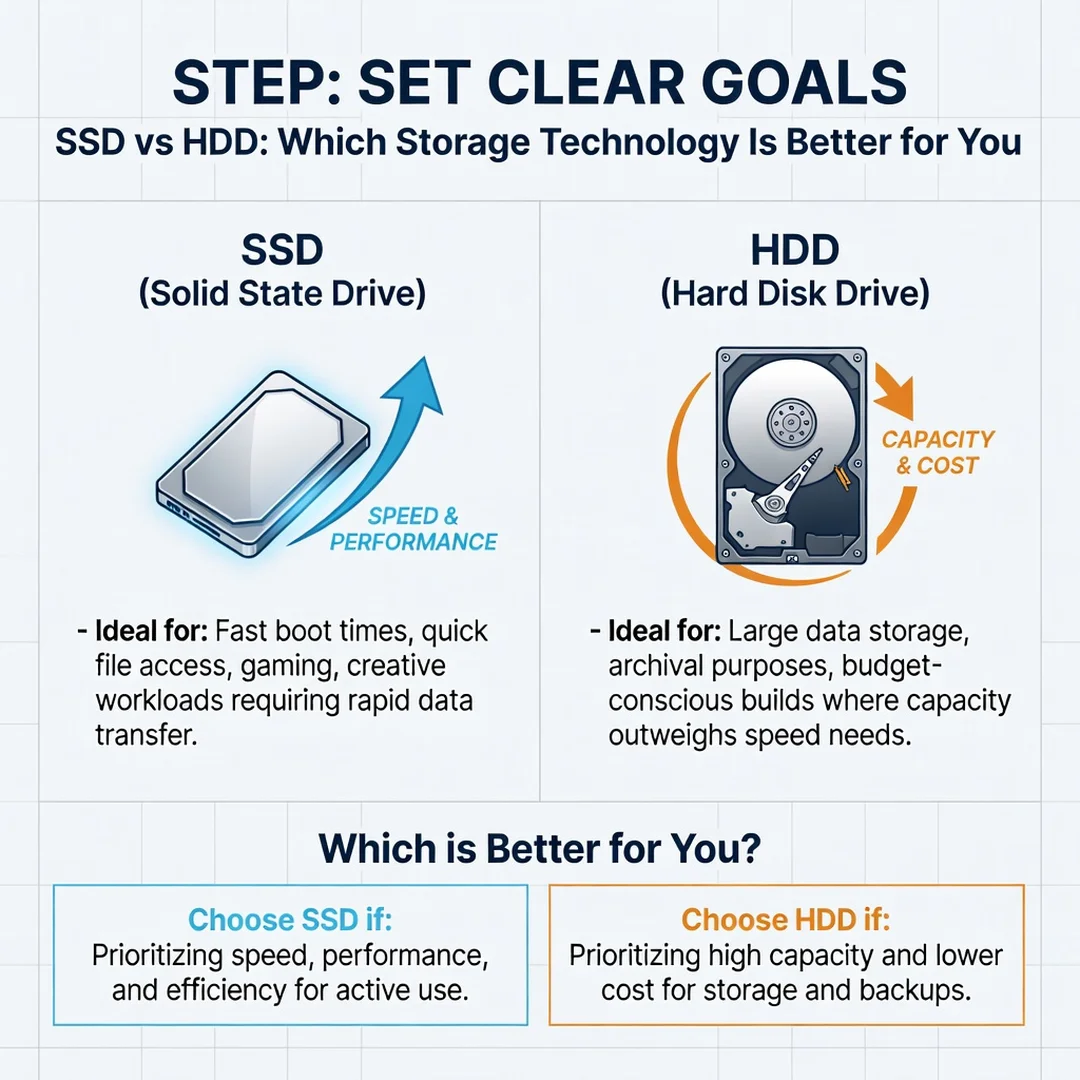
Define what success looks like in concrete terms. Goals might include: “boot in under 15 seconds,” “store five years of family photos without external drives,” or “keep game load times under 10 seconds.” Specific goals let you choose between a 1TB NVMe SSD, a 4TB HDD, or a combination of both, rather than guessing.
Step 4: Gather necessary resources
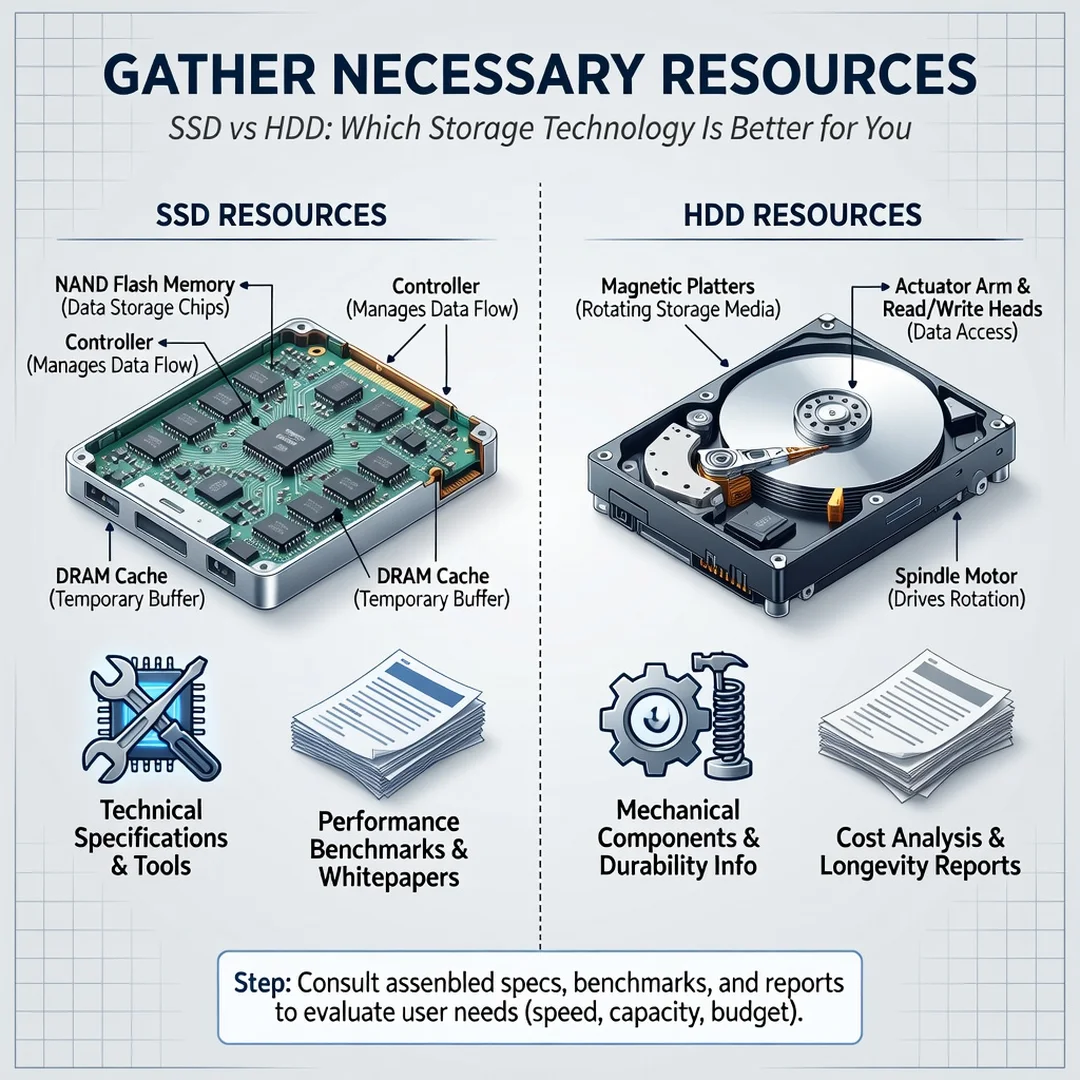
Collect what you need before buying: your budget, the drive’s required interface, any mounting brackets or cables, and cloning or backup software if you plan to migrate an existing system. If you are transferring data, ensure you have a spare drive or cloud space to hold your files during the process. A few minutes of preparation here avoids hours of frustration later.
Step 5: Apply the core methods
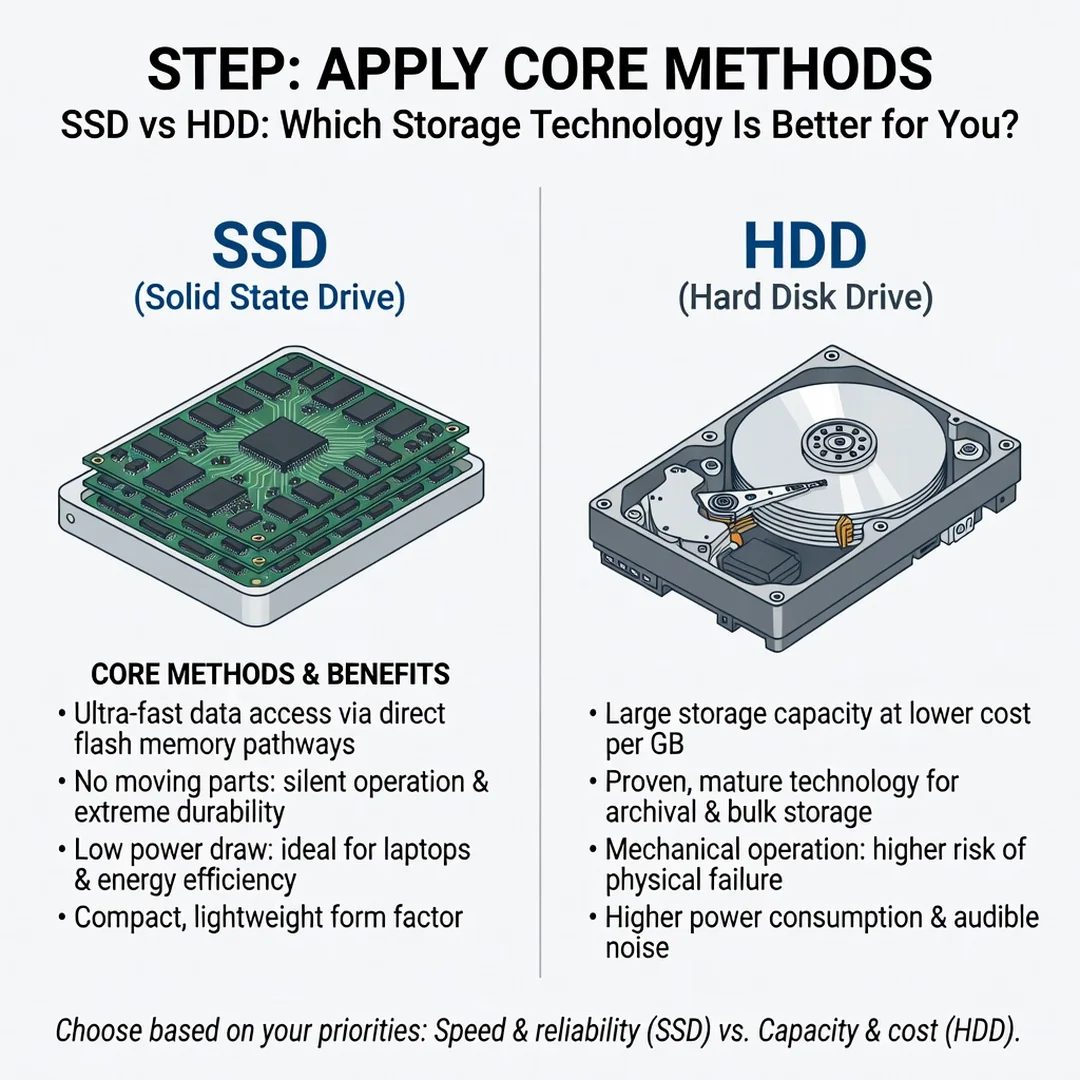
Now put the plan into action. For a typical desktop, install the SSD as the primary boot drive and keep the HDD as secondary storage. For a laptop, replace the existing drive with an SSD of adequate capacity. If budget is tight, prioritize a smaller SSD for the operating system and pair it with a larger HDD for files. When migrating, clone your system or perform a clean install, then restore your data from backup. Verify that the drive is recognized, formatted correctly, and running at its expected speed.
Step 6: Monitor your progress
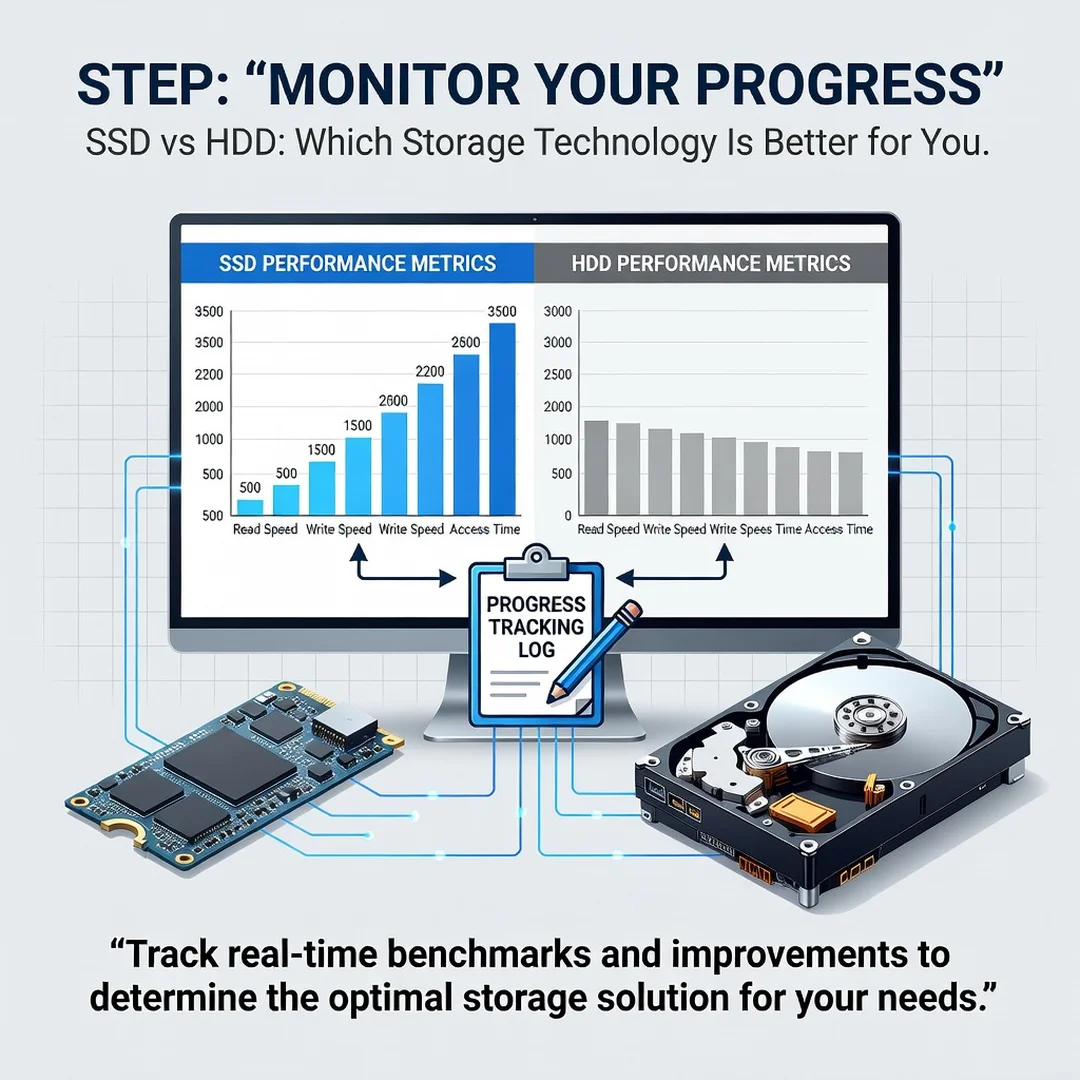
After installation, track whether your goals are being met. Check boot times, application launch speed, and available free space. Set a calendar reminder to review drive health every few months using SMART tools, and confirm that backups are actually completing. Consistent habits — regular backups, health checks, and cleanup — lead to better long-term outcomes than any single purchase decision.
FAQ
What should I know about SSD vs HDD: Which Storage Technology Is Better for You?
The key takeaway is that neither technology is universally better; the right choice depends on your priorities. Choose an SSD when speed, durability, quiet operation, and energy efficiency matter most — for operating systems, applications, gaming, and laptops. Choose an HDD when you need maximum capacity at the lowest cost per terabyte — for archives, backups, media libraries, and servers. Many users get the best results by combining both: an SSD for everyday performance and an HDD for bulk storage. Also remember that whichever you choose, regular backups and periodic health monitoring are essential.
Who is this guide for?
This guide is for anyone making a storage decision: people buying a new computer, upgrading an older one, building a gaming PC, setting up a home server, or managing files for a small business. It assumes no technical background and provides practical, actionable guidance. If you want to understand the trade-offs between SSDs and HDDs and choose confidently, this article is written for you.
Conclusion
The SSD versus HDD debate has a practical answer: use SSDs where speed and responsiveness matter, and use HDDs where capacity and cost matter. For most people, the ideal setup combines both — a fast SSD as the primary drive and a spacious HDD for archives and backups. By understanding the fundamentals, assessing your starting point, setting clear goals, gathering the right resources, applying proven methods, and monitoring your results, you can make a decision that serves you well for years. Reliable information.
You now have a solid foundation for SSD vs HDD: Which Storage Technology Is Better for You. Apply the best practices above and revisit this guide as your needs evolve.