
Finding the best laptop for everyday productivity doesn’t have to be overwhelming. Whether you’re a beginner setting up your first home office or an IT administrator standardising devices across a team, the right balance of performance, battery life, and price makes all the difference.
In this guide, we break down the key specs that matter, from processors and RAM to displays and ports, so you can choose a reliable laptop that handles emails, documents, video calls, and multitasking with ease. Let’s find the perfect fit for your daily workflow.
Introduction
Choosing the best laptop for everyday productivity is a practical decision that affects how quickly you can write documents, manage email, join video calls, and run business applications. For beginners, the terminology can feel overwhelming. For IT administrators, the challenge is selecting hardware that is standardized, secure, and easy to support across an organization. This guide covers How to Choose the Best Laptop for Everyday Productivity in practical, step-by-step detail, bridging both perspectives with verifiable specifications and repeatable setup procedures.
Everyday productivity typically means multitasking among a web browser with many tabs, a word processor, a spreadsheet, a PDF reader, a video conferencing client, and a lightweight line-of-business app. Unlike gaming or 3D rendering, this workload depends more on memory, storage speed, display quality, keyboard comfort, and battery life than on raw graphics power. A well-chosen laptop should feel responsive for three to five years without frequent repairs or forced upgrades.
This article treats laptop selection and initial software installation as a single workflow. The reason is simple: the hardware you pick determines which operating systems and applications you can install. Always verify software compatibility with your hardware architecture (ARM64 vs x86) before purchase. A laptop with an ARM64 processor may not run legacy x86 drivers or certain VPN clients, while an x86-64 machine offers broader compatibility with older enterprise software.
Keeping your operating system updated before installation prevents dependency conflicts. Many application installers rely on specific runtime libraries, code-signing certificates, or kernel features that are only present in recent OS builds. Whether you choose Windows, macOS, or a Linux distribution, patch the base system first, then install productivity software.
Prerequisites
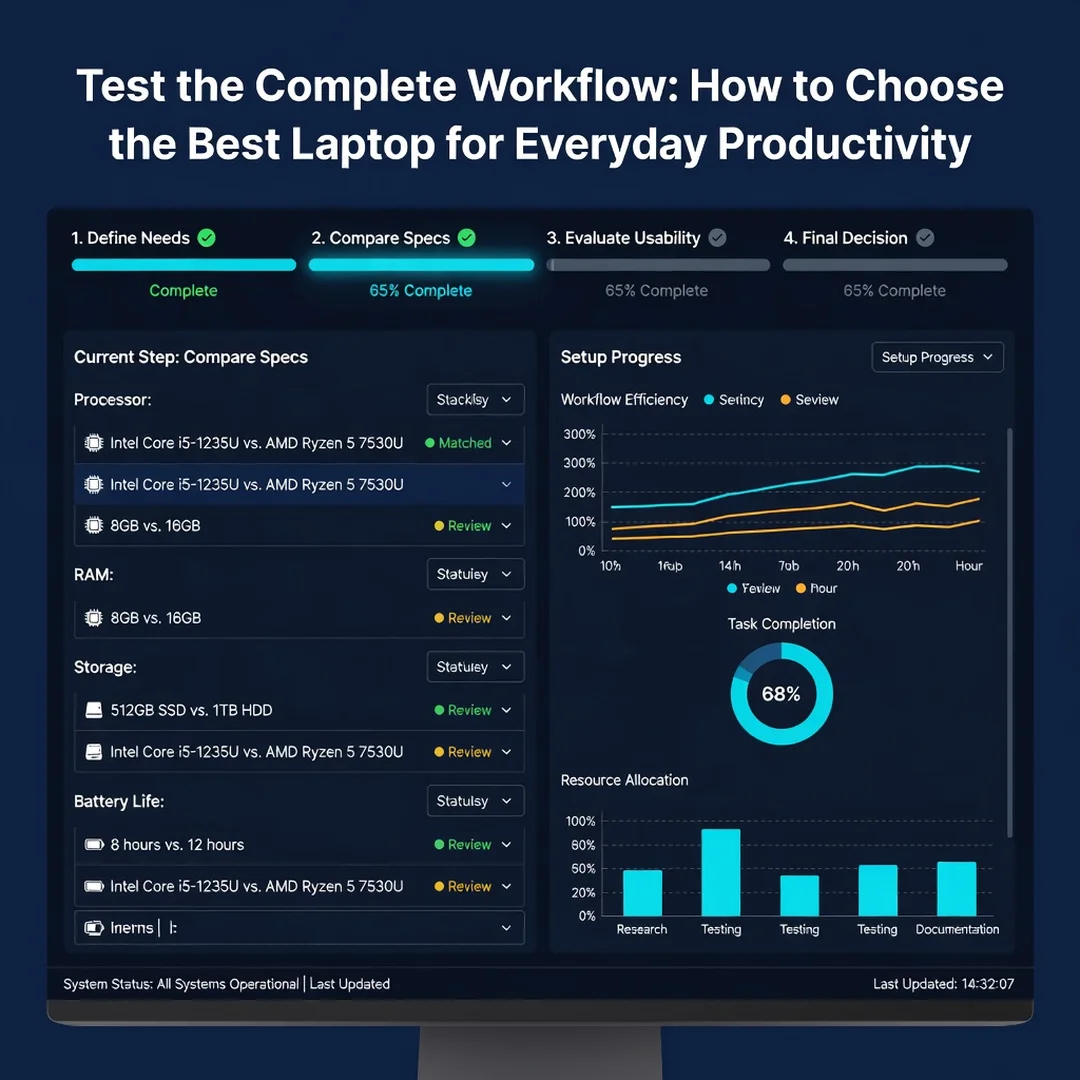
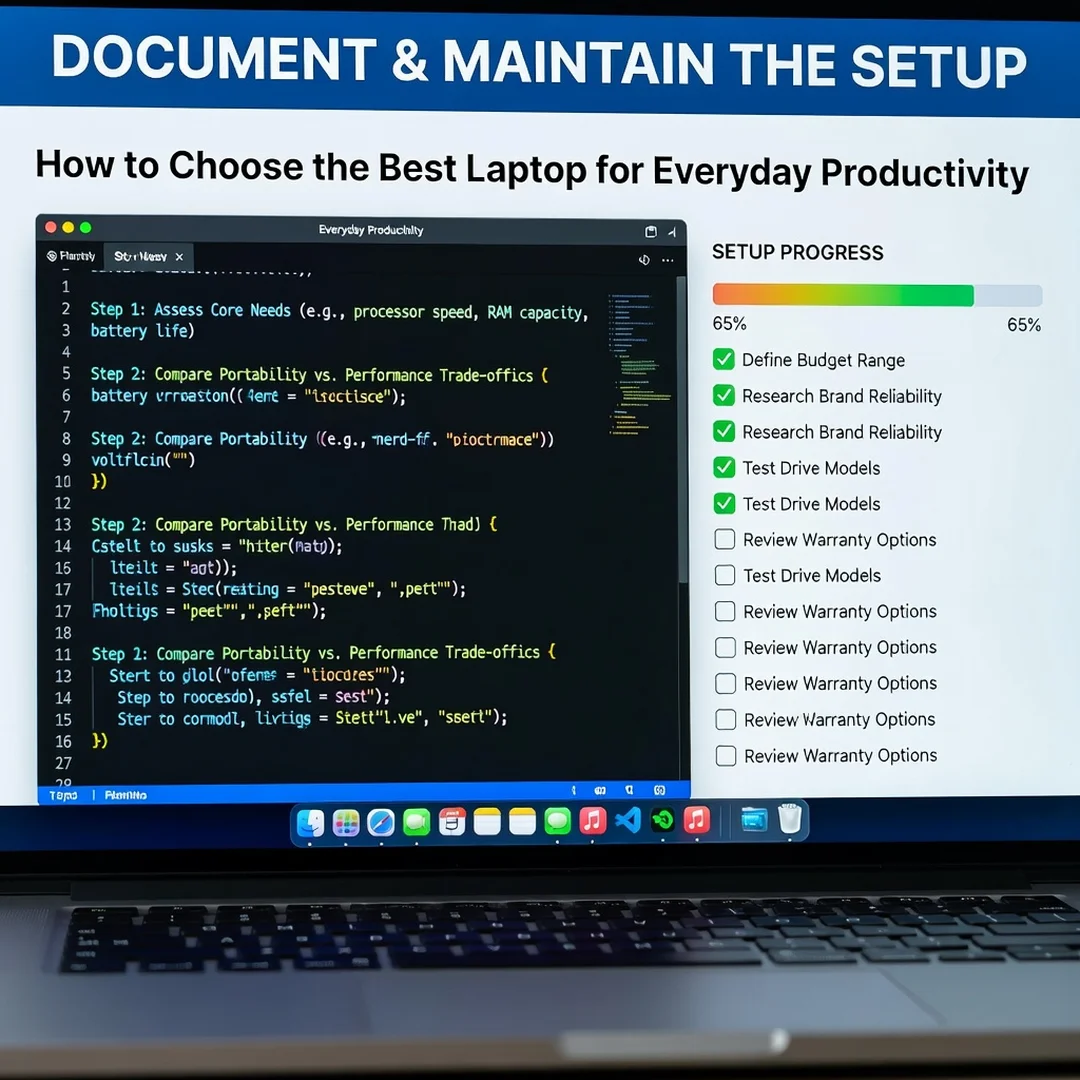
Before comparing models or adding items to a shopping cart, gather the requirements for your actual workload. Prerequisites fall into three groups: business requirements, technical requirements, and support requirements.
Business and user requirements
- Identify the primary applications: office suite, browser, CRM, VPN, endpoint protection, and communication tools.
- Confirm whether the laptop must join a domain, enroll in mobile device management (MDM), or support zero-touch provisioning.
- Determine the required ports: USB-A, USB-C, HDMI, Ethernet, or a docking station connector.
- Set a realistic budget per unit, including warranty, dock, and carrying case.
Technical requirements
- Processor architecture: ARM64 (e.g., Apple Silicon, Qualcomm Snapdragon) or x86-64 (Intel Core, AMD Ryzen). Verify each business app supports the chosen architecture.
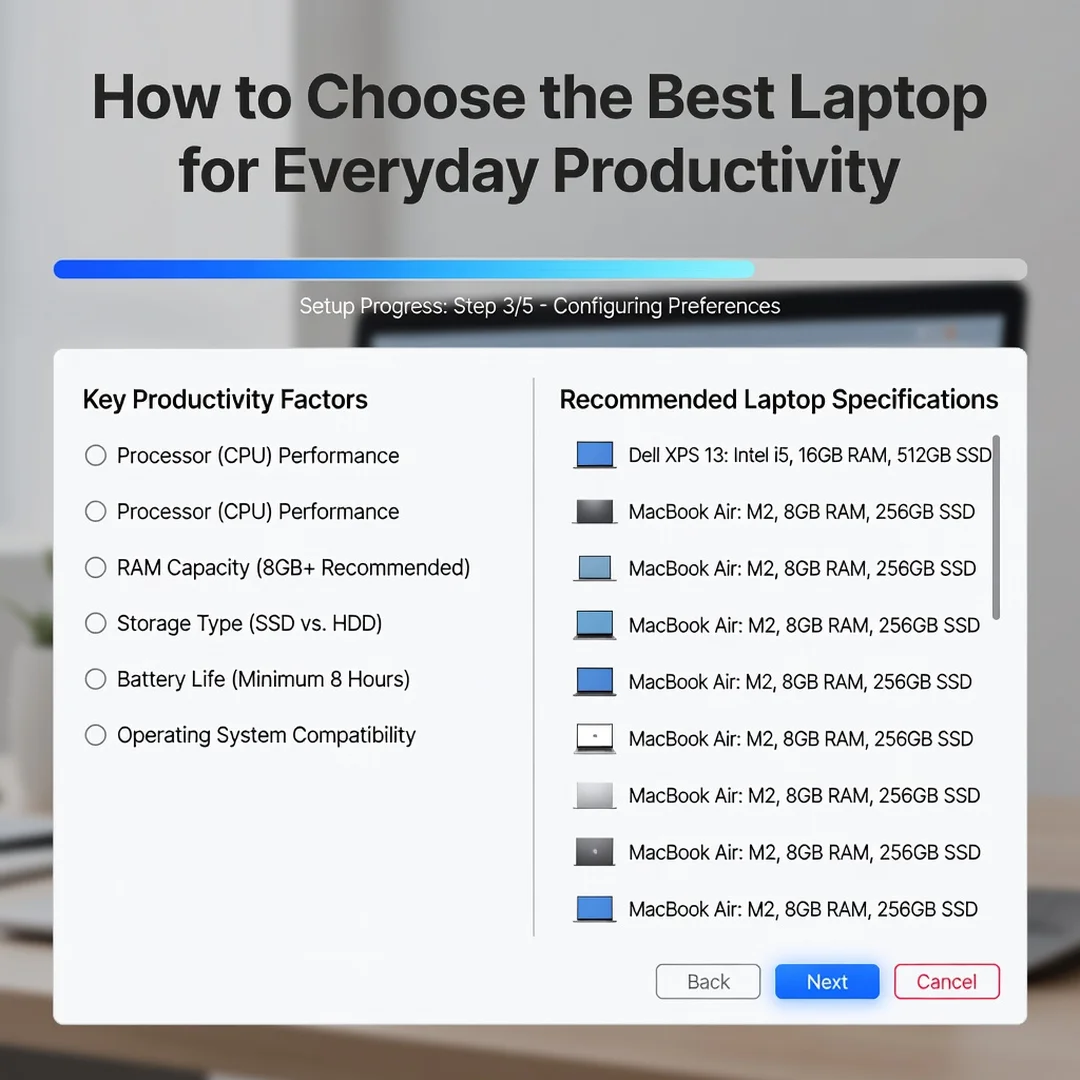
- Memory: 16 GB is the practical minimum for heavy multitasking; 8 GB is acceptable for basic web and document work.
- Storage: 256 GB solid-state drive (SSD) minimum; 512 GB recommended for local files and application caches.
- Display: 1920×1080 or higher, with an anti-glare coating for office lighting.
- Wireless: Wi-Fi 6 or Wi-Fi 6E for stable video calls and cloud sync.
- Battery: target 8 or more hours of realistic mixed use.
Support and compliance requirements
- Warranty terms: on-site vs depot, accidental damage coverage, and battery replacement policy.
- Operating system lifecycle: confirm the OS version receives security updates for the expected device lifespan.
- Encryption: full-disk encryption support (BitLocker, FileVault, or LUKS) and TPM 2.0 where applicable.
- Management: support for your remote management and patching tools.
Do not skip architecture verification. A common failure is purchasing an ARM64 laptop for a user who depends on an x86-only VPN client or a legacy printer driver. The installation step later in this guide will fail or require emulation, which reduces performance and increases support tickets.
Preparation
Preparation turns requirements into a shortlist you can test. For beginners, this means reading reviews and visiting a store. For IT administrators, this means building a reference configuration and a validation image.
Create a requirements checklist
Write down the minimum and preferred values for CPU, RAM, storage, display, ports, and OS. Use the checklist to filter retailer and vendor websites. For example, a minimum might be “16 GB RAM, 512 GB SSD, x86-64, Windows 11 Pro,” while a preference might be “Wi-Fi 6E, Thunderbolt 4, 100% sRGB display.”
Verify software compatibility
List every application the user needs, then check the vendor’s system requirements page for architecture and OS version. Pay special attention to:
- Antivirus and endpoint detection agents.
- VPN and zero-trust network clients.
- Virtual desktop infrastructure (VDI) clients.
- Accounting, EHR, or industry-specific software.
- Peripherals: docks, headsets, webcams, and printers.
If a critical application is x86-only and you are considering an ARM64 device, test it under emulation first. Emulation can work for light office tasks but may break drivers or video acceleration.
Prepare the installation environment
Before installing or migrating to a new laptop, back up user data, record license keys, and export browser bookmarks. Ensure a reliable power source and a stable network connection. Keep the operating system updated before installation to prevent dependency conflicts; install pending security and feature updates, then reboot.
For IT administrators, prepare a deployment method: USB installation media, Windows Autopilot, Apple Business Manager, or a Linux kickstart file. Document the expected local administrator account, encryption recovery key escrow, and naming convention.
Installation Steps
The following steps apply whether you are setting up a single laptop for yourself or provisioning a fleet. They assume you have already selected a model that meets your prerequisites and completed the preparation checklist.
Step 1: Review prerequisites and compatibility
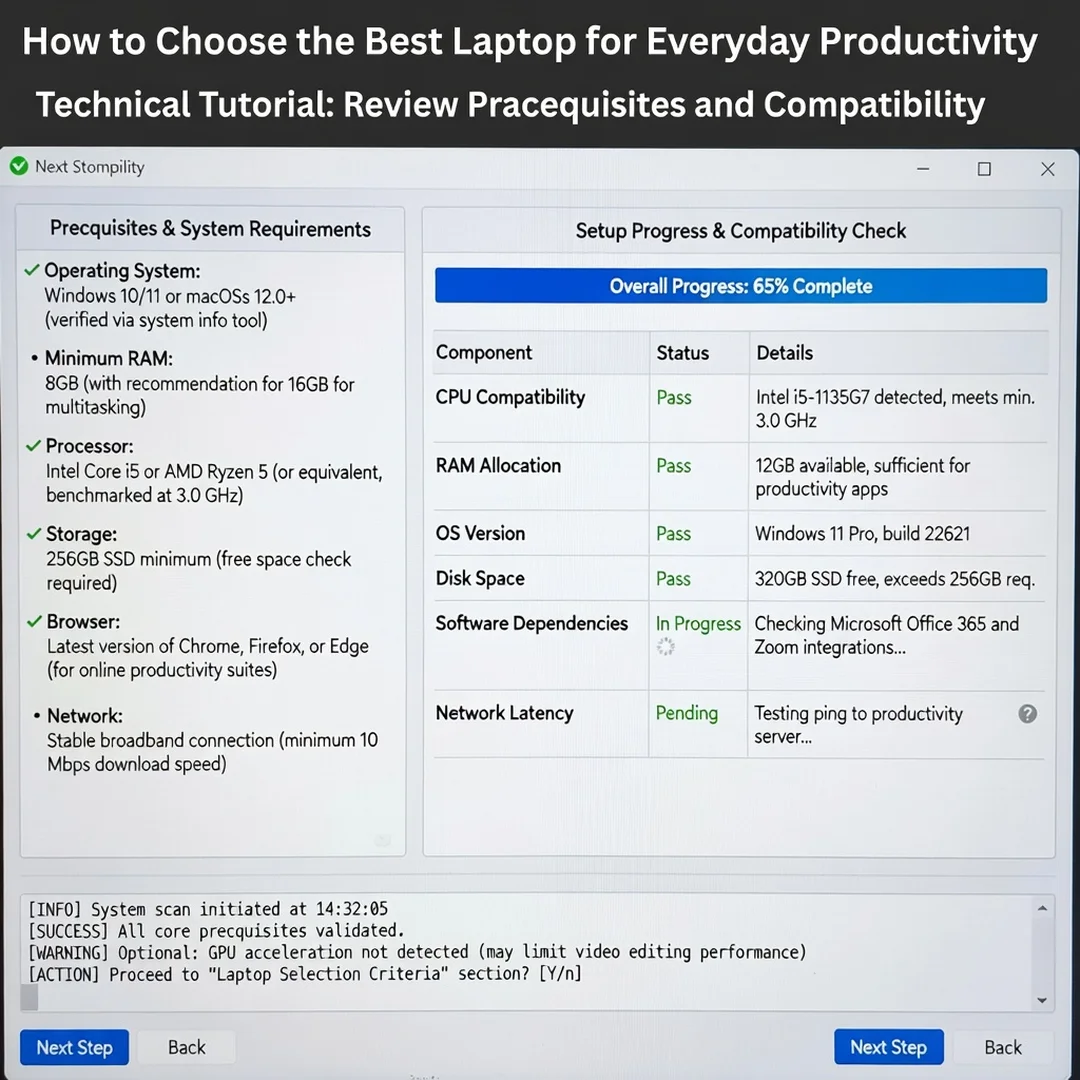
Unbox the laptop and record the exact model number, serial number, and hardware architecture. Open the system information tool or run a command such as uname -m on Linux, systeminfo on Windows, or check “About This Mac” on macOS. Confirm the architecture is ARM64 or x86-64 as expected.
Cross-check each required application against the architecture and the current OS version. If the laptop ships with an older OS build, note the update path. Verify that the docking station, external monitors, and security keys are detected. If any prerequisite fails, stop and resolve it before proceeding; installing on unsupported hardware wastes time and can corrupt user data.
Step 2: Prepare the environment
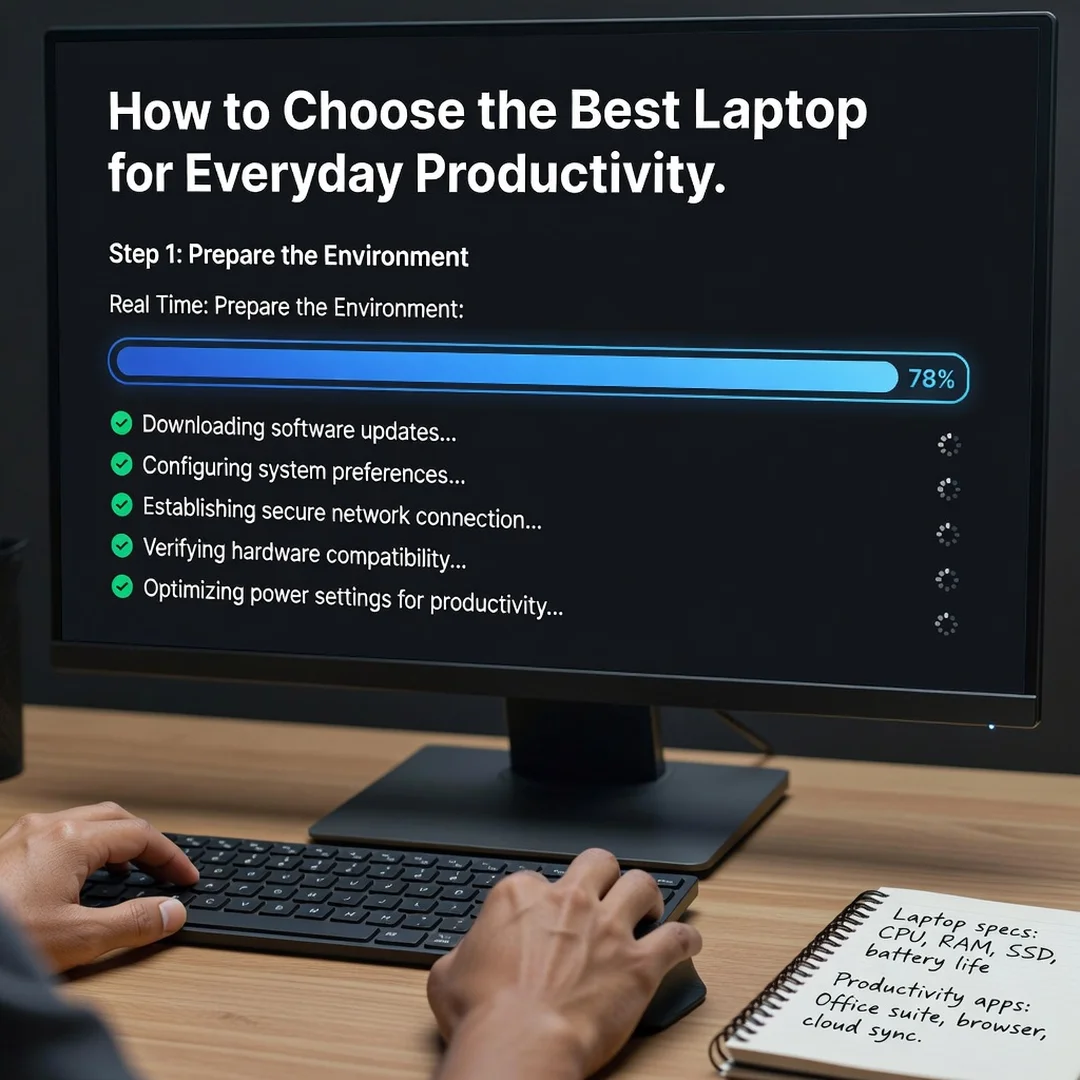
Connect the laptop to power and to a trusted network. Create a local administrator account if the device is not already provisioned through your management system. Update the operating system fully, including firmware and drivers from the manufacturer. On Windows, run Windows Update and check optional driver updates. On macOS, use Software Update. On Linux, apply distribution updates and install hardware enablement packages if needed.
Back up existing data if this is a migration. Disable any temporary promotional software or trial antivirus that may interfere with your standard endpoint protection. Set the correct time zone and date, because certificate validation and cloud authentication depend on accurate time.
Step 3: Configure core settings
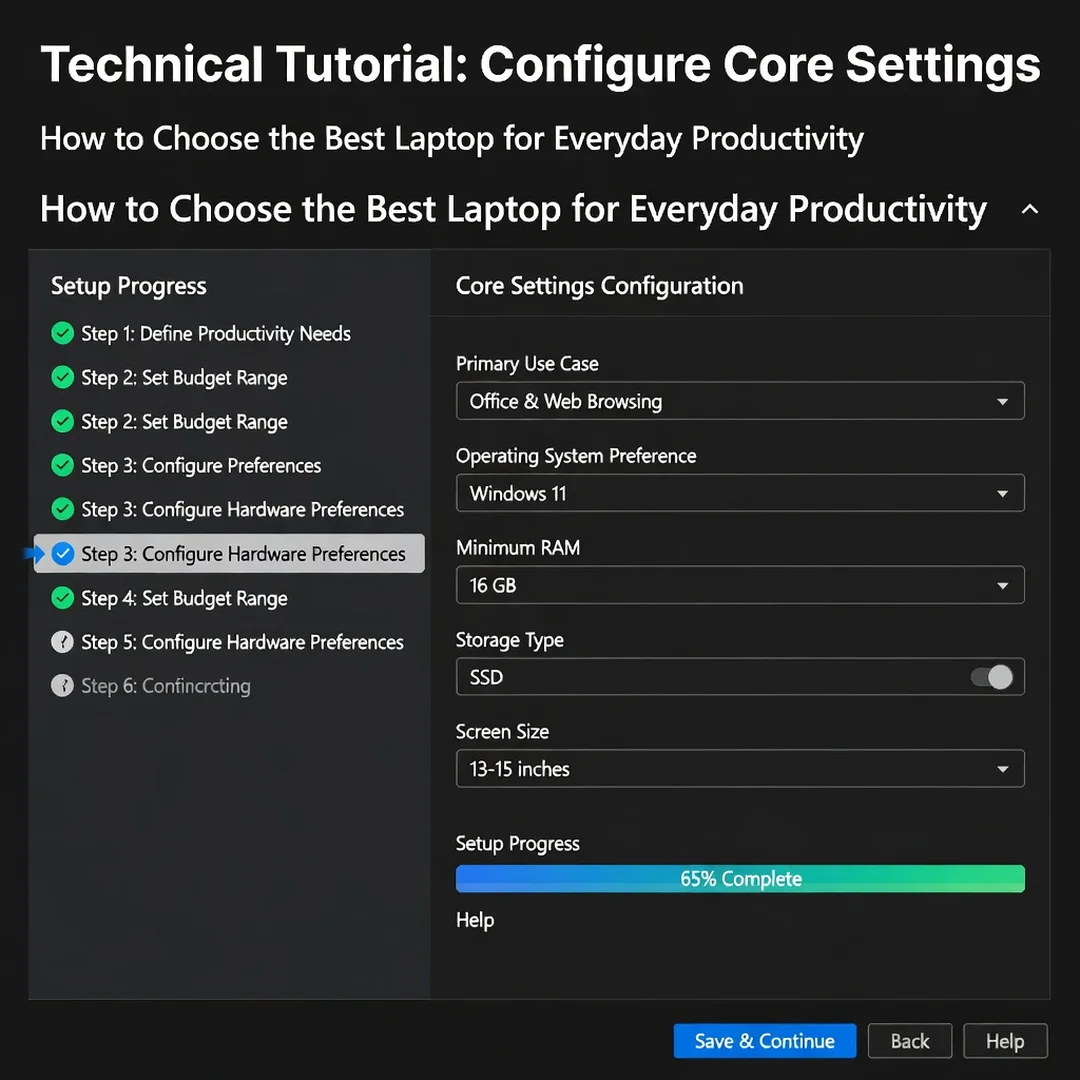
Configure the settings that affect security and daily productivity before installing applications. These include:
- Disk encryption: enable BitLocker, FileVault, or LUKS and escrow the recovery key.
- User accounts: create standard user accounts for daily work and reserve the administrator account for support.
- Network: configure Wi-Fi, VPN, and proxy settings required by your organization.
- Power management: set sleep and display timeout values that balance battery life and responsiveness.
- Display scaling: set a comfortable scaling percentage so text is readable without excessive zooming.
For IT administrators, apply your security baseline: firewall rules, screen lock policy, USB storage policy, and endpoint protection agent. Confirm that the device can reach management servers before continuing.
Step 4: Run the main installation procedure
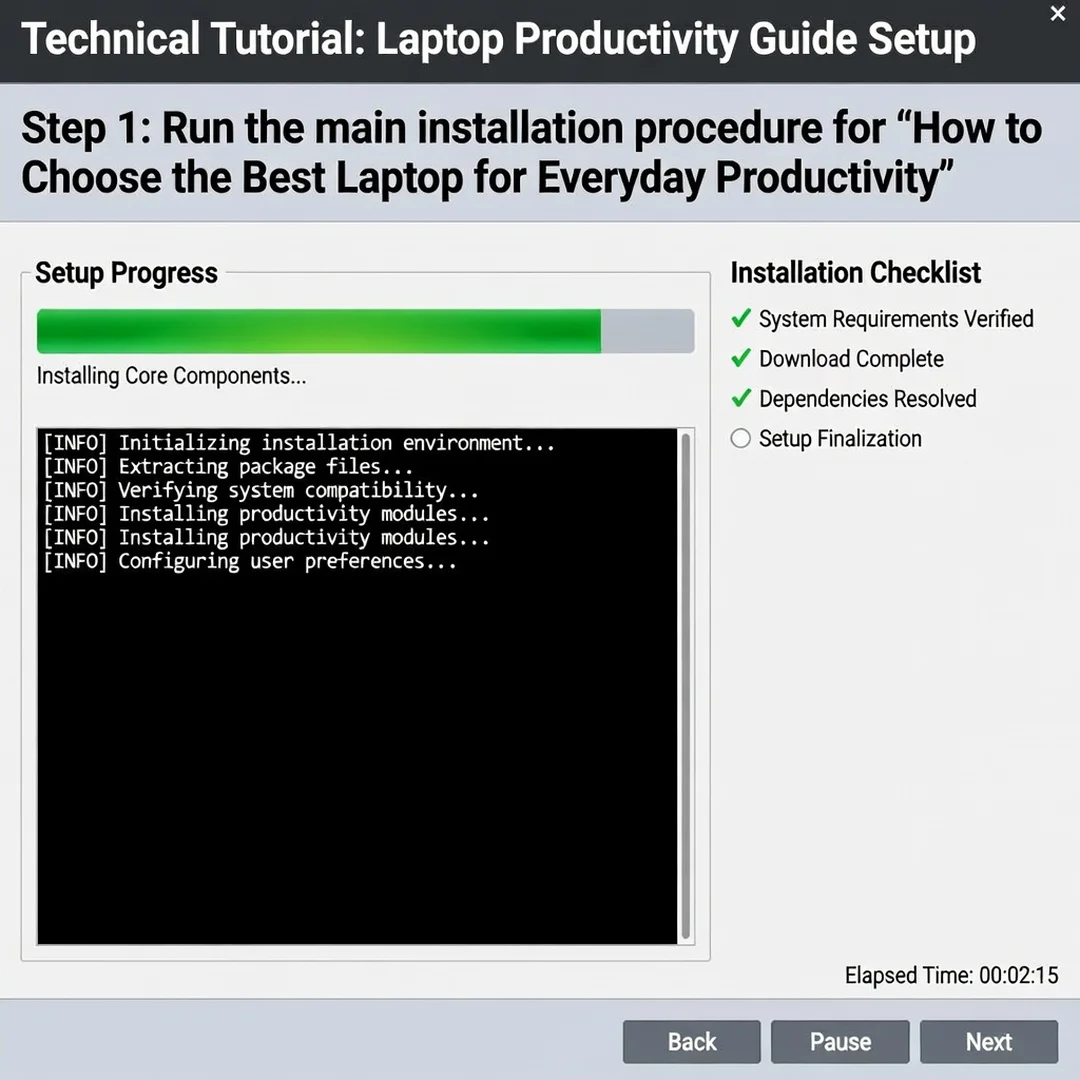
Install the core productivity software in a deliberate order. A practical sequence is:
- Operating system updates and firmware (if not already complete).
- Endpoint protection and management agents.
- VPN or zero-trust client, then test connectivity.
- Office suite, PDF reader, and browser.
- Communication and collaboration clients.
- Line-of-business applications and their dependencies.
- Peripheral drivers for docks, printers, and headsets.
Install one application at a time and test it before moving to the next. This makes failures easy to isolate. If an installer reports a dependency conflict, install the required runtime or update the OS rather than forcing the installation. For fleet deployment, use your automated package or image; for a single laptop, use the vendor’s official installer or trusted package manager.
Step 5: Verify the installation
Verification confirms that the laptop is ready for everyday work. Test each of the following:
- Boot time and login with the standard user account.
- Wi-Fi and VPN connectivity, including a reconnect test.
- Browser access to key cloud services.
- Video call with camera, microphone, and speakers.
- Printing or PDF export.
- File access to local and network storage.
- Battery report and thermal behavior under a typical multitasking load.
Check event logs or system logs for recurring errors. Confirm that encryption is active and that the recovery key is stored in your escrow system. If any test fails, return to Step 4 and reinstall or reconfigure the affected component.
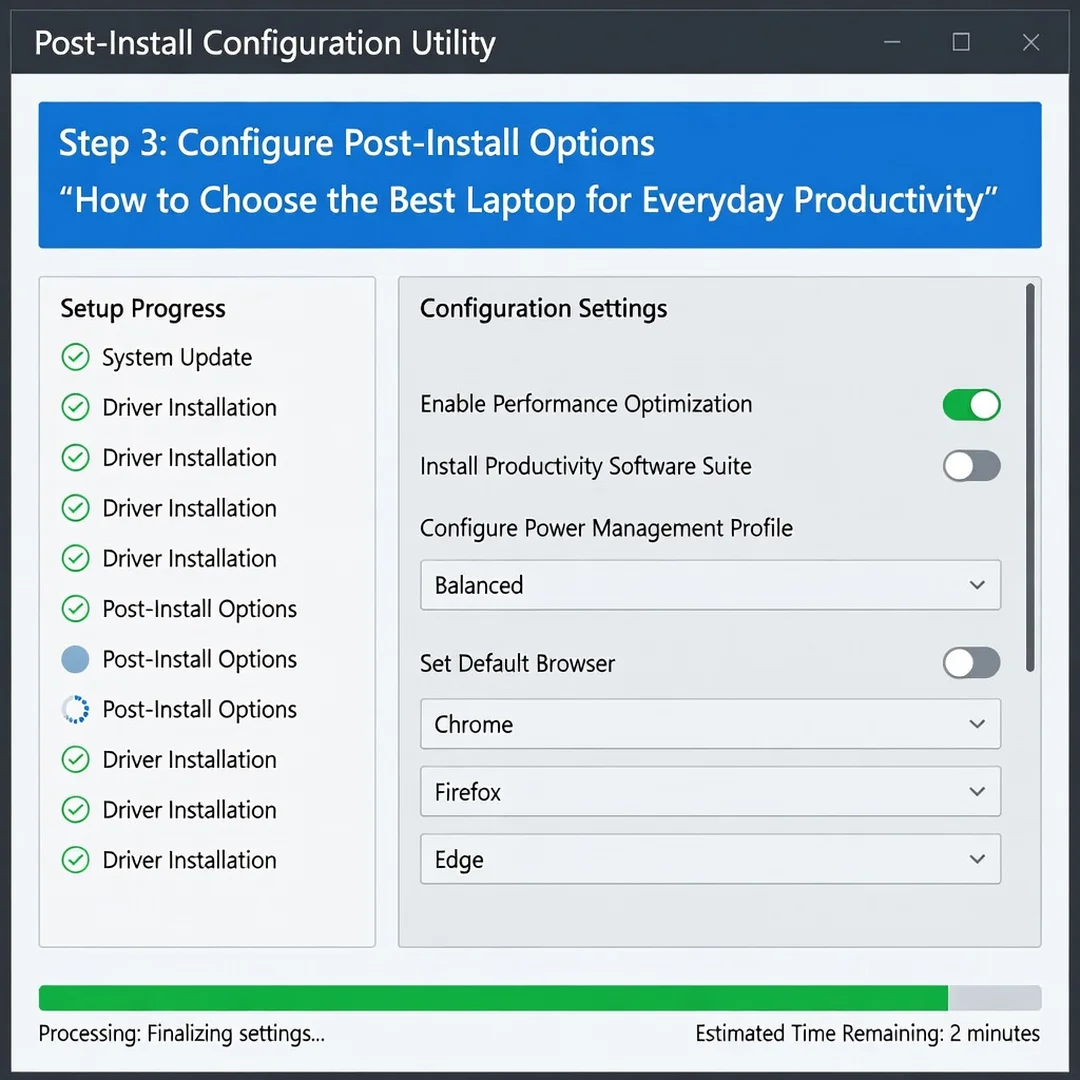
Step 6: Configure post-install options
After verification, finish the setup with user-specific and lifecycle settings. Configure browser sync or bookmarks, email profiles, default printers, and cloud storage folders. Set up backup jobs for user data. Apply your organization’s naming convention, asset tag, and inventory record.
Document the final configuration: OS version, installed applications, encryption status, and support contact. Provide the user with a short quick-start note covering login, VPN, and how to request help. Schedule a follow-up check after one week to catch performance or compatibility issues early.
Post-Installation
Post-installation is where a laptop becomes a reliable productivity tool rather than a one-time project. Keep the operating system and applications updated on a defined schedule, and monitor for firmware and driver updates from the manufacturer. These updates often fix battery drain, Wi-Fi drops, and dock compatibility issues.
Review the following on a regular basis:
- Security patches and endpoint protection status.
- Disk space and storage health.
- Battery cycle count and capacity degradation.
- Backup success and recovery key validity.
- User feedback about performance during video calls and heavy multitasking.
For IT administrators, standardize the model and configuration across similar users. Standardization reduces spare parts, simplifies imaging, and makes troubleshooting faster. Keep one validated reference device to test new OS builds and application versions before broad deployment. Always verify software compatibility with your hardware architecture (ARM64 vs x86) when evaluating upgrades, because a compatible update on one architecture may not exist on.
You now have a complete workflow for How to Choose the Best Laptop for Everyday Productivity. Keep your system updated, monitor resource usage, and revisit this guide when software versions change.
Next steps: harden your server firewall, set up automated backups, and explore related tutorials linked above.