
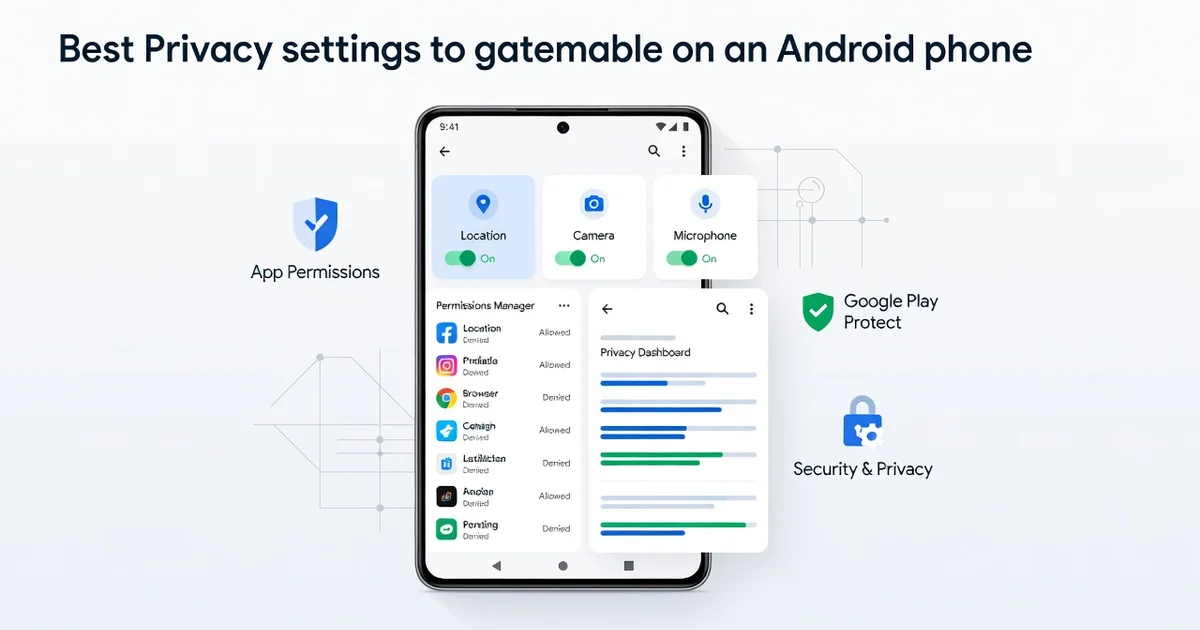
Your Android phone holds messages, photos, location history, and passwords — yet most people never adjust the settings that control who can access them. The best privacy settings to enable on your Android phone take only a few minutes, but they can dramatically reduce how much data apps and advertisers collect about you.
In this guide, we’ll walk through the most important settings to change, from app permissions and ad tracking to lock screen privacy and location sharing. Each step is simple, practical, and works on most modern Android devices.
Introduction
Your Android phone is likely the most personal device you own. It knows where you go, who you talk to, what you buy, and what you search for late at night. Out of the box, however, most Android phones are configured to collect and share more data than many people realize. The good news is that you do not need to be a security expert to take back control. This article explores the Best Privacy Settings to Enable on Your Android Phone with clear, practical guidance you can apply in a single sitting.
The steps that follow are designed for everyday users, not IT professionals. Whether you use a Samsung Galaxy, a Google Pixel, a OnePlus, or a budget Motorola, the core privacy controls are broadly similar because they come from the Android operating system itself. Manufacturers sometimes rename or relocate settings, so exact menu names may vary slightly, but the underlying options exist on virtually every modern Android device.
Understanding the fundamentals of Best Privacy Settings to Enable on Your Android Phone helps you make informed decisions rather than blindly toggling switches. Reliable information and consistent habits lead to better long-term outcomes. A setting you enable once and forget about will protect you only until the next major update resets your preferences or a new app requests access you do not notice. Privacy, in practice, is less about a single heroic action and more about a series of small, repeated choices.
Key Concepts
Before diving into specific menus, it helps to understand the vocabulary Android uses. Privacy settings generally fall into four categories: permissions, data collection controls, visibility settings, and network protections. Each category addresses a different kind of risk.
Permissions
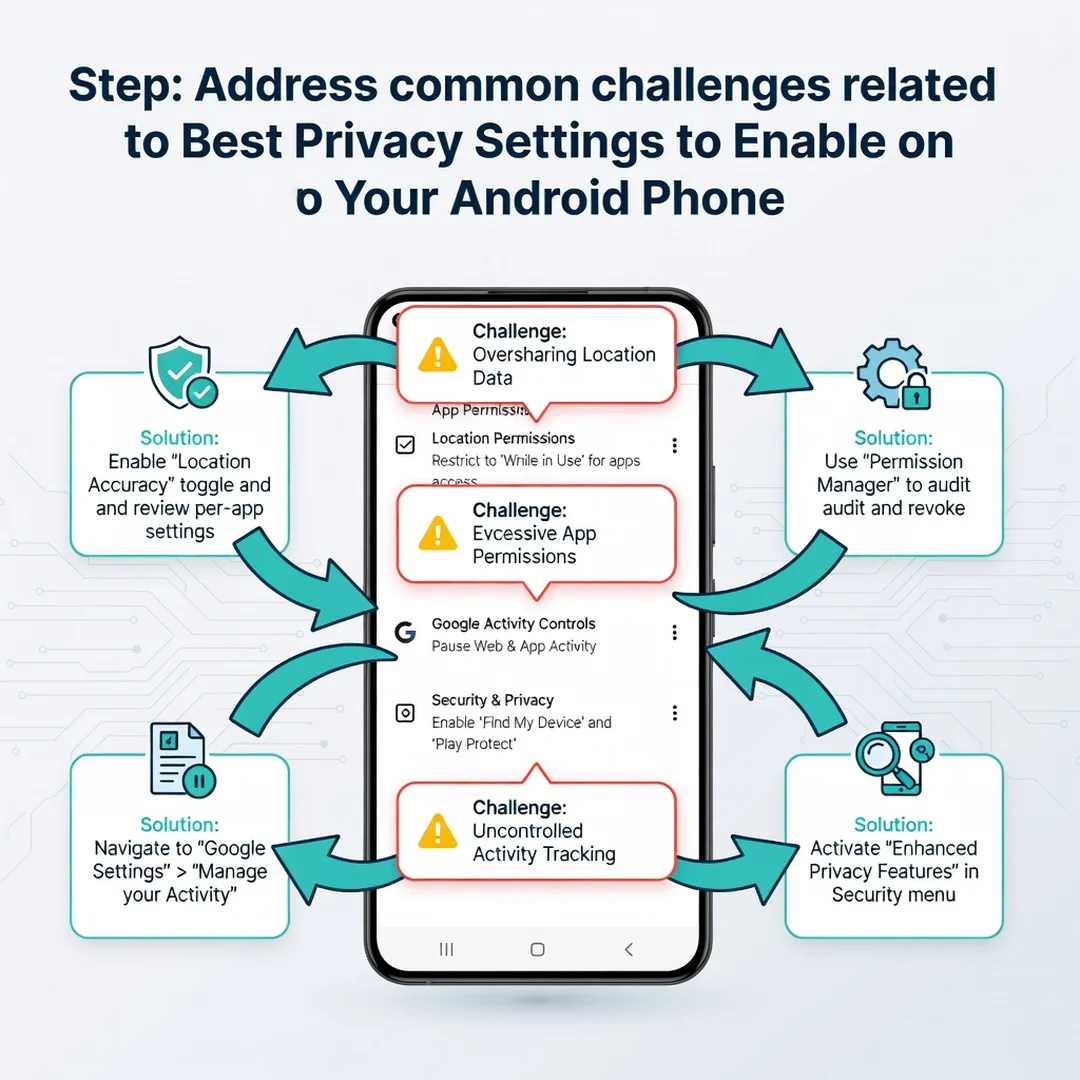
Permissions govern what apps can access on your device. Location, camera, microphone, contacts, photos, and files are the most sensitive. Modern Android versions let you grant permissions as “While using the app,” “Only this time,” or “Don’t allow.” Choosing the narrowest option that still lets the app function is almost always the right call.
Data collection and personalization
Google and handset makers collect diagnostic data, advertising identifiers, and usage statistics. You can limit much of this through settings like “Ads,” “Usage & diagnostics,” and “Personalization.” These controls do not make you invisible, but they reduce the volume of data tied to your profile.
Visibility and lock screen exposure
Your lock screen can reveal a surprising amount: message previews, calendar events, and notification contents. Controlling what appears before you unlock the phone protects you from anyone glancing at your device on a table or in a crowd.
Network and connectivity privacy
Wi-Fi scanning, Bluetooth scanning, and location history can all run in the background even when you are not actively using them. Android includes settings to disable these background scans, which reduces both battery drain and passive data collection.
Deep Dive
Let’s examine the settings that matter most and what they actually do. This is where general advice becomes specific and actionable.
Location permissions and Google Location History
Location is the single most sensitive permission for most people. Go to Settings, then Location, then App location permissions. Review each app and switch anything unnecessary to “Don’t allow.” A flashlight app has no legitimate need for your location. For maps and ride-sharing apps, “While using the app” is sufficient. Separately, Google Location History stores a timeline of places you have been. You can review and delete this at activity.google.com or through Settings, Google, Manage your Google Account, Data & privacy. Auto-delete can be set to 3, 18, or 36 months.
Advertising ID and personalization
Android assigns your device an advertising ID that apps use to build profiles. You can reset or delete this ID. On most devices, go to Settings, Google, Ads, and choose “Delete advertising ID” or “Reset advertising ID.” Deleting it limits cross-app tracking. You can also opt out of personalized ads, though you will still see ads, just less relevant ones.
Microphone and camera indicators and access
Android shows a green dot in the status bar when the camera or microphone is in use. Tapping it reveals which app is accessing the sensor. You can also revoke microphone and camera access entirely for apps that do not need them. For apps that genuinely need the microphone, such as voice recorders, keep access but check the indicator periodically to ensure nothing is listening unexpectedly.
Notification and lock screen privacy
Go to Settings, then Notifications, then Lock screen notifications. Choose “Hide sensitive content” or “Don’t show notifications at all.” This prevents message text and email subjects from appearing on your lock screen. You can also control which apps show notifications in the first place, reducing both distraction and exposure.
Wi-Fi and Bluetooth scanning
Even with Wi-Fi turned off, Android may scan for networks to improve location accuracy. Go to Settings, Location, Wi-Fi scanning and Bluetooth scanning, and turn both off. This stops background scanning that can reveal your whereabouts to nearby access points and reduces battery use.
Private DNS
Private DNS encrypts your DNS queries, so your internet provider or a network operator cannot easily see which websites you visit. In Settings, Network & internet, Private DNS, choose a trusted provider such as one from a reputable privacy-focused company, or enter a hostname manually. This is a simple, high-impact change.
App review and uninstalling
Every app is a potential data collector. Go through your installed apps and uninstall anything you have not used in months. Fewer apps mean fewer permissions granted and fewer background processes reporting data. For apps you keep, review their permissions individually.
Best Practices
Settings are only half the story. Habits matter just as much, and reliable information and consistent habits lead to better long-term outcomes. Here are practices worth adopting.
- Review permissions monthly. Set a reminder to check app permissions once a month. New apps and updates can request new access.
- Use “Only this time” liberally. When an app asks for location, choose the temporary option unless it truly needs ongoing access.
- Keep your phone updated. Security patches close vulnerabilities that privacy settings alone cannot address. Enable automatic updates.
- Use a screen lock with a strong PIN or biometrics. Privacy settings mean little if someone can unlock your phone in seconds.
- Audit your Google account. Visit your Google Account privacy settings regularly to review activity controls and delete data you no longer want stored.
- Be cautious with app installs. Install apps from the Play Store rather than third-party sources, and read permission requests before agreeing.
- Disable personalized ads where possible. It reduces the value of your data to advertisers, even if it does not eliminate ads entirely.
- Use a privacy screen protector. This is a physical measure that prevents shoulder surfing in public spaces.
These habits build on each other. A user who reviews permissions monthly, keeps the phone updated, and uses a strong lock screen is far better protected than one who changes a single setting and never returns to it.
Step-by-Step: Putting It All Together
Step 1: Understand the fundamentals
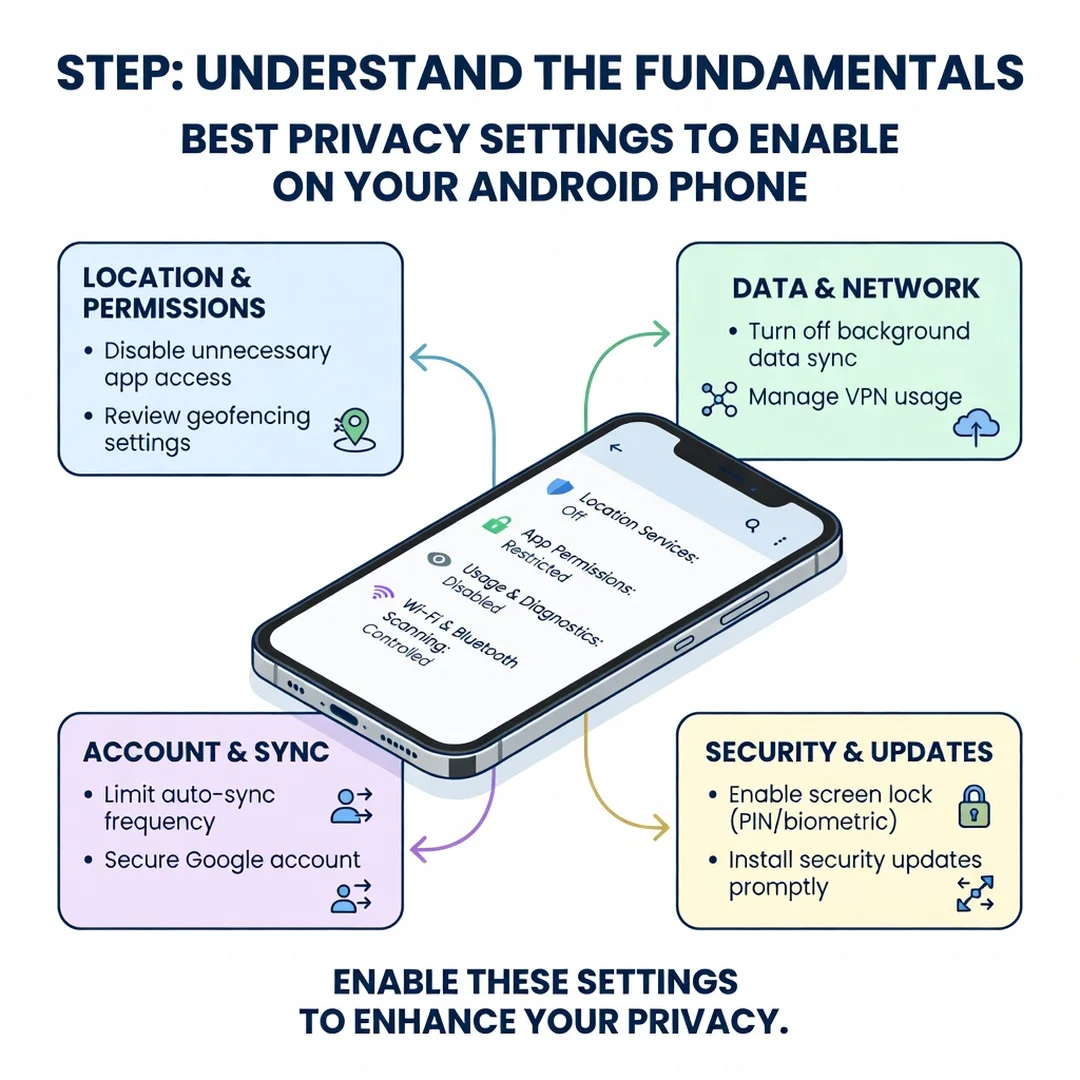
Spend ten minutes reading through your phone’s Settings menu without changing anything. Familiarize yourself with the privacy, location, and notification sections. Understanding the fundamentals of Best Privacy Settings to Enable on Your Android Phone helps you make informed decisions. Knowing where things live makes the rest of the process faster and less intimidating.
Step 2: Assess your starting point
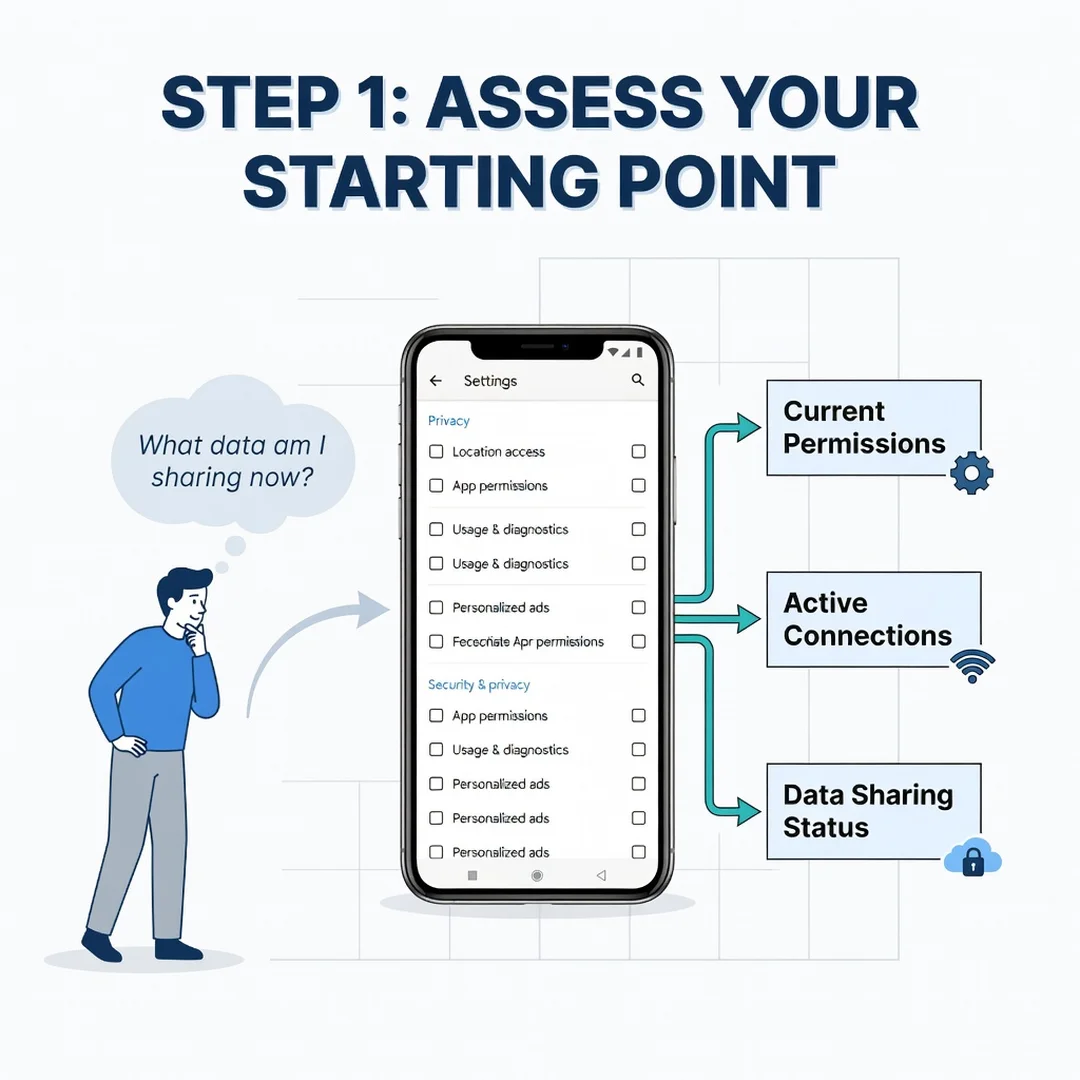
Check which apps currently have location, microphone, camera, and contacts access. Look at your lock screen notification settings and your Google account activity controls. Write down or mentally note what is currently enabled. You cannot improve what you have not measured, and this baseline tells you where the biggest risks are.
Step 3: Set clear goals
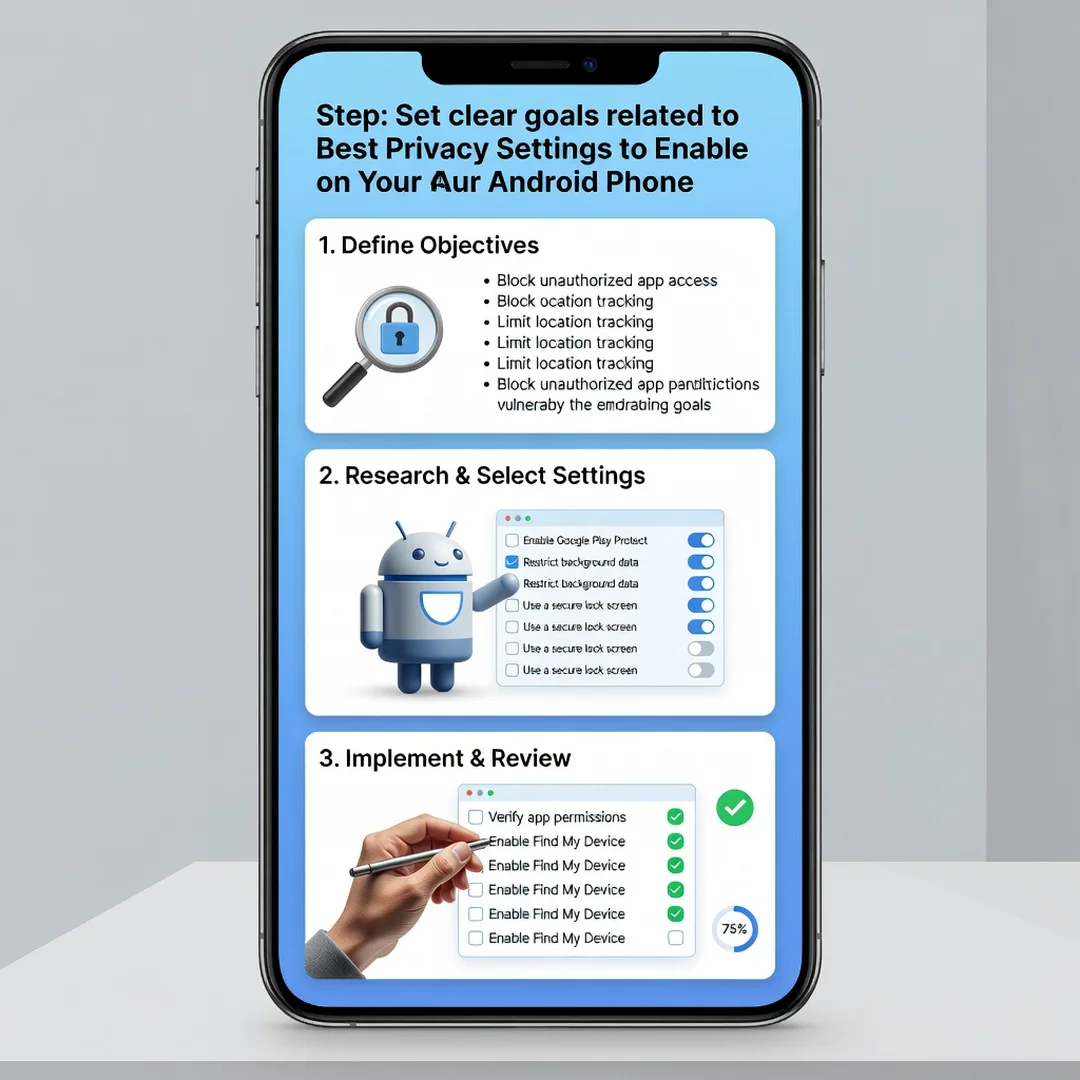
Decide what matters most to you. Someone who works in a sensitive field may prioritize lock screen and notification privacy. A frequent traveler may focus on location and DNS settings. A parent may care about app permissions for games their children use. Clear goals keep you from getting overwhelmed by dozens of toggles.
Step 4: Gather necessary resources
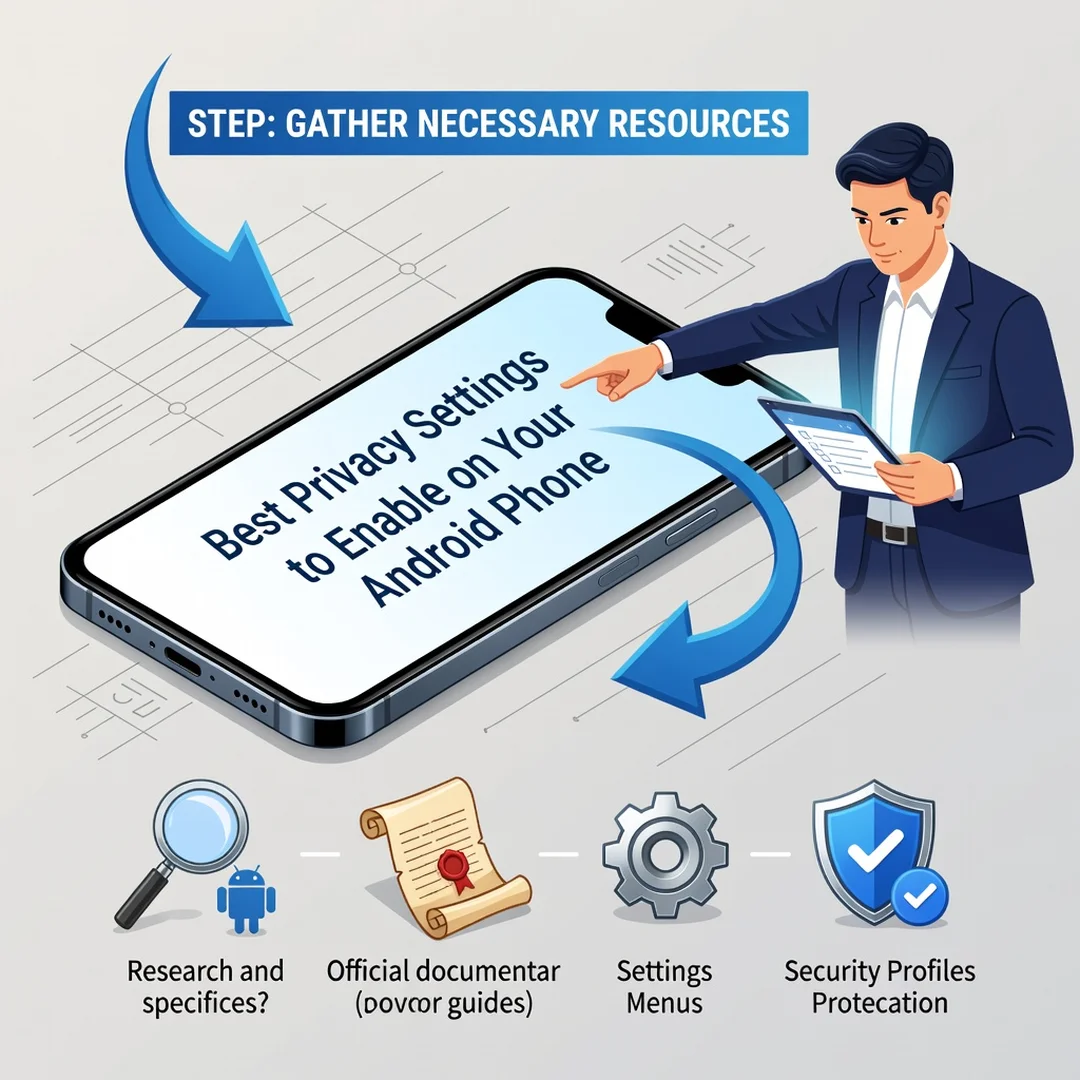
You will need your phone, a few minutes of uninterrupted time, and possibly your Google account password if you plan to adjust activity controls. If you use a password manager, have it ready. For Private DNS, decide on a provider in advance so you are not researching mid-setup.
Step 5: Apply the core methods
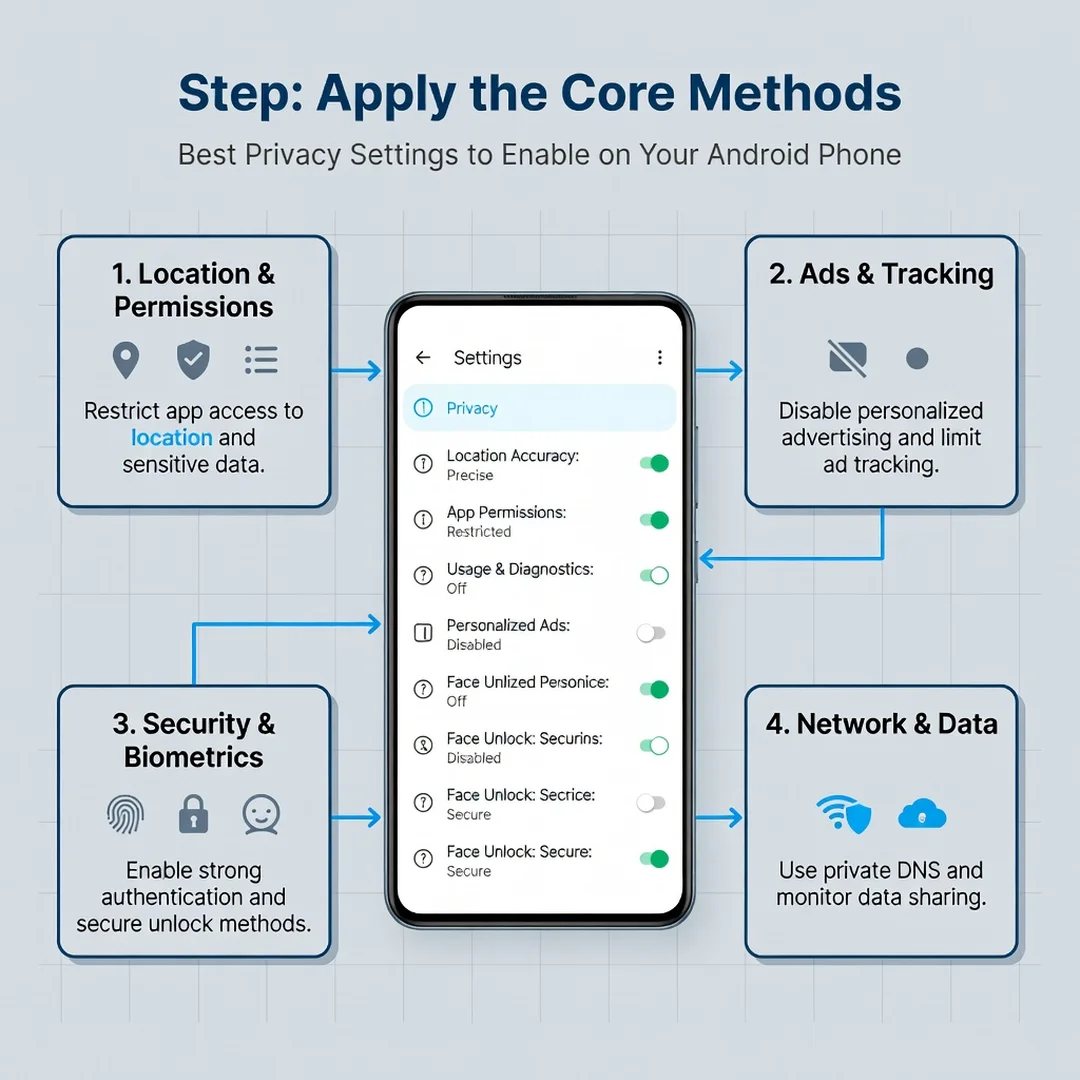
Work through the settings in this order: app permissions first, then location history and advertising ID, then lock screen notifications, then Wi-Fi and Bluetooth scanning, and finally Private DNS. Applying them in this sequence addresses the highest-impact items first, so even if you get interrupted, you have already covered the most important ground.
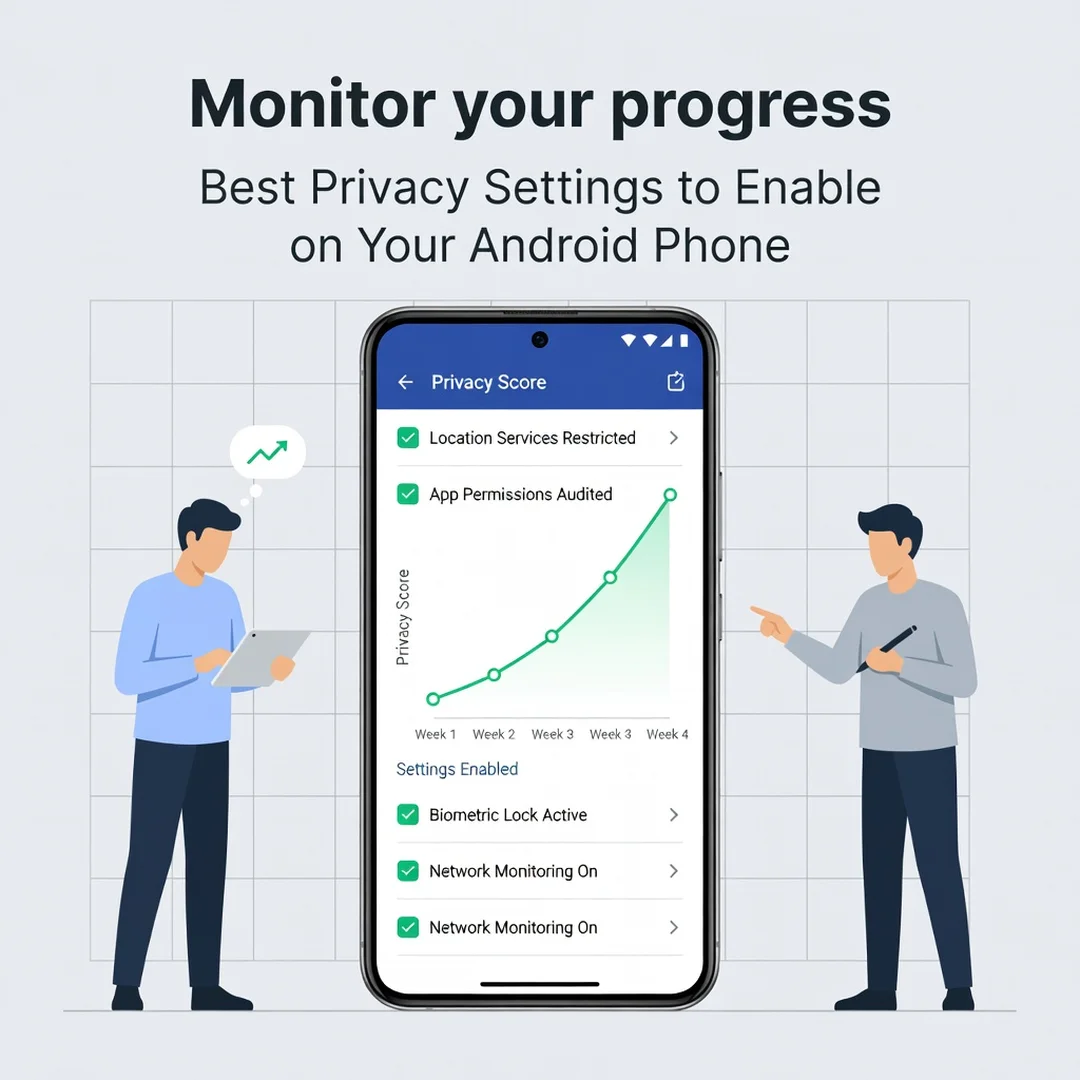
Step 6: Monitor your progress
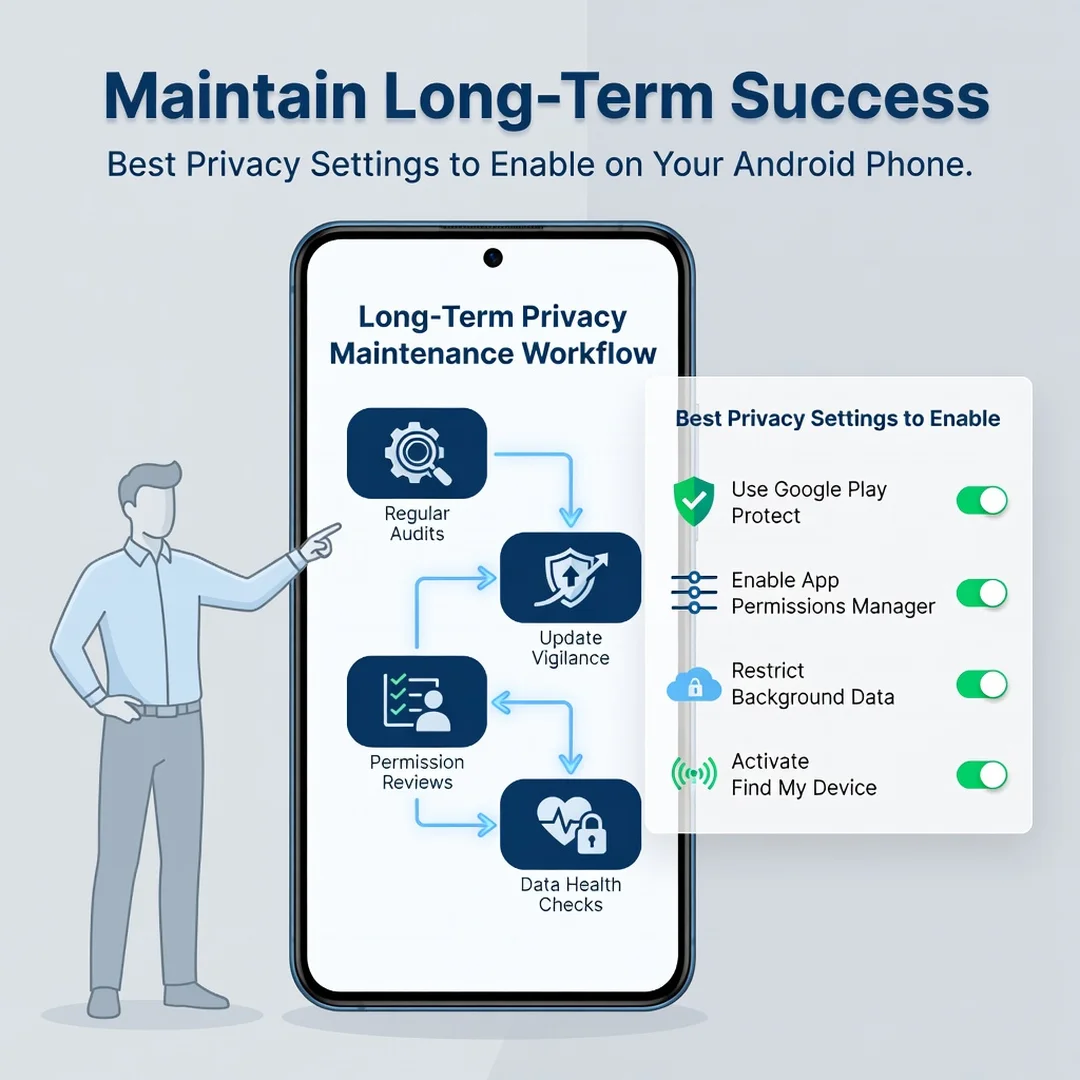
Set a monthly reminder to revisit your permissions and activity controls. Check the green dot indicator occasionally to see which apps are using the camera or microphone. After a major Android update, review your settings again, since updates sometimes add new options or reset preferences. Consistent monitoring turns a one-time cleanup into lasting protection.
FAQ
What should I know about Best Privacy Settings to Enable on Your Android Phone?
The most important thing to understand is that Android gives you meaningful control, but the default settings favor data collection and convenience over privacy. You need to actively adjust permissions, location history, advertising ID, lock screen notifications, and background scanning. There is no single “privacy mode” switch; instead, there are dozens of settings that work together. Start with location and app permissions because they have the largest impact, then move to less critical items. Most changes take only a few minutes and can be reversed if an app stops working as expected.
Who is this guide for?
This guide is for any Android user who wants practical, non-technical steps to reduce data collection and protect personal information. It is suitable for beginners who have never opened their privacy settings, as well as intermediate users who want a structured checklist. It applies to most modern Android phones regardless of manufacturer, though menu names may differ slightly. If you share a.
You now have a solid foundation for Best Privacy Settings to Enable on Your Android Phone. Apply the best practices above and revisit this guide as your needs evolve.