
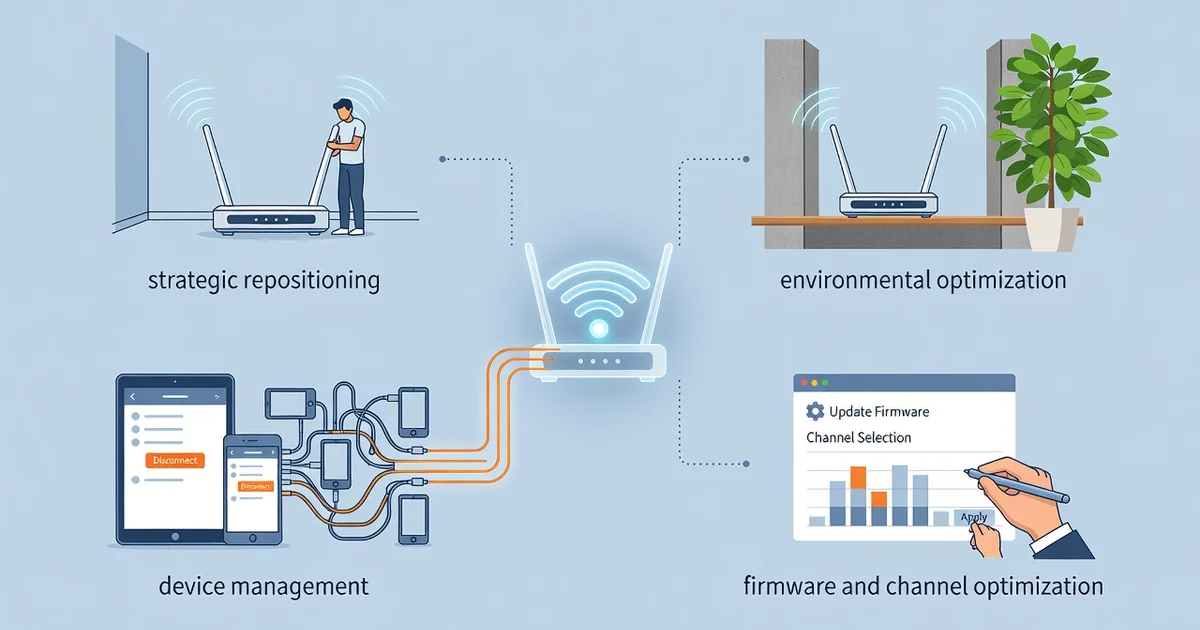
Is your Wi-Fi feeling sluggish, with videos buffering and pages loading slowly? Before you rush out to buy the latest router model, there’s good news: you can often improve Wi-Fi speed without buying a new router. Many slowdowns come from simple placement mistakes, outdated settings, or interference that you can fix in minutes.
In this guide, we’ll walk through practical, budget-friendly steps to boost your signal strength and get faster, more reliable internet throughout your home. No expensive hardware required—just smart tweaks that make a real difference.
Introduction
Slow Wi-Fi is one of the most frustrating technology problems you can face at home. Videos buffer endlessly, video calls freeze mid-sentence, and downloading a simple file seems to take forever. Before you rush out to buy the latest router model, it is worth knowing that many speed problems have nothing to do with the hardware itself. This article explores How to Improve Wi-Fi Speed Without Buying a New Router with clear, practical guidance that you can apply today.
The good news is that most homes have several untapped opportunities to boost wireless performance. Router placement, channel congestion, firmware updates, device management, and even the materials in your walls all play a role in how fast your connection feels. By working through the steps below, you can often achieve a noticeable improvement for free or at very low cost.
Understanding the fundamentals of How to Improve Wi-Fi Speed Without Buying a New Router helps you make informed decisions. Rather than guessing at fixes, you will learn why certain changes matter and how to prioritize them. Reliable information and consistent habits lead to better long-term outcomes, and that principle applies just as much to your home network as it does to anything else.
Key Concepts
Before making changes, it helps to understand a few core ideas that govern wireless performance. These concepts explain why your Wi-Fi behaves the way it does and which adjustments are likely to produce the biggest gains.
Router placement and signal propagation
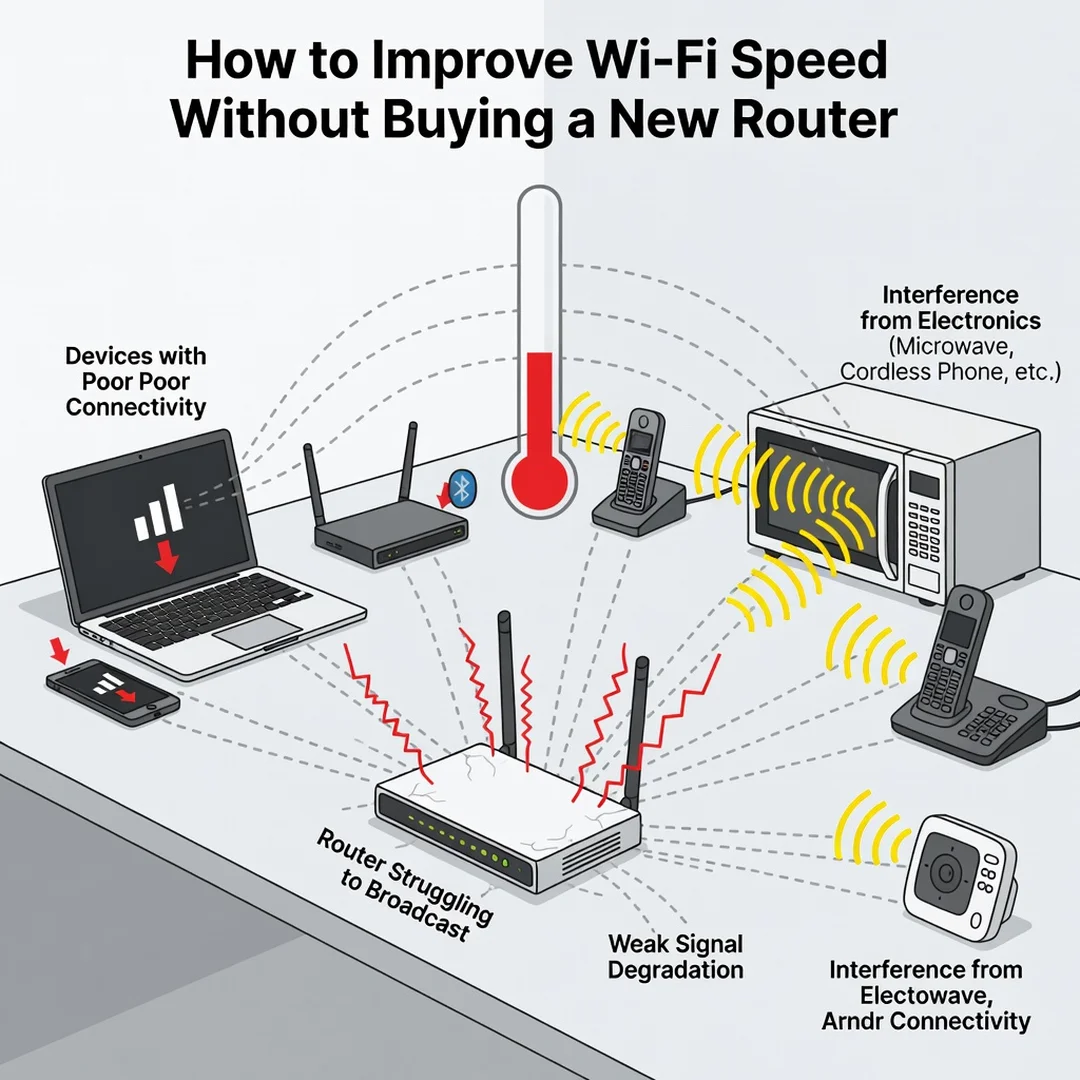
Wi-Fi signals are radio waves. They travel outward from your router in all directions, but they weaken with distance and are absorbed or reflected by physical obstacles. Walls, floors, metal appliances, mirrors, and even aquariums can degrade a signal. Placing your router in a central, elevated, open location can dramatically improve coverage without any technical know-how.
Frequency bands: 2.4 GHz versus 5 GHz
Most modern routers broadcast on two bands. The 2.4 GHz band travels farther and penetrates walls better, but it is slower and more crowded. The 5 GHz band is faster and less congested, but its range is shorter. Knowing which band your devices use helps you decide where to connect each one.
Channel congestion
Your neighbors’ networks compete for the same radio channels. In apartment buildings and dense neighborhoods, congestion can slow your connection even if your router is powerful. Switching to a less crowded channel is a free and often effective fix.
Interference from other devices
Microwaves, cordless phones, baby monitors, and Bluetooth devices can interfere with Wi-Fi, especially on the 2.4 GHz band. Identifying and relocating these sources can reduce dropped packets and improve stability.
Bandwidth versus latency
Bandwidth is the maximum data rate; latency is the delay before data starts moving. For streaming and downloads, bandwidth matters most. For gaming and video calls, low latency is critical. Many “slow Wi-Fi” complaints are actually latency problems caused by interference or congestion.
Deep Dive
Once you grasp the key concepts, you can start diagnosing your specific situation. The goal is to identify the bottleneck rather than applying random fixes.
Is the problem your internet plan or your Wi-Fi?
A common mistake is blaming the router when the actual limitation is your internet service plan. Run a speed test using a device connected directly to the router with an Ethernet cable. If the wired speed matches your plan but the wireless speed is much lower, the issue is your Wi-Fi. If both are slow, contact your internet service provider.
How router firmware affects performance
Router manufacturers regularly release firmware updates that fix bugs, improve security, and sometimes enhance performance. An outdated firmware version can cause instability, memory leaks, and slower throughput. Checking for updates takes only a few minutes and costs nothing.
The role of connected devices
Every device on your network competes for bandwidth. Smart TVs, game consoles, security cameras, and even smart light bulbs consume capacity. Older devices may also slow down the entire network because the router must accommodate their slower standards. Auditing your connected devices often reveals surprising bandwidth hogs.
Antennas, MIMO, and beamforming
If your router has external antennas, their orientation matters. Antennas should generally point vertically for coverage on a single floor, and some routers benefit from angled positioning for multi-floor homes. Many routers also support MIMO (multiple-input, multiple-output) and beamforming, which focus the signal toward your devices. Ensuring these features are enabled in the router settings can yield real improvements.
Quality of Service (QoS) settings
QoS lets you prioritize certain types of traffic, such as video calls or gaming, over bulk downloads. Enabling QoS can make your connection feel faster even when total bandwidth has not changed, because the data that matters most gets priority.
DNS and its surprising impact
Your router uses a DNS server to translate website names into IP addresses. A slow or unreliable DNS server can make browsing feel sluggish even when your raw speed is fine. Switching to a faster public DNS provider is a simple change that sometimes produces a noticeable improvement.
Best Practices
These habits, applied consistently, keep your network running at its best over time.
- Centralize and elevate your router. Place it in an open, central location, ideally on a shelf or mounted high, away from walls and metal objects.
- Prefer wired connections for stationary devices. Connect desktop computers, smart TVs, and game consoles via Ethernet to free up wireless bandwidth.
- Use the 5 GHz band for close, high-speed devices. Reserve 2.4 GHz for devices that are far away or need better wall penetration.
- Update firmware regularly. Set a reminder every few months to check for router updates.
- Change the default Wi-Fi channel. Use a Wi-Fi analyzer app to find the least crowded channel and switch to it.
- Secure your network. Use WPA2 or WPA3 encryption and a strong password to prevent unauthorized users from consuming your bandwidth.
- Reboot your router occasionally. A monthly restart clears memory and resolves many minor performance issues.
- Reduce interference sources. Keep the router away from microwaves, cordless phones, and other electronics.
- Limit background activity. Pause cloud backups, large downloads, and automatic updates during times when you need maximum speed.
- Consider a Wi-Fi extender or mesh node only after optimization. These can help, but they work best once your main router is already well positioned.
Step-by-Step Guide
Step 1: Understand the fundamentals
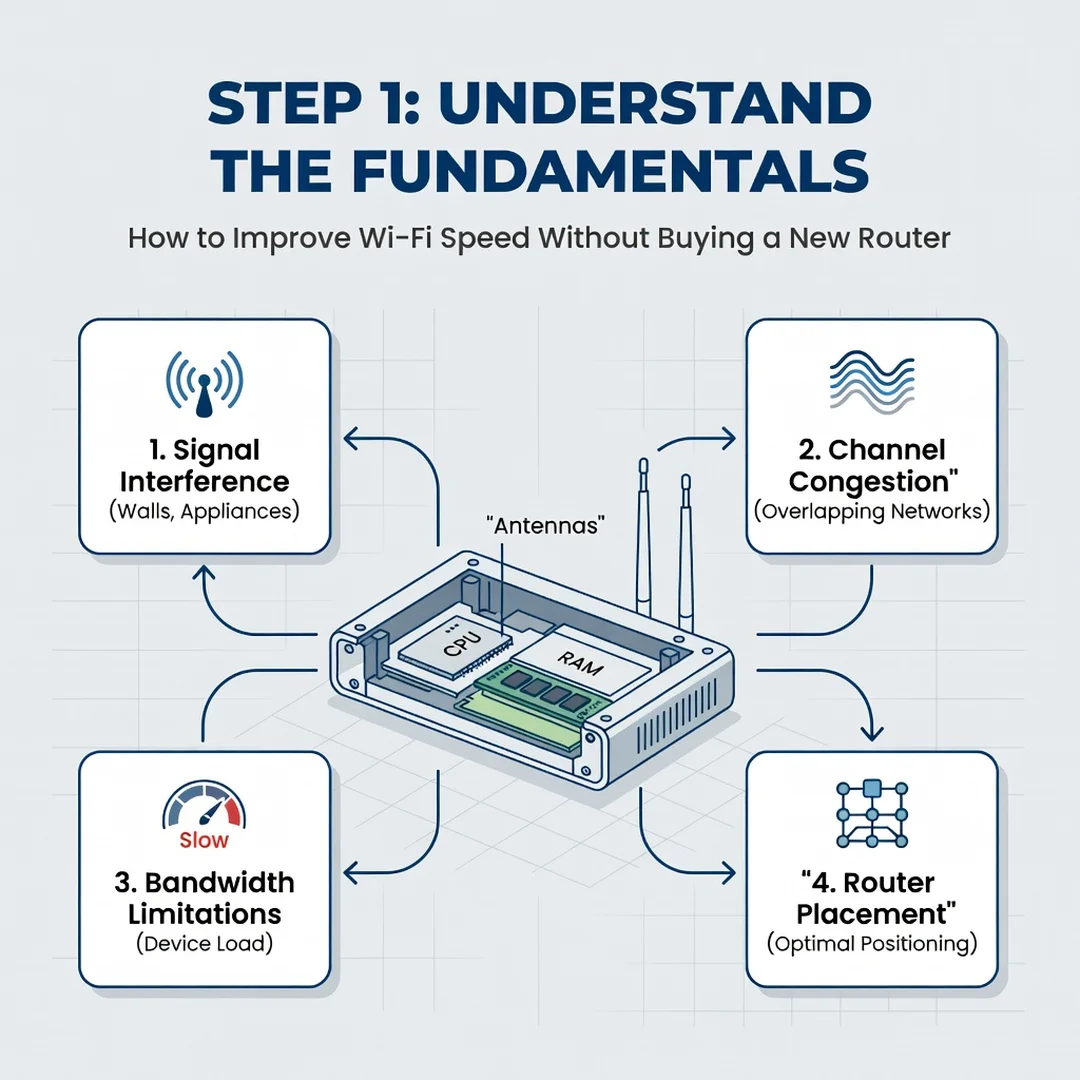
Before changing anything, take a moment to review the key concepts above. Know the difference between 2.4 GHz and 5 GHz, understand that physical obstacles weaken signals, and recognize that congestion and interference are common culprits. This foundational knowledge ensures that every change you make is purposeful rather than random.
Step 2: Assess your starting point
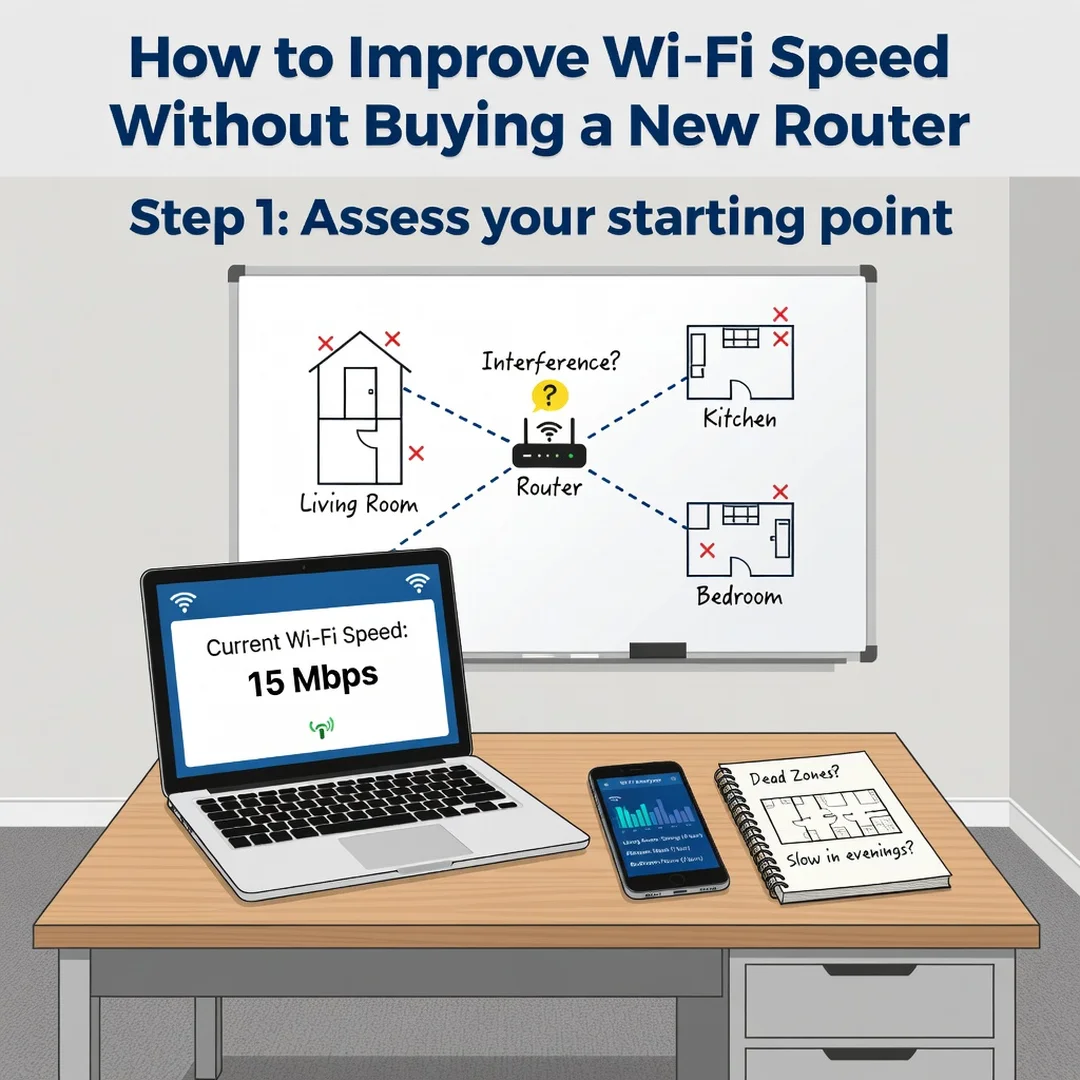
Measure your current performance. Run speed tests in several rooms and at different times of day. Note the results, including download speed, upload speed, and latency. Check how many devices are connected and identify which ones use the most bandwidth. This baseline gives you something concrete to compare against later.
Step 3: Set clear goals
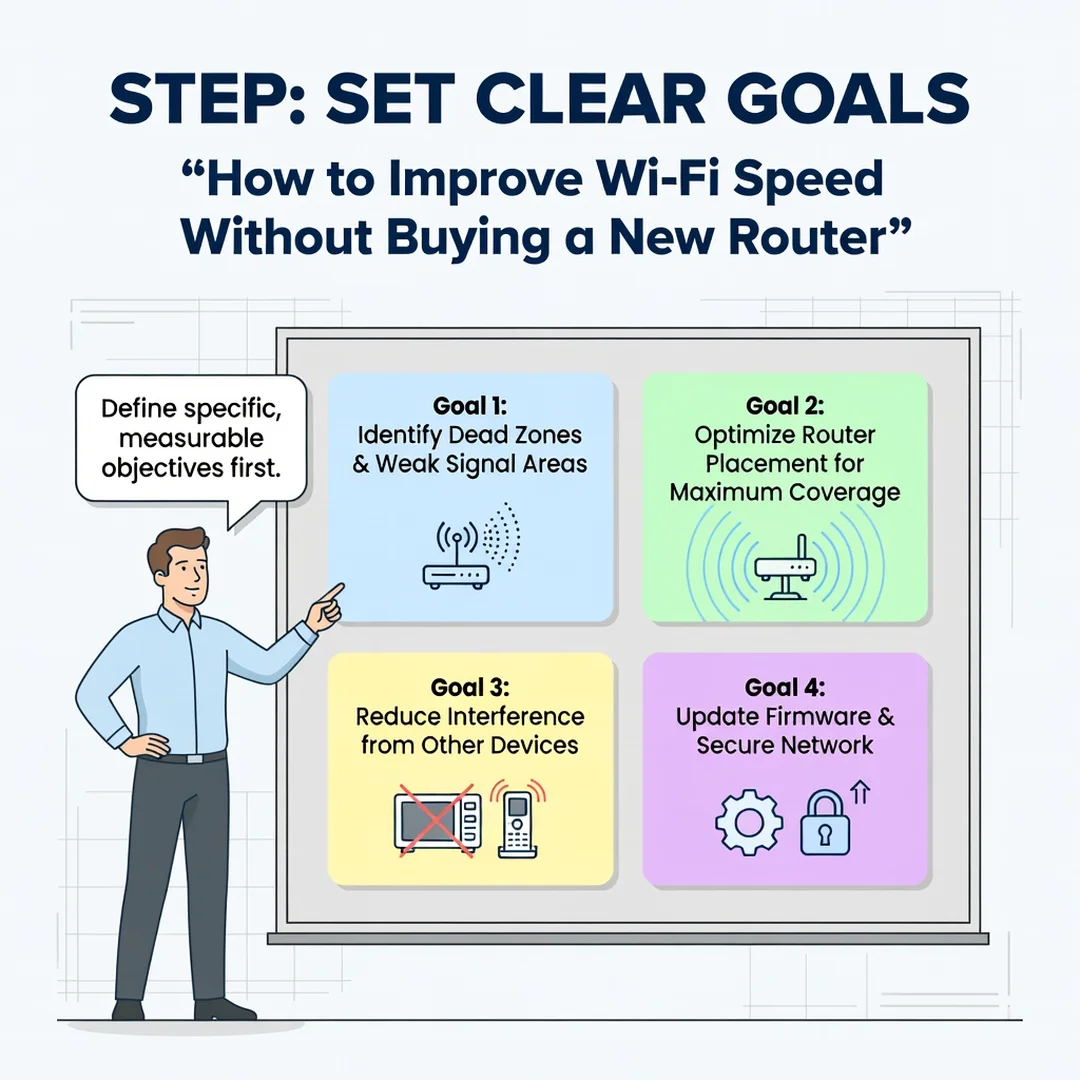
Decide what “better” means for your household. Do you want smoother video calls in the home office? Faster downloads in the living room? Reliable coverage in the backyard? Specific goals help you focus your efforts and measure success. Write them down so you can revisit them after making changes.
Step 4: Gather necessary resources
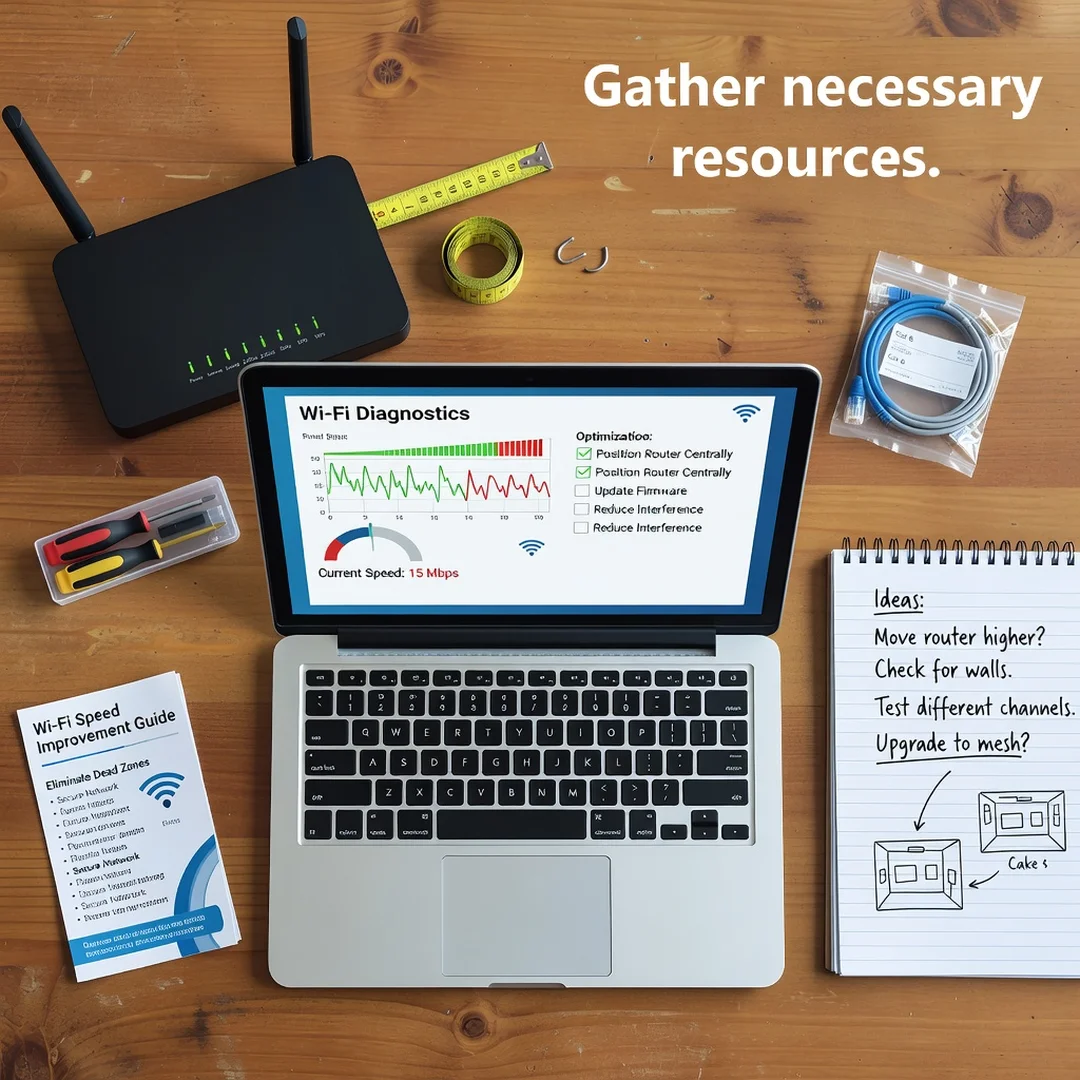
Most of the fixes in this guide require no purchases. You will need access to your router’s admin panel (usually through a web browser), your Wi-Fi password, and a smartphone or laptop for testing. A free Wi-Fi analyzer app can help you identify congested channels and weak signal areas. If you plan to use Ethernet, you may need a cable of appropriate length.
Step 5: Apply the core methods
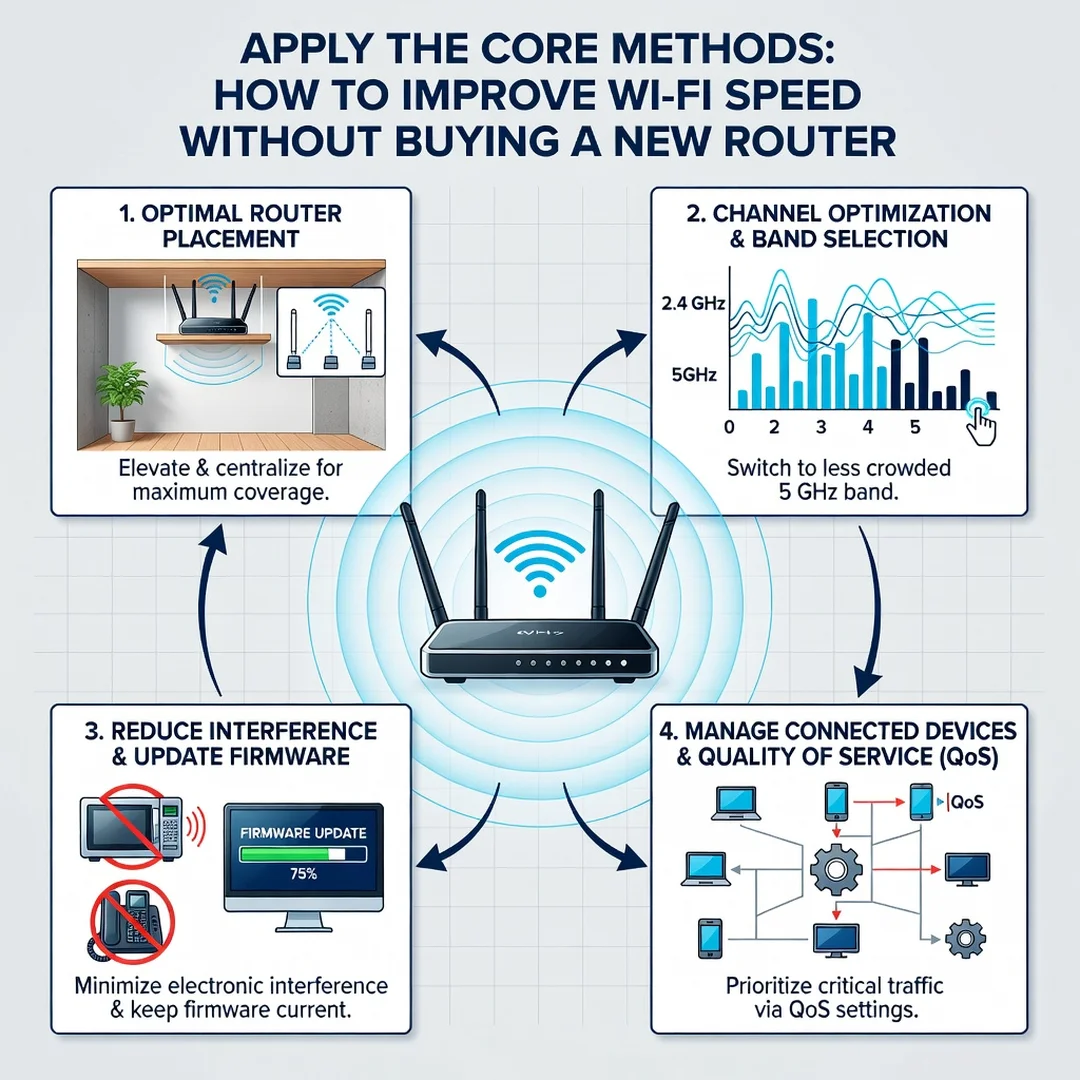
Work through the improvements systematically. Reposition the router to a central, elevated spot. Update the firmware. Log into the admin panel and change the Wi-Fi channel to a less crowded one. Enable QoS if available. Separate your devices between the 2.4 GHz and 5 GHz bands based on their needs. Switch to a faster DNS provider. Reboot the router. Each of these steps builds on the last and compounds the benefit.
Step 6: Monitor your progress
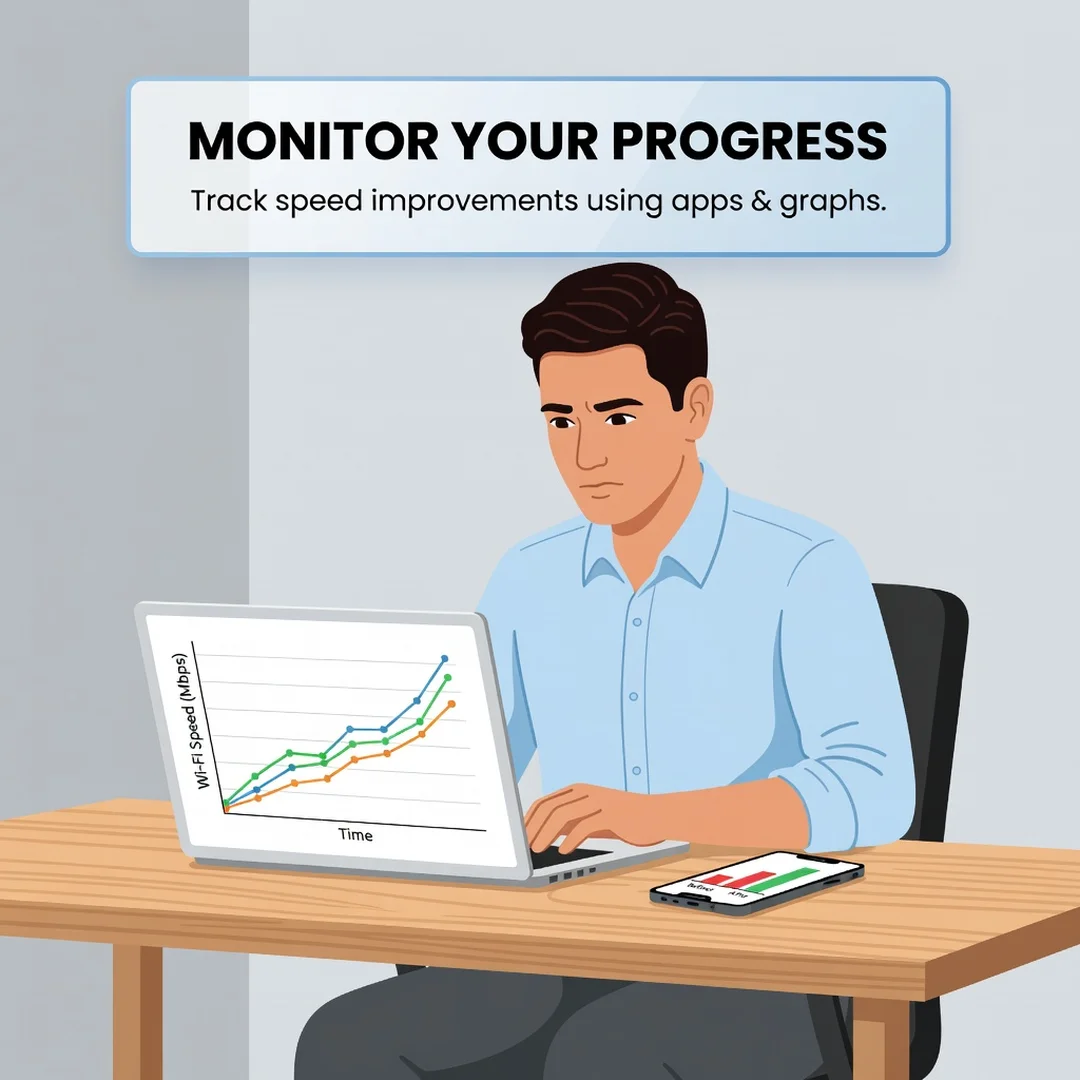
After applying changes, re-run your speed tests in the same locations and at similar times. Compare the new results to your baseline. If performance improved, great—keep those settings. If a change made things worse, revert it. Continue monitoring over the following weeks, because network conditions change as neighbors add devices and your own usage patterns shift.
FAQ
What should I know about How to Improve Wi-Fi Speed Without Buying a New Router?
The most important thing to know is that many speed issues stem from placement, congestion, and configuration rather than outdated hardware. You can often achieve significant improvements by repositioning your router, changing channels, updating firmware, and managing connected devices. Understanding the fundamentals of How to Improve Wi-Fi Speed Without Buying a New Router helps you make informed decisions rather than guessing. Reliable information and consistent habits lead to better long-term outcomes, so treat optimization as an ongoing process rather than a one-time fix.
Who is this guide for?
This guide is for anyone experiencing slow or unreliable Wi-Fi at home who wants to improve performance without spending money on new equipment. It is suitable for beginners who are comfortable logging into a router settings page, as well as for more experienced users looking for a structured checklist. Renters, homeowners, apartment dwellers, and remote workers can all benefit. No advanced networking knowledge is required, and every step is explained in plain language.
Conclusion
Improving your Wi-Fi speed without buying a new router is entirely achievable. By understanding how wireless signals behave, assessing your current setup, setting clear goals, and applying targeted changes, you can often transform a frustrating connection into a reliable one. The steps in this guide—repositioning your router, updating firmware, changing channels, managing devices, and monitoring results—cost little or nothing and can deliver meaningful gains.
Remember that network conditions are not static. New devices, new neighbors, and changing usage patterns all affect performance. Revisit these best practices periodically,.
You now have a solid foundation for How to Improve Wi-Fi Speed Without Buying a New Router. Apply the best practices above and revisit this guide as your needs evolve.