

Wi-Fi 7 is the next generation of wireless technology, designed to deliver faster speeds, lower latency, and more reliable connections than ever before. If your home or office struggles with buffering, lag, or dead zones, understanding what Wi-Fi 7 is—and how it improves wireless connectivity—can help you decide whether it’s time to upgrade.
In this article, we’ll break down Wi-Fi 7 in plain language, explain the key improvements over Wi-Fi 6 and 6E, and show you what those changes mean for streaming, gaming, and working from home. You’ll also learn which devices support Wi-Fi 7 today and how to prepare your network for the future.
Introduction
Wireless connectivity has become the invisible backbone of modern life. From streaming high-definition video and attending video calls to controlling smart home devices and gaming online, nearly everything depends on a stable, fast Wi-Fi signal. As more devices crowd our homes and offices, older Wi-Fi standards are beginning to show their limits. That is where Wi-Fi 7 enters the picture. This article explores What Is Wi-Fi 7 and How Does It Improve Wireless Connectivity with clear, practical guidance. Whether you are a tech enthusiast, a remote worker, or someone who simply wants fewer buffering circles, understanding this new standard will help you plan for the future. The transition to Wi-Fi 7 is not just a minor speed bump; it is a fundamental rethinking of how wireless networks handle data, latency, and congestion. By the end of this guide, you will know exactly what Wi-Fi 7 is, why it matters, and how to take advantage of it without overspending or overcomplicating your setup.
Key Concepts
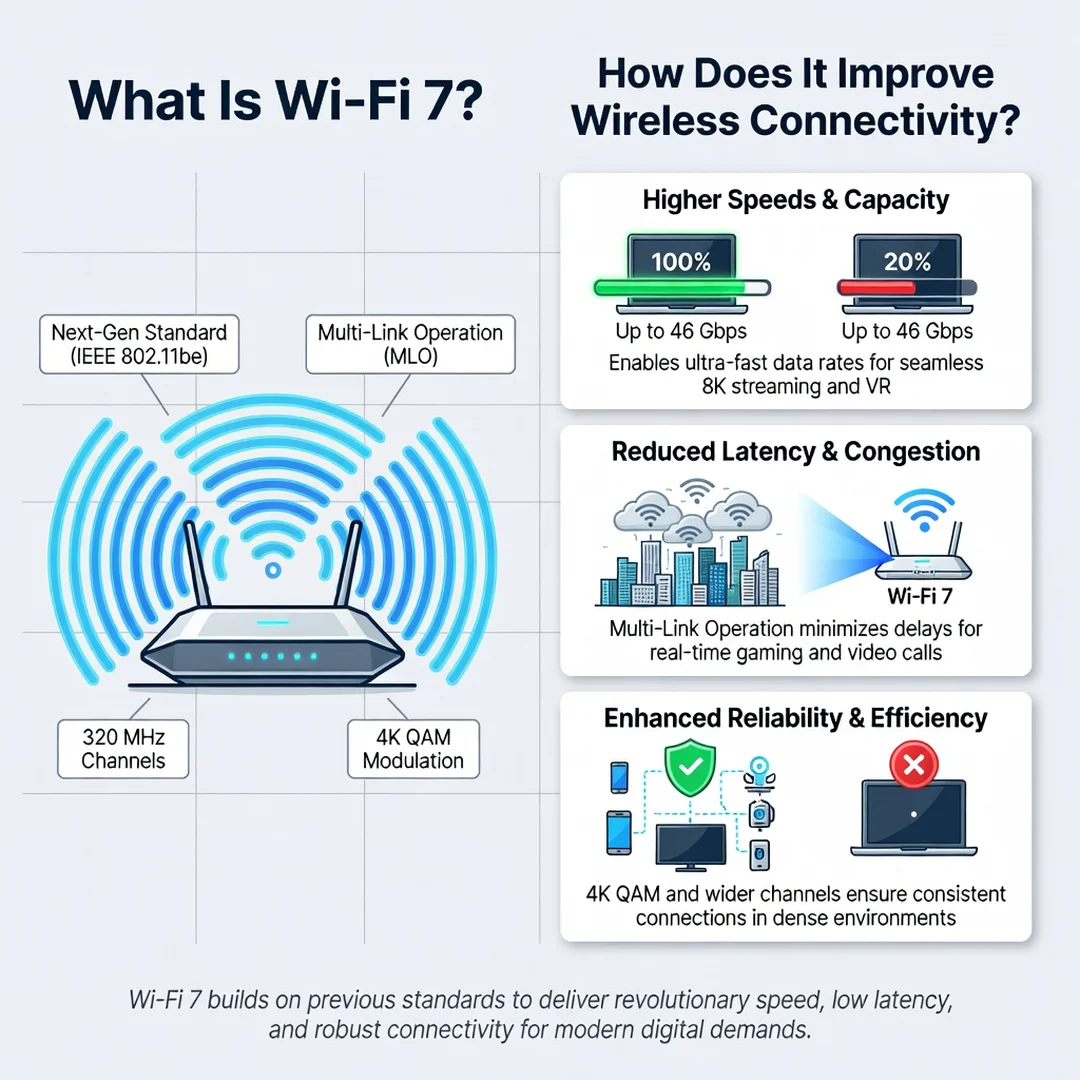
Before diving into the technical weeds, it helps to grasp a few foundational ideas that separate Wi-Fi 7 from its predecessors. Wi-Fi 7 is the common name for the IEEE 802.11be standard, the successor to Wi-Fi 6 and Wi-Fi 6E. While Wi-Fi 6 focused on efficiency in crowded environments, Wi-Fi 7 pushes bandwidth, latency, and reliability to new heights. The headline number you will hear is 46 Gbps theoretical maximum throughput, but real-world benefits are more nuanced. Three core technologies drive the improvement: wider channels, higher-order modulation, and multi-link operation. Wider channels, up to 320 MHz, act like adding more lanes to a highway. Higher-order modulation, called 4096-QAM, packs more data into each signal. Multi-link operation allows a device to connect on multiple frequency bands simultaneously, reducing lag and improving stability. Another key concept is Multi-Resource Unit (MRU) and preamble puncturing, which let the network use fragmented pieces of spectrum efficiently. You do not need to memorize these terms, but knowing they exist helps you evaluate router marketing claims. Understanding the fundamentals of What Is Wi-Fi 7 and How Does It Improve Wireless Connectivity helps you make informed decisions. Finally, remember that Wi-Fi 7 is backward compatible. Your old devices will still work; they just will not unlock the new features.
Deep Dive
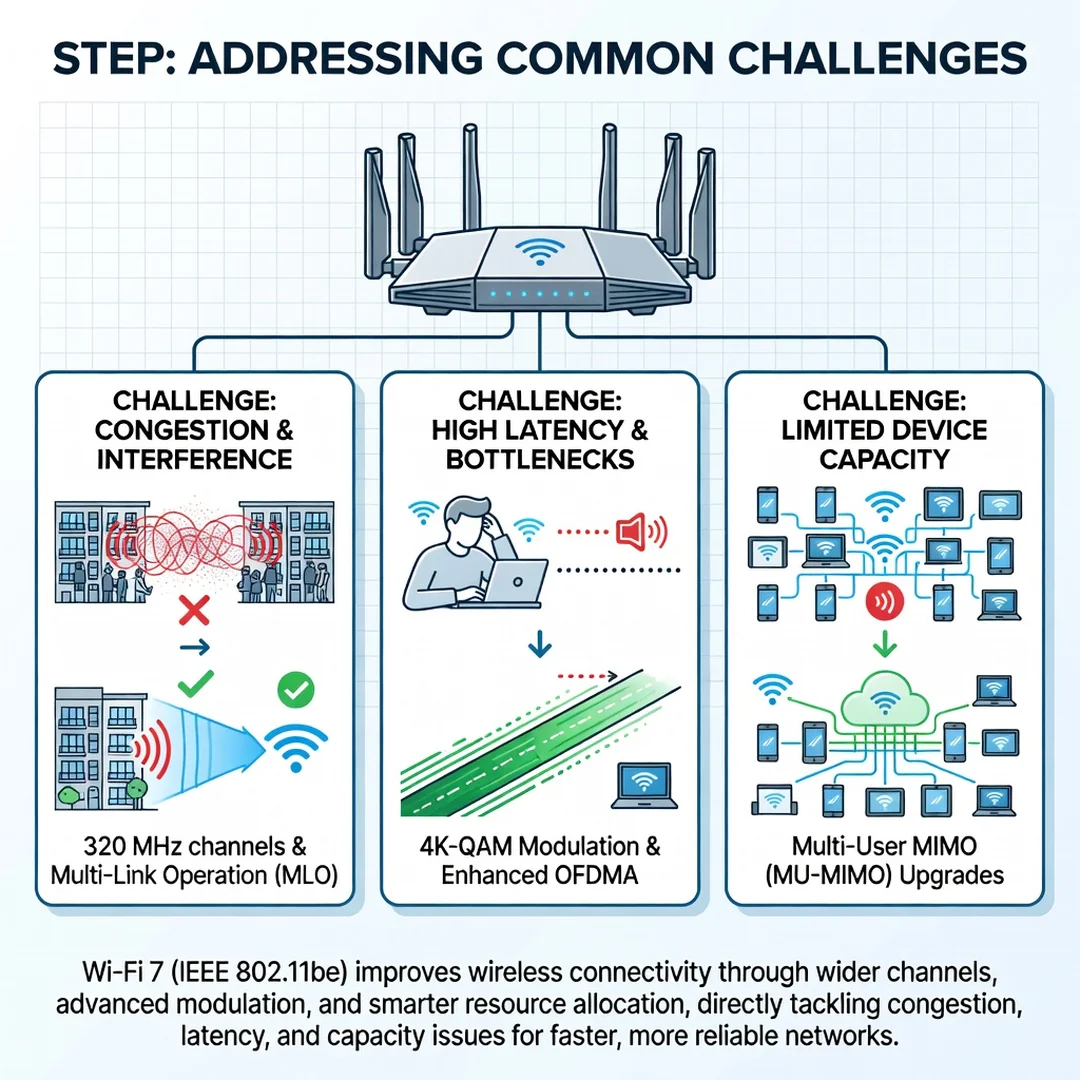
To truly appreciate Wi-Fi 7, imagine a busy airport security line. Older Wi-Fi standards are like a single queue where one slow passenger delays everyone. Wi-Fi 7 introduces multiple parallel queues, faster ID checks, and the ability to switch lanes mid-step. Technically, this comes from several enhancements working together.
First, the 6 GHz band. While Wi-Fi 6E opened this band, Wi-Fi 7 maximizes its potential with 320 MHz channel widths. That is double the widest channel in Wi-Fi 6. Wider channels mean more raw throughput, which is great for 8K video, VR, and large file transfers. However, wider channels are more susceptible to interference, so the standard includes sophisticated scheduling to avoid collisions.
Second, Multi-Link Operation (MLO). This is arguably the most impactful feature for everyday users. With MLO, a smartphone or laptop can connect to a router on 2.4 GHz, 5 GHz, and 6 GHz bands at the same time. The network then intelligently routes packets across the best link for each task. A video call might use the low-latency 6 GHz link, while a background download uses the more robust 5 GHz link. The result is lower latency, fewer dropped connections, and smoother performance even when you move around your home.
Third, 4096-QAM. Quadrature Amplitude Modulation is a way of encoding data. Wi-Fi 6 used 1024-QAM, which encoded 10 bits per symbol. Wi-Fi 7 uses 4096-QAM, encoding 12 bits per symbol. That is a 20% increase in peak data rate under good signal conditions. In practice, this means faster downloads when you are close to the router.
Fourth, flexible channel utilization. Preamble puncturing allows a Wi-Fi 7 router to use a wide channel even if part of it is occupied by interference. Instead of dropping to a narrower channel, it can “puncture” out the noisy portion and use the rest. This is like a bus that can skip a blocked lane without stopping.
Fifth, improved latency and jitter control. Wi-Fi 7 introduces features like restricted target wake time and enhanced QoS management. These matter for real-time applications such as online gaming, video conferencing, and industrial IoT. A consistent 5 ms latency is far more valuable than a peak speed of 2 Gbps that fluctuates wildly.
Finally, consider the ecosystem. Wi-Fi 7 routers are available from major brands, and client devices—phones, laptops, and tablets—are increasingly shipping with Wi-Fi 7 chips. However, you do not need a full upgrade overnight. The standard is designed to coexist with older devices, and your existing internet plan may be the bottleneck, not your Wi-Fi. Reliable information and consistent habits lead to better long-term outcomes. That means buying a Wi-Fi 7 router only if your usage justifies it, and configuring it properly rather than relying on default settings.
Best Practices
Getting the most from Wi-Fi 7 is not just about buying new hardware. These best practices will help you maximize performance and avoid common pitfalls.
- Place your router centrally and high. Wi-Fi 7 signals, especially in the 6 GHz band, are easily blocked by walls and furniture. A central, elevated location reduces dead zones.
- Use the 6 GHz band for close-range, high-bandwidth devices. Keep your smart TV, gaming console, or VR headset on 6 GHz if they are in the same room as the router. Use 5 GHz for medium-range devices and 2.4 GHz for IoT sensors and older gadgets.
- Enable Multi-Link Operation if available. Check your router settings and client device support. MLO can significantly improve stability, but it may need to be turned on manually.
- Update firmware regularly. Wi-Fi 7 is still maturing. Manufacturers release firmware updates that fix bugs and improve interoperability. Set a monthly reminder.
- Secure your network with WPA3. Wi-Fi 7 works best with WPA3 encryption, which is more secure and efficient than WPA2. Avoid open networks.
- Do not upgrade just for the sake of it. If your internet plan is 100 Mbps, a Wi-Fi 7 router will not make downloads faster. Upgrade when you have a multi-gigabit plan and devices that support Wi-Fi 7.
- Test before and after. Use a speed test app and a latency monitor. Compare your old router’s performance to the new one in the same locations. This data tells you whether your investment paid off.
- Consider a mesh system for large homes. Wi-Fi 7 mesh nodes can use MLO for backhaul, meaning the connection between nodes is faster and more reliable, which benefits every device on the network.
These habits are not unique to Wi-Fi 7, but they become more important as speeds increase. A poorly placed router or an outdated encryption setting can negate the benefits of the new standard.
Step-by-Step Guide to Adopting Wi-Fi 7
If you are ready to move to Wi-Fi 7, follow these steps in order. This process works for home users and small office setups alike.
Step 1: Understand the fundamentals
Before you buy anything, make sure you can explain the difference between Wi-Fi 6, 6E, and 7 in your own words. Know that Wi-Fi 7 offers wider channels, multi-link operation, and higher modulation. Understand that your client devices must also support Wi-Fi 7 to get the full benefit. Read at least two independent reviews of any router you consider. This step prevents you from being swayed by marketing jargon or buying features you will never use.
Step 2: Assess your starting point
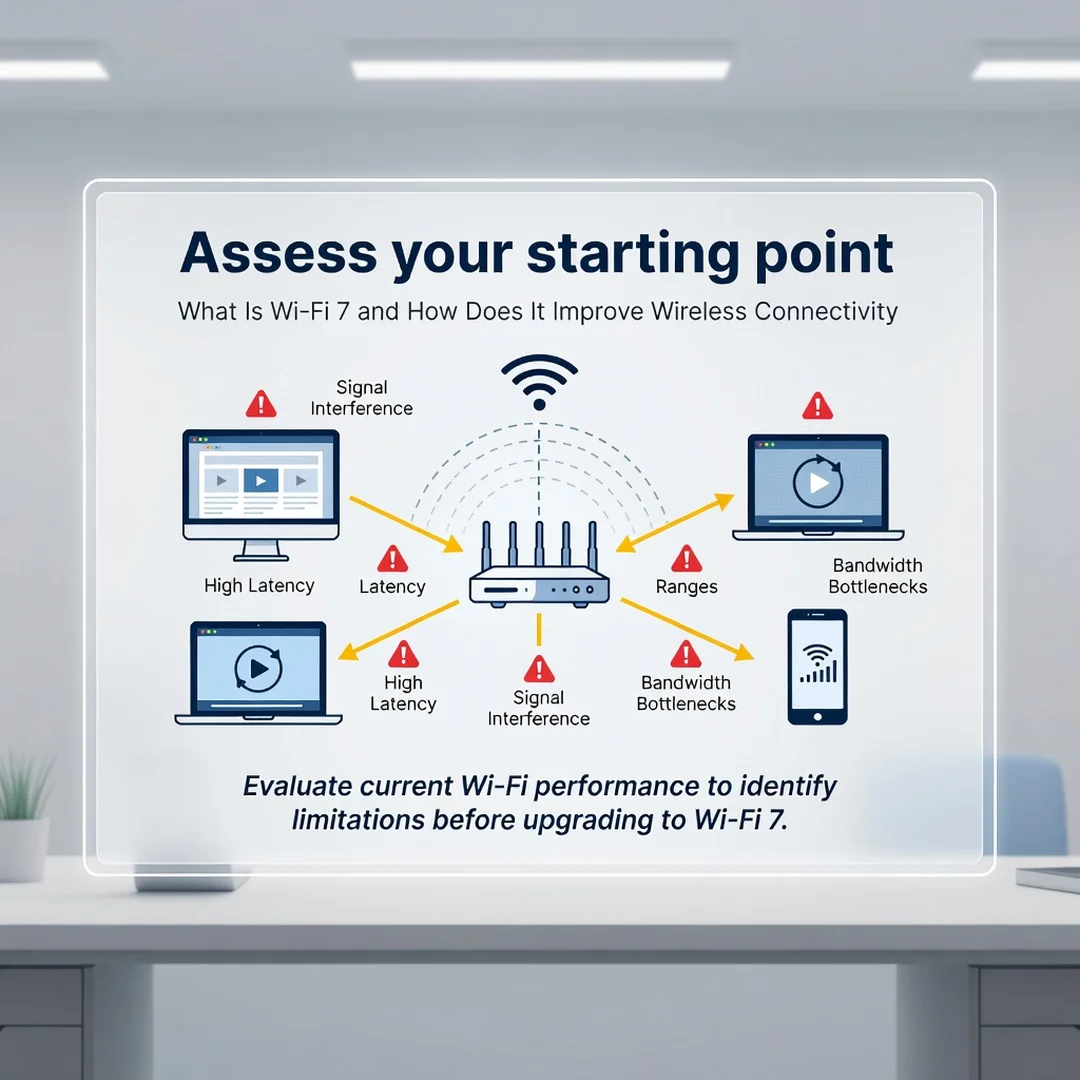
Audit your current network. List every connected device and note which ones are mission-critical (work laptop, gaming PC, smart TV) and which are occasional (smart bulb, tablet). Run speed tests in different rooms. Measure latency with a ping test to a common server. Check your internet plan’s actual speed. If your plan is below 500 Mbps, Wi-Fi 7 may not be necessary yet. If you have many devices and experience frequent lag, Wi-Fi 7 could help even at lower speeds due to better scheduling.
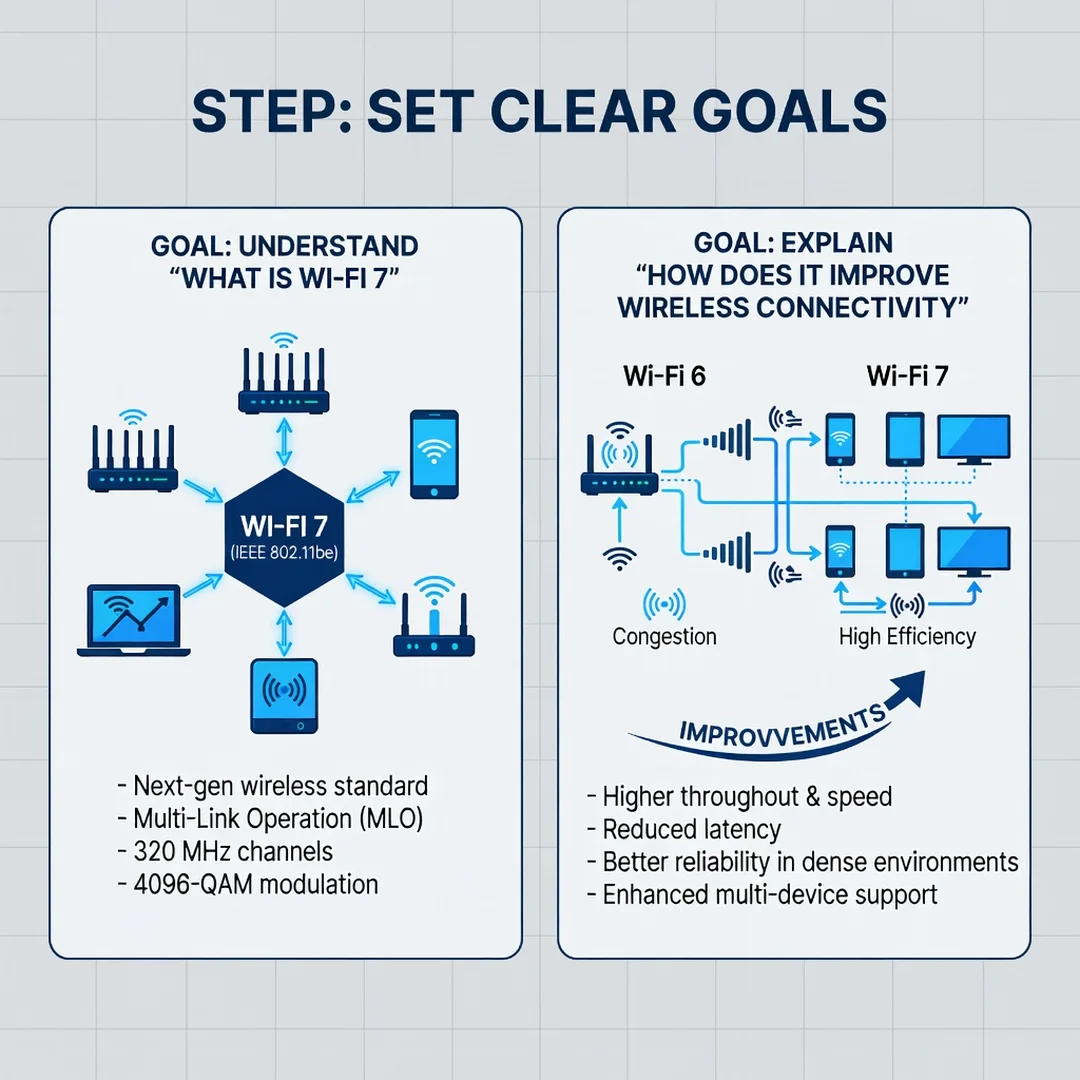
Step 3: Set clear goals
Define what success looks like. Examples: “Reduce video call drops to zero,” “Achieve 1 Gbps download speed in my office,” “Support 50 smart home devices without stuttering,” or “Lower gaming latency to under 10 ms.” Write these goals down. They will guide your router choice and configuration. Without clear goals, you might overspend on a high-end model or miss a simpler fix like adding a mesh node.
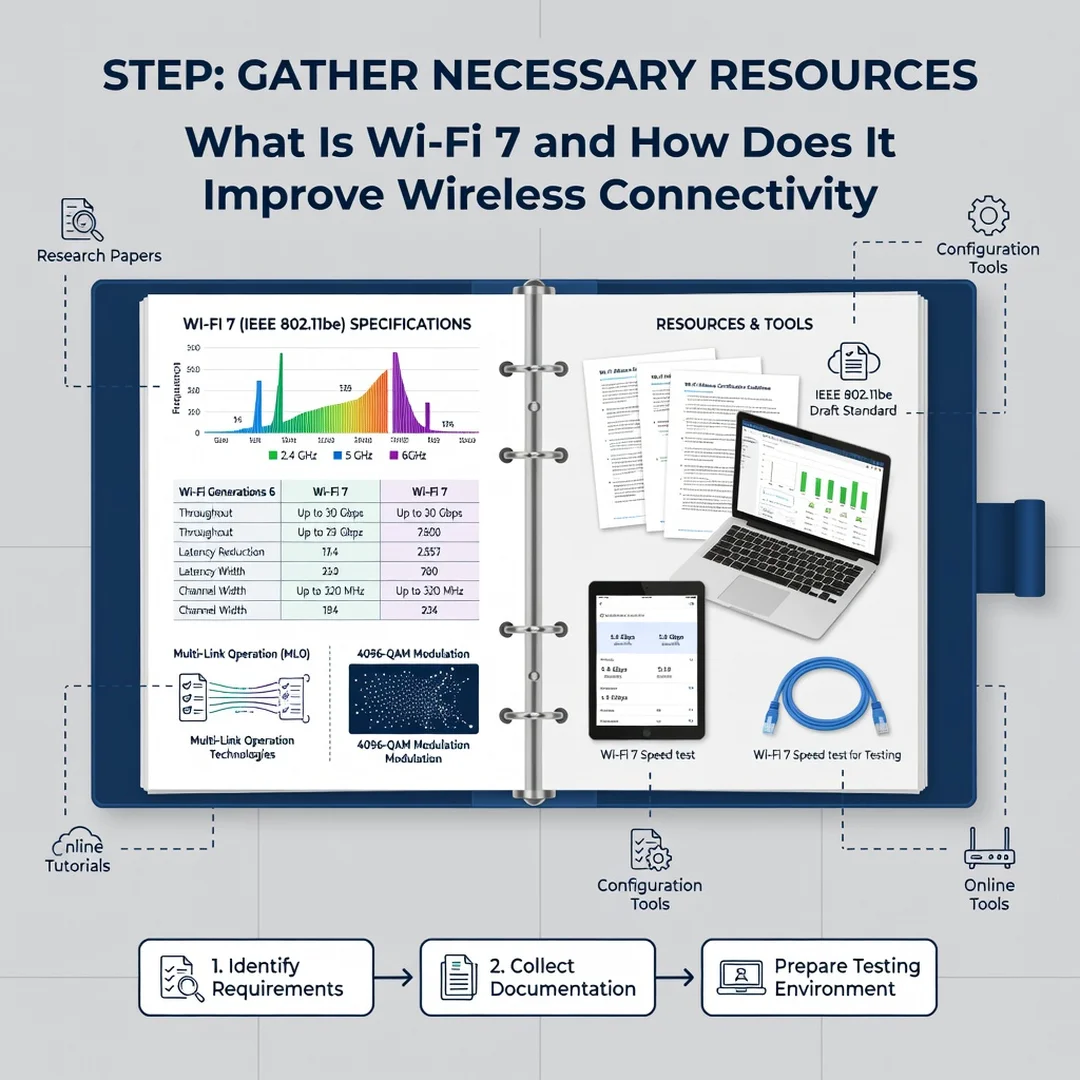
Step 4: Gather necessary resources
You will need a Wi-Fi 7 router or mesh system, a compatible client device (at least one to test), and a modem that supports your internet speed. Check that your internet service provider does not require a specific modem. You may also need Ethernet cables for wired backhaul if you use a mesh system. Finally, gather documentation: your router’s manual, your ISP’s support page, and a notebook for recording settings and test results.
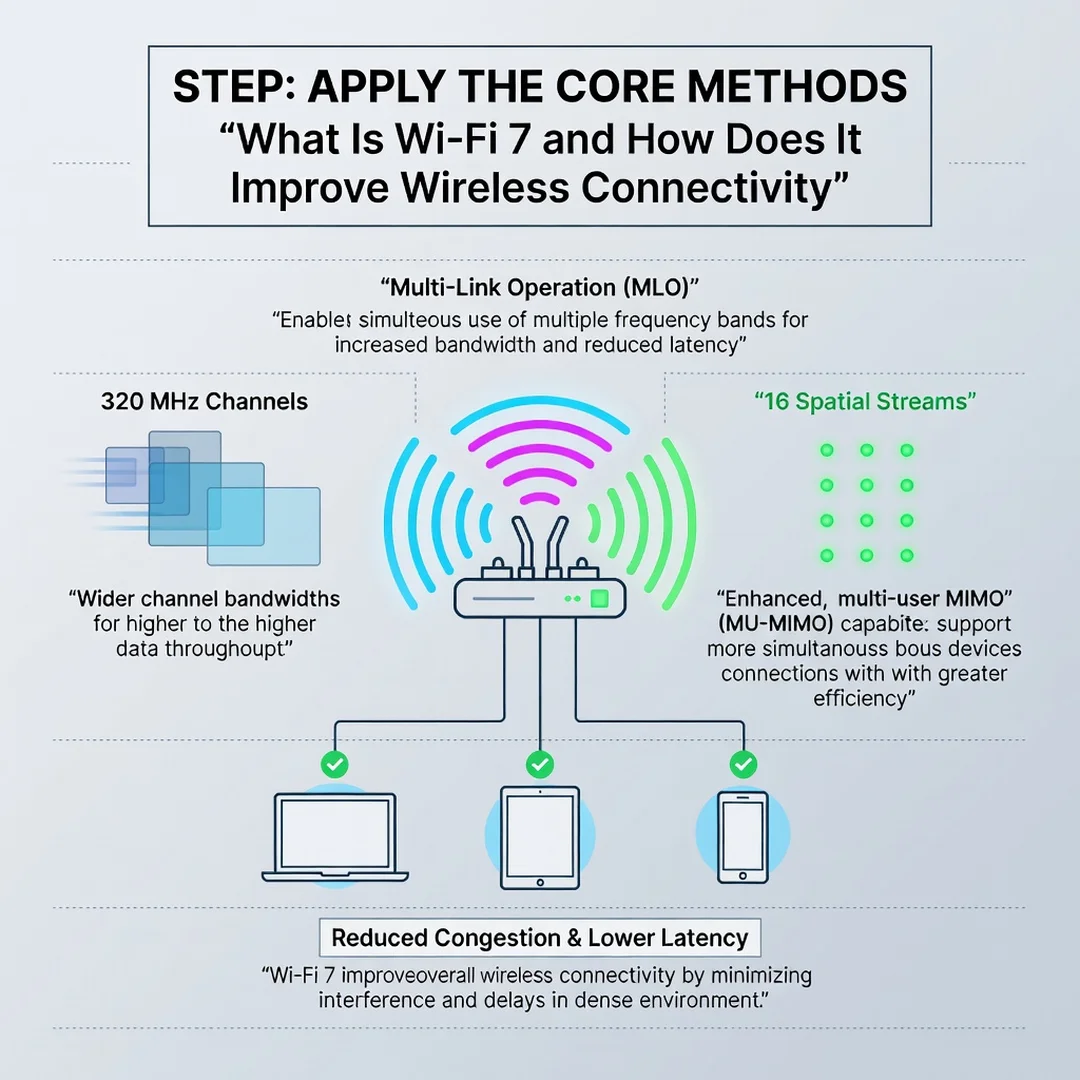
Step 5: Apply the core methods
Set up your Wi-Fi 7 router in a central location. Log into the admin panel and update firmware first. Enable WPA3 security. Create separate SSIDs for 2.4 GHz, 5 GHz, and 6 GHz if you want manual control, or use a single SSID with band steering for convenience. Turn on Multi-Link Operation if your router supports it. Connect your most demanding devices to the 6 GHz band. For mesh systems, place nodes halfway between the router and the dead zone. Use wired backhaul if possible. Test each change with a speed and latency test.
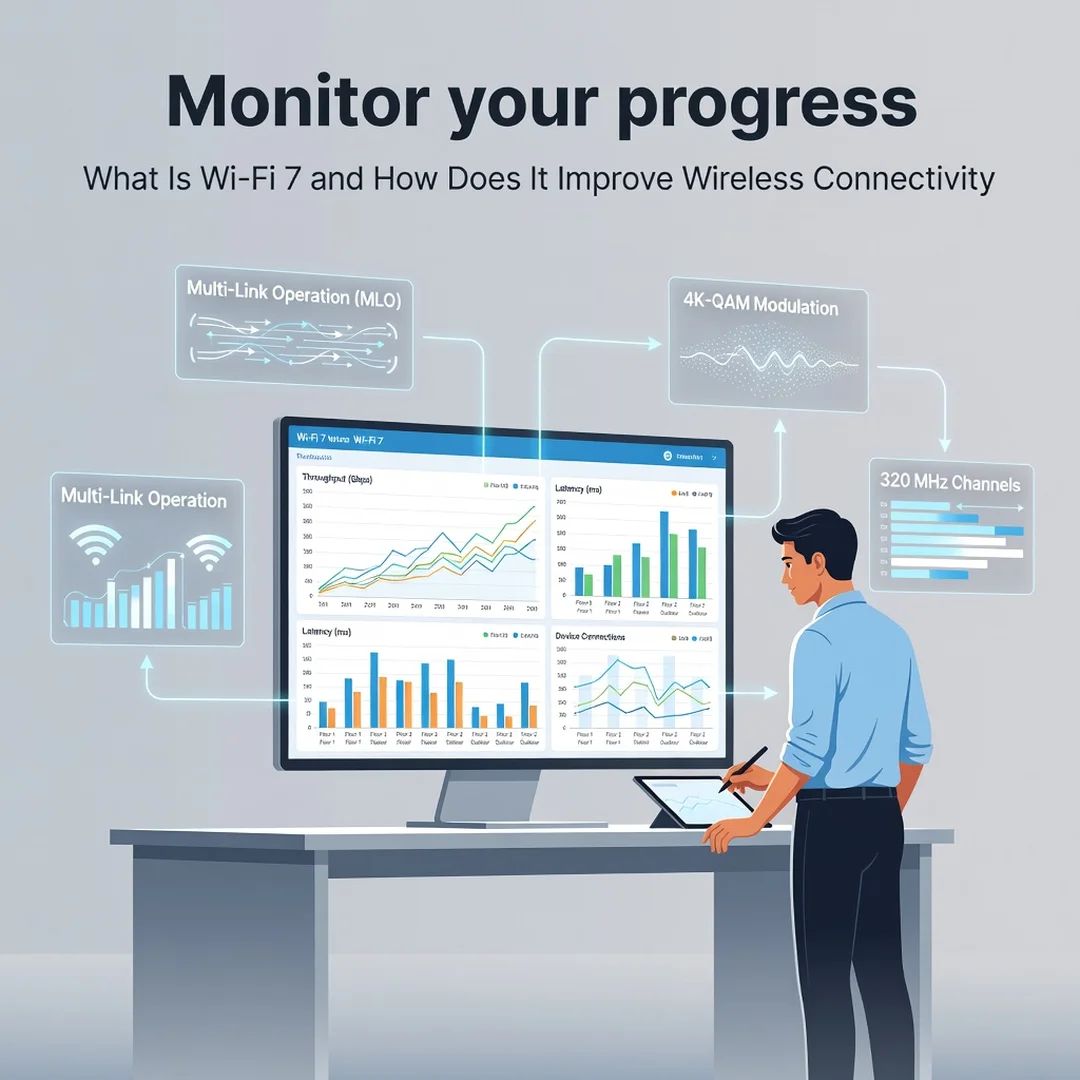
Step 6: Monitor your progress
After a week, review your goals. Did video calls improve? Is gaming latency lower? Are downloads faster? Use your router's traffic monitor to see which devices use the most bandwidth. Check for interference from neighbors by scanning Wi-Fi channels. Adjust channel widths or switch bands if needed. Repeat speed tests monthly. If you do not see improvement, consider whether your internet plan.
You now have a solid foundation for What Is Wi-Fi 7 and How Does It Improve Wireless Connectivity. Apply the best practices above and revisit this guide as your needs evolve.