
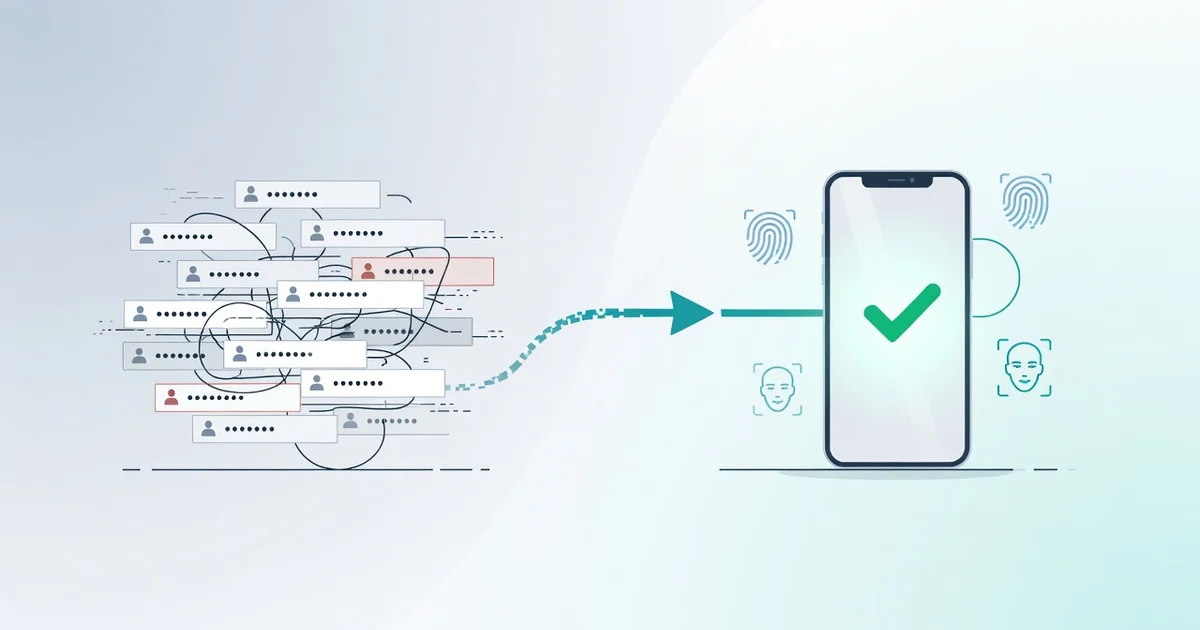
Passwords have protected our accounts for decades, but they come with a serious flaw: they can be stolen, guessed, or reused across dozens of sites. Enter passkey authentication—a modern login method that replaces traditional passwords with secure cryptographic keys tied to your device. It’s faster, safer, and already supported by major platforms like Google, Apple, and Microsoft.
In this article, we’ll explain what passkey authentication is, how it works, and why it’s quickly becoming the new standard for online security. Whether you’re a casual user or a tech enthusiast, you’ll learn how to adopt passkeys and reduce your risk of account breaches.
Introduction
Every time you type a password, you are relying on a security method that has been fundamentally flawed since its invention. Passwords can be guessed, phished, reused across sites, and leaked in data breaches. Passkey authentication is a newer approach designed to eliminate most of those weaknesses by replacing the shared secret of a password with a cryptographic key pair tied to your device. This article explores what passkey authentication is and why it is replacing passwords, with clear, practical guidance you can apply immediately.
The shift matters because passwords are no longer just inconvenient—they are a primary target for attackers. According to industry research, compromised credentials are involved in a large share of data breaches, and phishing remains one of the most common initial attack vectors. Passkeys address the root cause: a password is something you know, and knowledge can be stolen. A passkey is something you have, combined with something you are (like a fingerprint or face scan), and that combination is far harder to fake remotely.
Understanding the fundamentals of passkey authentication helps you make informed decisions about your own digital security. Whether you manage personal accounts, run a small business, or simply want fewer passwords to remember, knowing how passkeys work, where they are supported, and what trade-offs exist lets you adopt them with confidence instead of confusion.
Key Concepts
To understand why passkeys are replacing passwords, you need a few core concepts. These are the building blocks that make passkey authentication both secure and usable.
Public-key cryptography
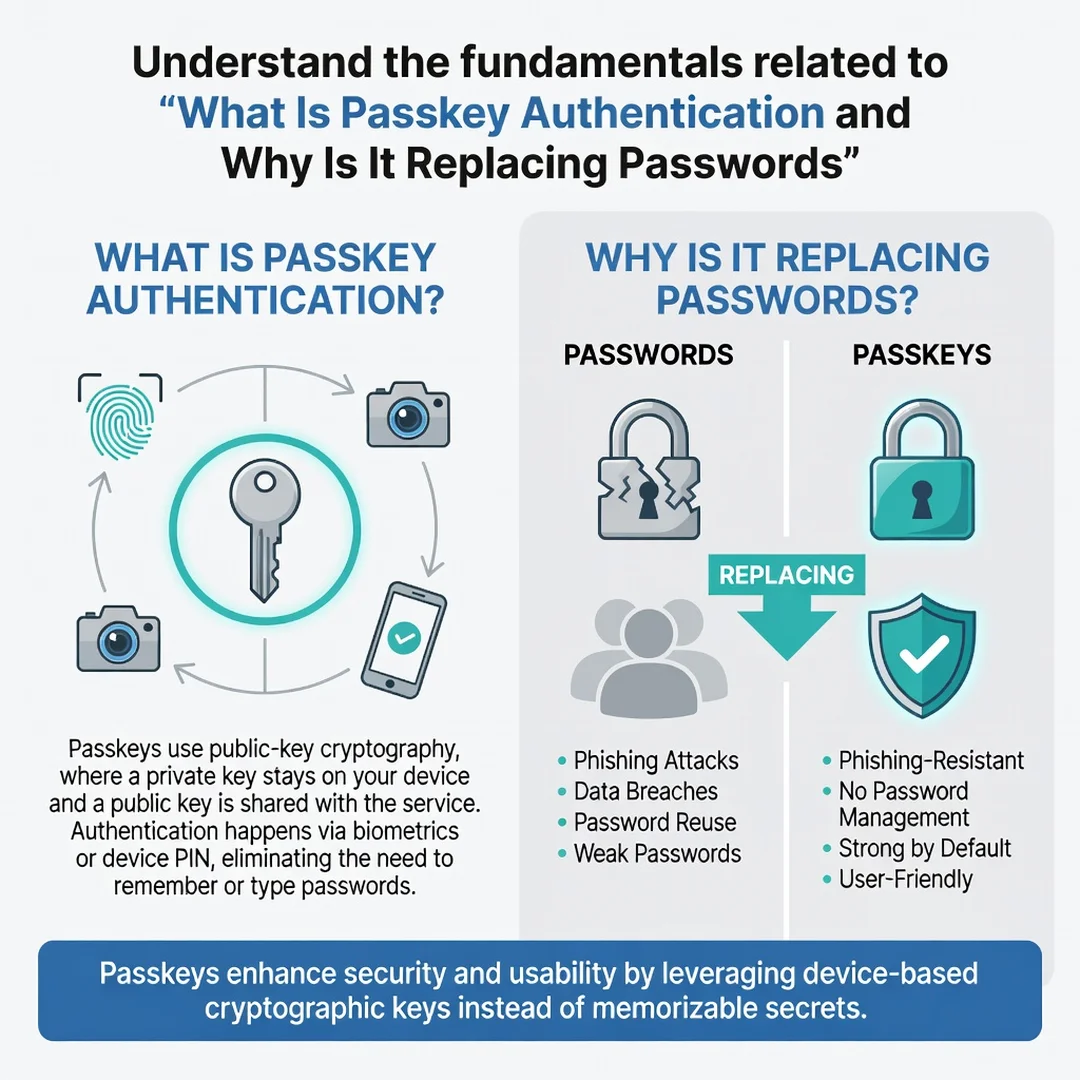
Passkeys rely on public-key cryptography, also called asymmetric cryptography. When you create a passkey, your device generates a pair of mathematically linked keys: a private key and a public key. The private key never leaves your device. The public key is sent to the website or app you are registering with. During login, the service sends a challenge, your device signs it with the private key, and the service verifies the signature using your public key. No shared secret ever crosses the network, so there is nothing for a phisher to steal.
FIDO2 and WebAuthn
Passkeys are built on standards developed by the FIDO Alliance and the World Wide Web Consortium (W3C). FIDO2 is the umbrella standard, and WebAuthn is the web API that lets browsers and apps communicate with authenticators. Because these are open standards, passkeys work across different platforms and devices—Apple, Google, Microsoft, and many password managers have adopted them.
Synced vs. device-bound passkeys
There are two main types of passkeys. Synced passkeys are stored in a cloud keychain (like iCloud Keychain, Google Password Manager, or a third-party password manager) and are available across your devices. Device-bound passkeys stay on a single hardware security key or device. Synced passkeys are more convenient; device-bound passkeys offer stronger isolation. Many services let you register multiple passkeys so you have both options.
Biometrics and local verification
When you use a passkey, your device typically asks for a fingerprint, face scan, or PIN. This is not the passkey itself—it is a local unlock that authorizes your device to use the private key. The biometric data never leaves your device, and the website never sees it. This local verification is what makes passkeys resistant to phishing: even if you are tricked into visiting a fake site, your device will not release a signature for the wrong domain.
Recovery and account recovery
Because there is no password to reset, account recovery works differently. Most providers use a combination of trusted devices, recovery codes, or a fallback method. It is important to set up recovery options when you create a passkey, so you are not locked out if you lose a device.
Deep Dive
Now that the vocabulary is clear, let’s look at why passkeys are gaining traction and how they change the security landscape in practice.
Why passwords fail
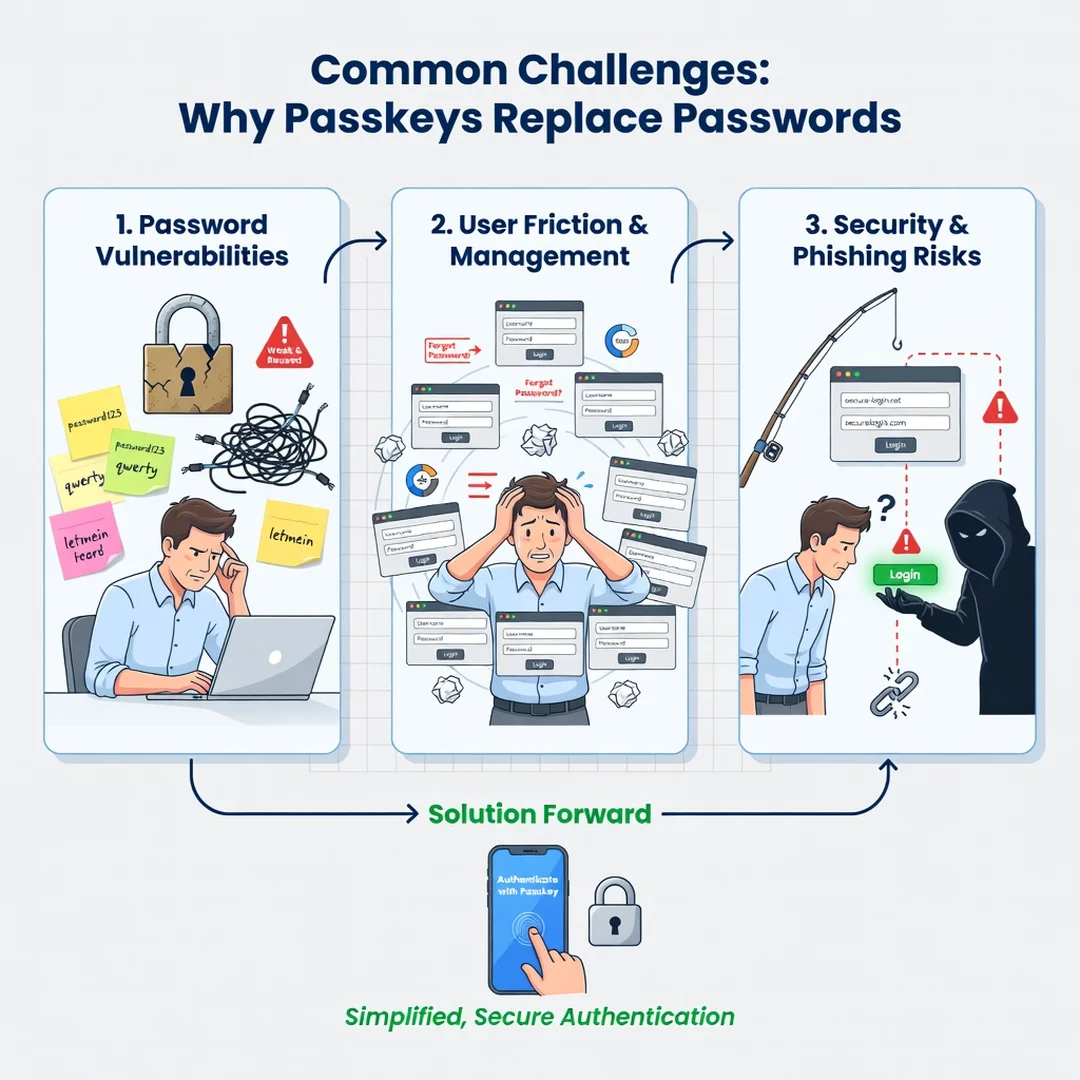
Passwords fail for predictable reasons. People reuse them across sites, choose weak ones, and fall for phishing pages that look identical to real login screens. Even strong, unique passwords can be stolen if a service stores them insecurely or if malware captures them. Multi-factor authentication (MFA) helps, but not all MFA is phishing-resistant. One-time codes sent via SMS can be intercepted or relayed in real time by an attacker.
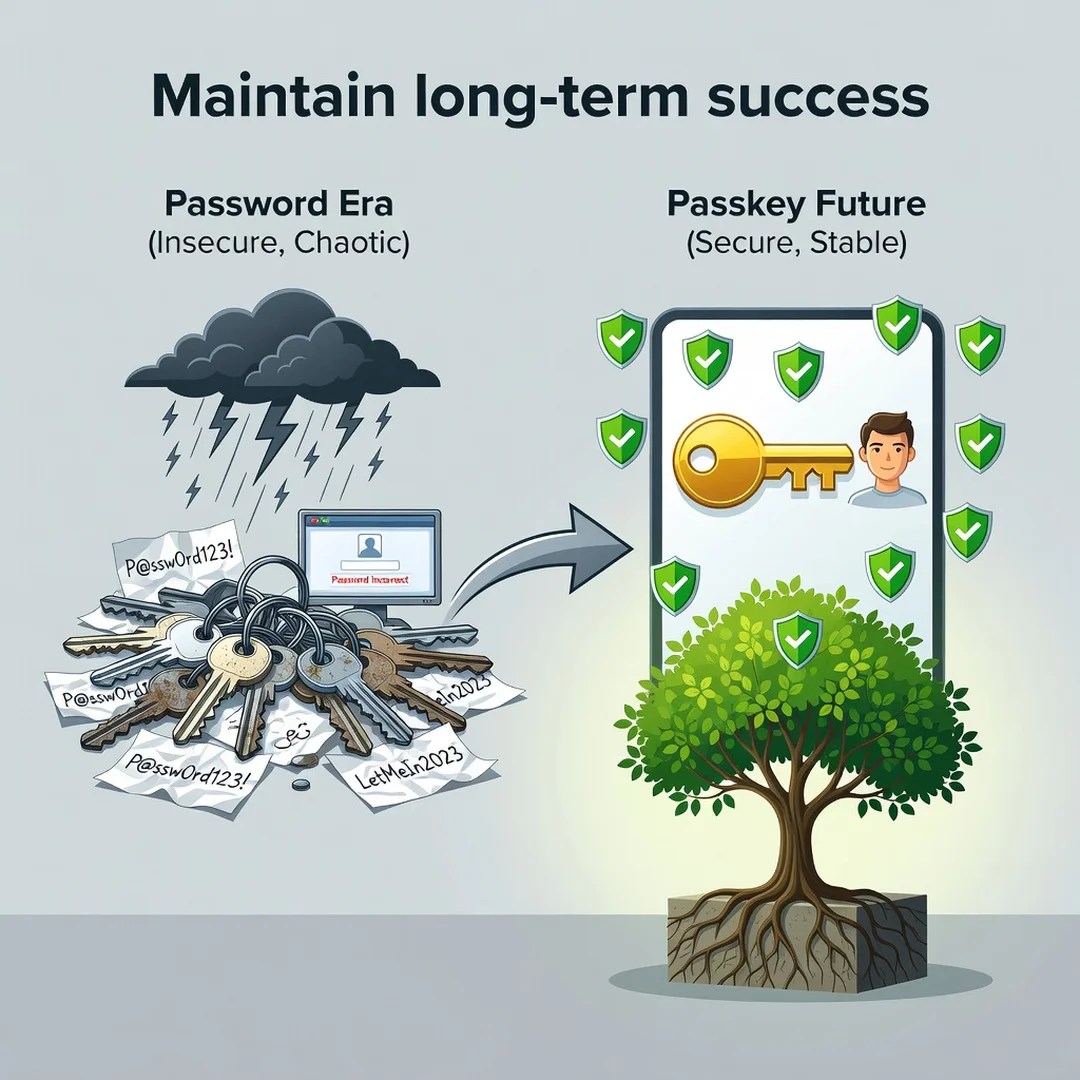
Passkeys remove the shared secret entirely. There is no password to phish, no code to intercept, and no server-side password database to breach. If a service is compromised, attackers may get your public key, but a public key is useless without the corresponding private key on your device.
How passkeys improve usability
Security improvements often come with friction. Passkeys are unusual because they improve both security and usability. Instead of typing a password and waiting for a code, you approve a prompt with your fingerprint or face. Logins become faster, especially on mobile devices. You also stop juggling dozens of passwords, which reduces the temptation to reuse them.
For businesses, passkeys can reduce help desk costs tied to password resets, which are a significant expense in many organizations. They also lower the risk of credential-stuffing attacks, where attackers reuse leaked passwords across many sites.
Where passkeys are supported today
Passkey support has grown rapidly. Major platforms including Apple, Google, and Microsoft support passkeys across their ecosystems. Many consumer services—such as PayPal, eBay, Shopify, and others—offer passkey login. Enterprise identity providers like Okta and Microsoft Entra ID support passkeys for workforce authentication. Support is not universal, but the trend is clearly toward broader adoption.
Limitations and trade-offs
Passkeys are not perfect. If you lose all your devices and have no recovery method, you can be locked out. Not every website supports them yet, so you may still need passwords for some accounts. Shared devices, such as a family computer, need careful handling because passkeys are tied to the user account on that device. Finally, the ecosystem is still maturing, and some users find the concept confusing at first.
The role of password managers
Password managers have adapted to passkeys. Many now store and sync passkeys alongside traditional passwords, which makes the transition easier. If you already use a password manager, check whether it supports passkeys and how it handles syncing across devices. This can be a smooth path to adopting passkeys without abandoning your existing setup.
Best Practices
Adopting passkeys is a process, not a single action. These best practices help you get the security benefits without creating new problems.
- Start with your most important accounts. Enable passkeys first on email, banking, and primary cloud accounts. These are the keys to your digital life, and securing them has the highest impact.
- Register more than one passkey. Add a passkey on your phone and another on a hardware security key or a second device. This reduces the risk of lockout if one device is lost or damaged.
- Set up recovery options immediately. When a service offers recovery codes or a backup method, use it. Store recovery codes somewhere safe, such as a password manager or a locked physical location.
- Keep your devices updated. Passkey support depends on current operating systems and browsers. Install updates promptly to avoid compatibility issues.
- Understand your sync choice. Decide whether you want synced passkeys for convenience or device-bound passkeys for isolation. For high-value accounts, consider using both.
- Do not disable passwords until you are ready. Many services let you keep a password as a fallback. Remove it only after you have verified that your passkeys work and your recovery options are solid.
- Be cautious on shared devices. Do not create passkeys on a device you do not control. If you must log in on a shared computer, use a password or a guest session instead.
- Educate yourself and others. If you manage a team or family, explain how passkeys work and why they are safer. Reliable information and consistent habits lead to better long-term outcomes.
Step 1: Understand the fundamentals
Before you change anything, make sure you understand what a passkey is and how it differs from a password. Read the official documentation from your device maker or password manager. Know the difference between synced and device-bound passkeys, and understand that your biometric data stays on your device. This foundational knowledge prevents confusion later.
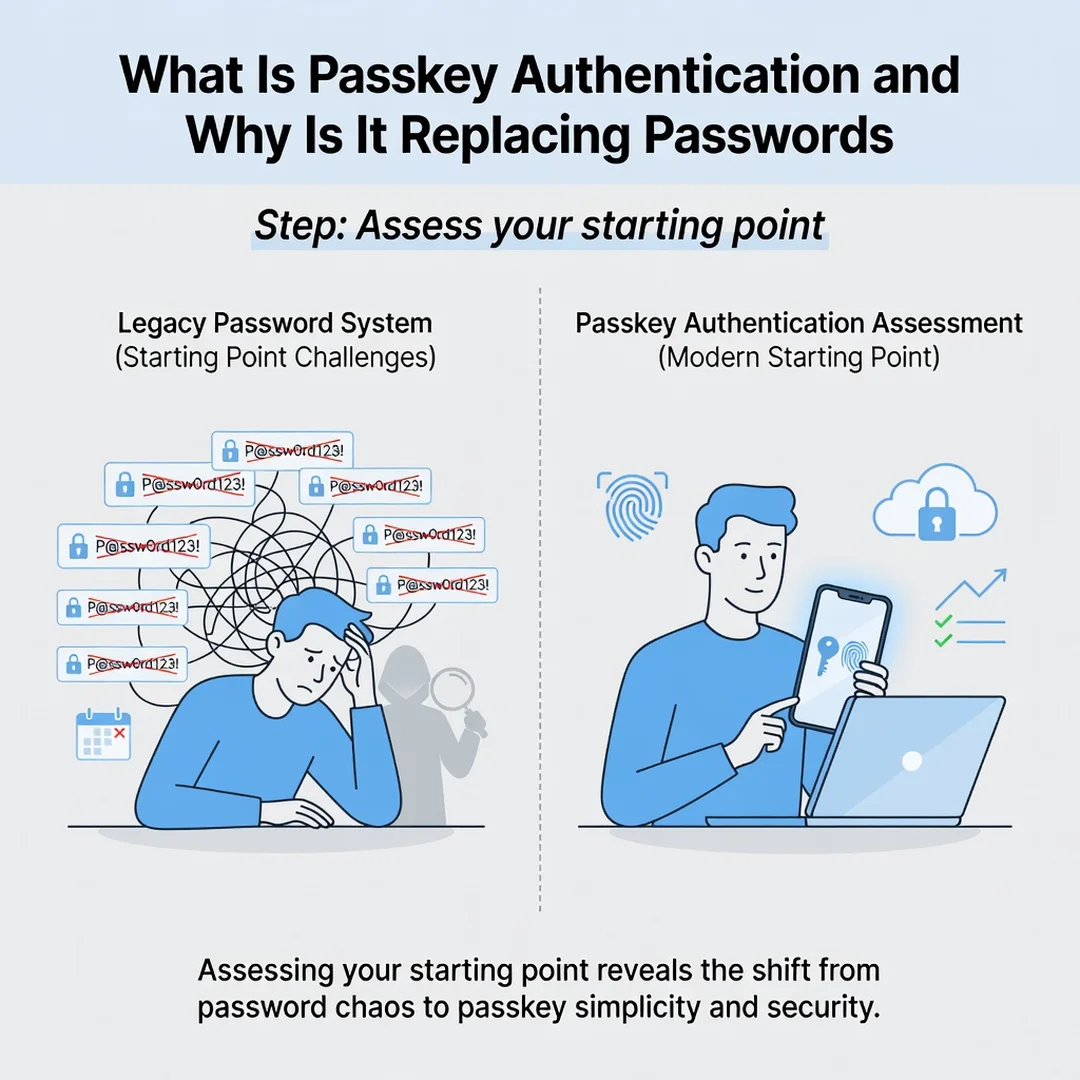
Step 2: Assess your starting point
List your most important online accounts and note which ones already support passkeys. Check whether your browser, operating system, and password manager are up to date. Identify where you currently store passwords and whether that tool supports passkeys. This assessment tells you where to begin and what tools you already have.
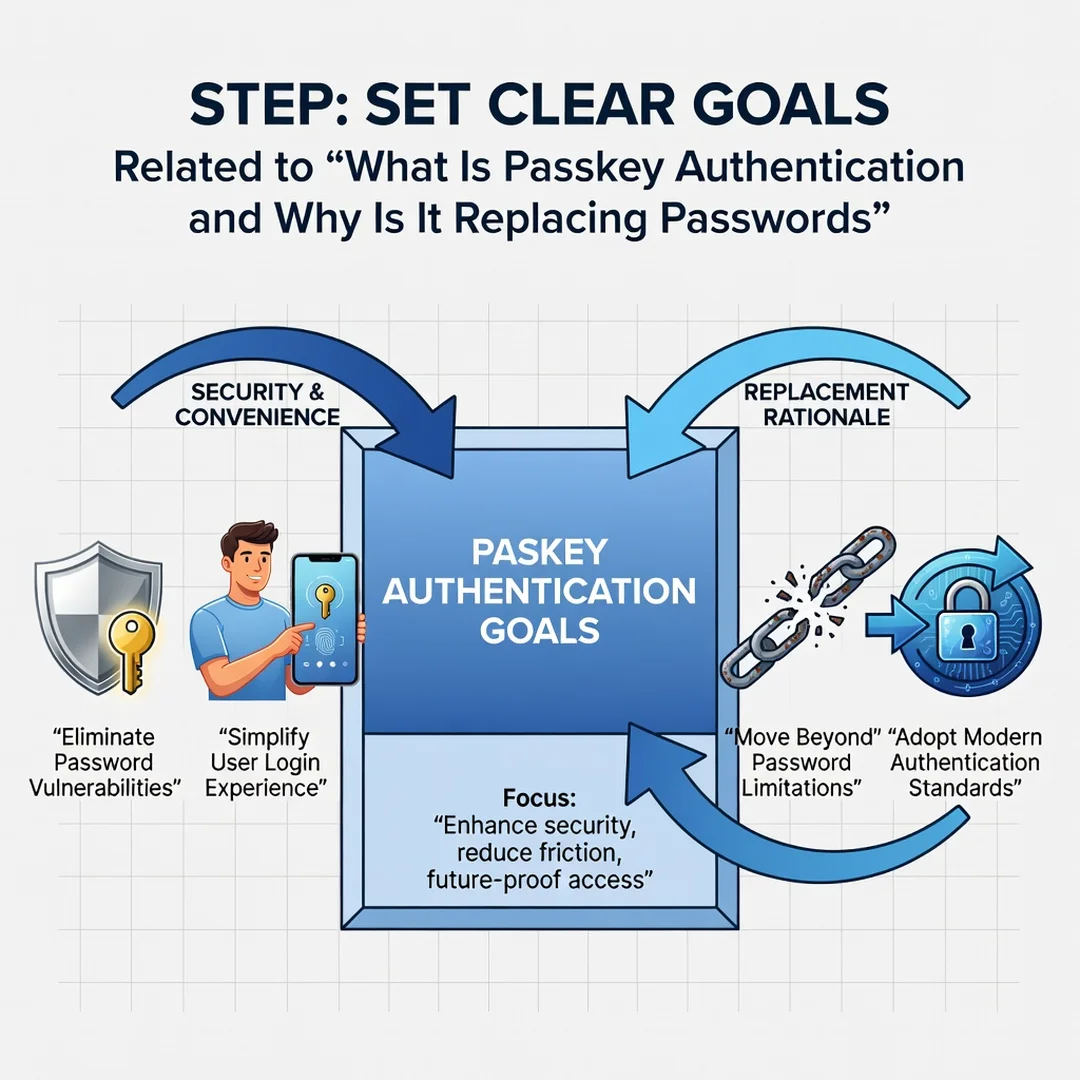
Step 3: Set clear goals
Decide what you want to achieve. A simple goal might be: “Enable passkeys on my top five accounts within one month.” A more advanced goal could be: “Use a hardware security key as a backup passkey for my email and banking.” Clear goals keep you focused and make progress measurable.
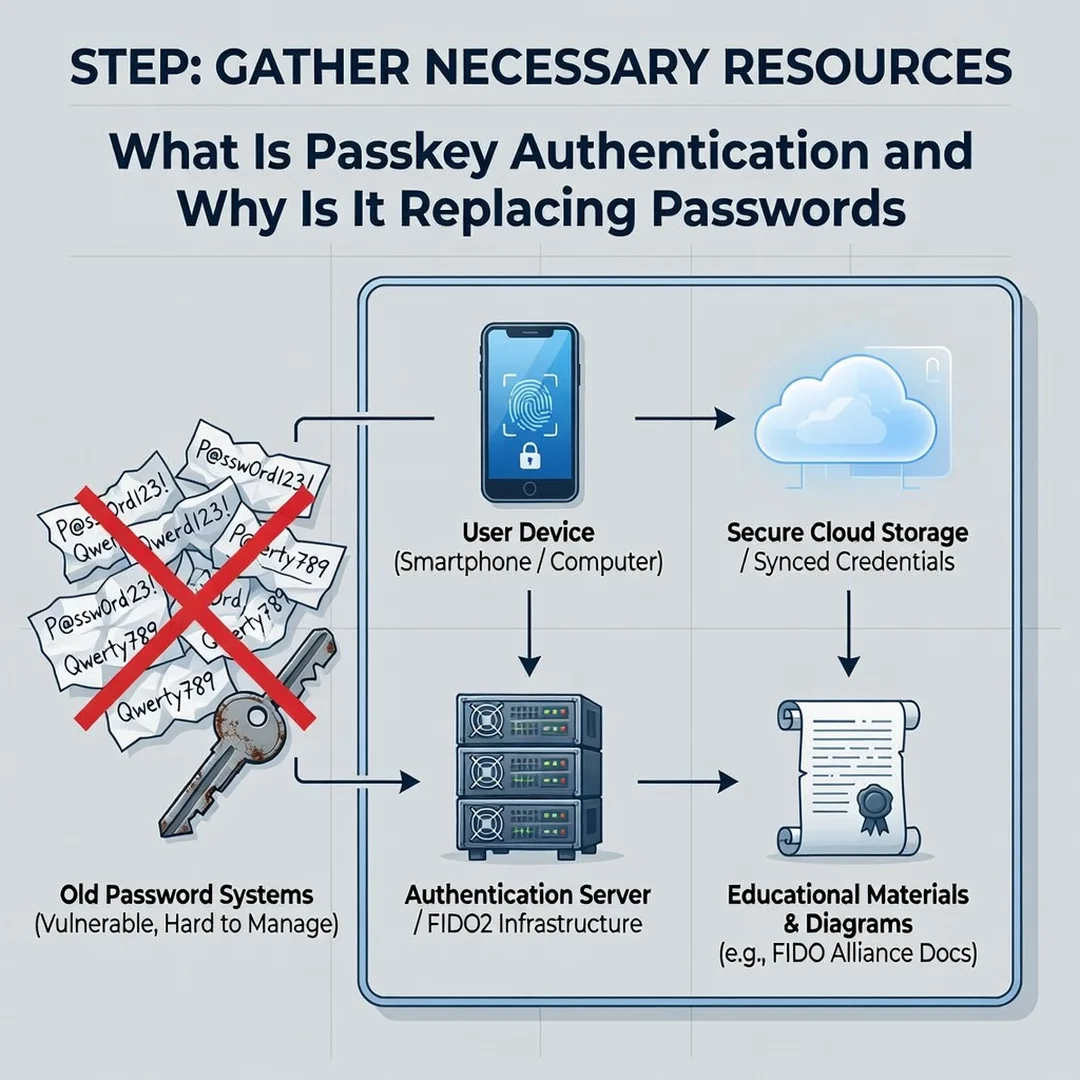
Step 4: Gather necessary resources
You need a compatible device, an updated browser or app, and a password manager or platform keychain that supports passkeys. If you plan to use a hardware security key, purchase one from a reputable vendor. Also collect recovery information, such as backup codes, and store it securely. Having everything ready makes the setup process smoother.
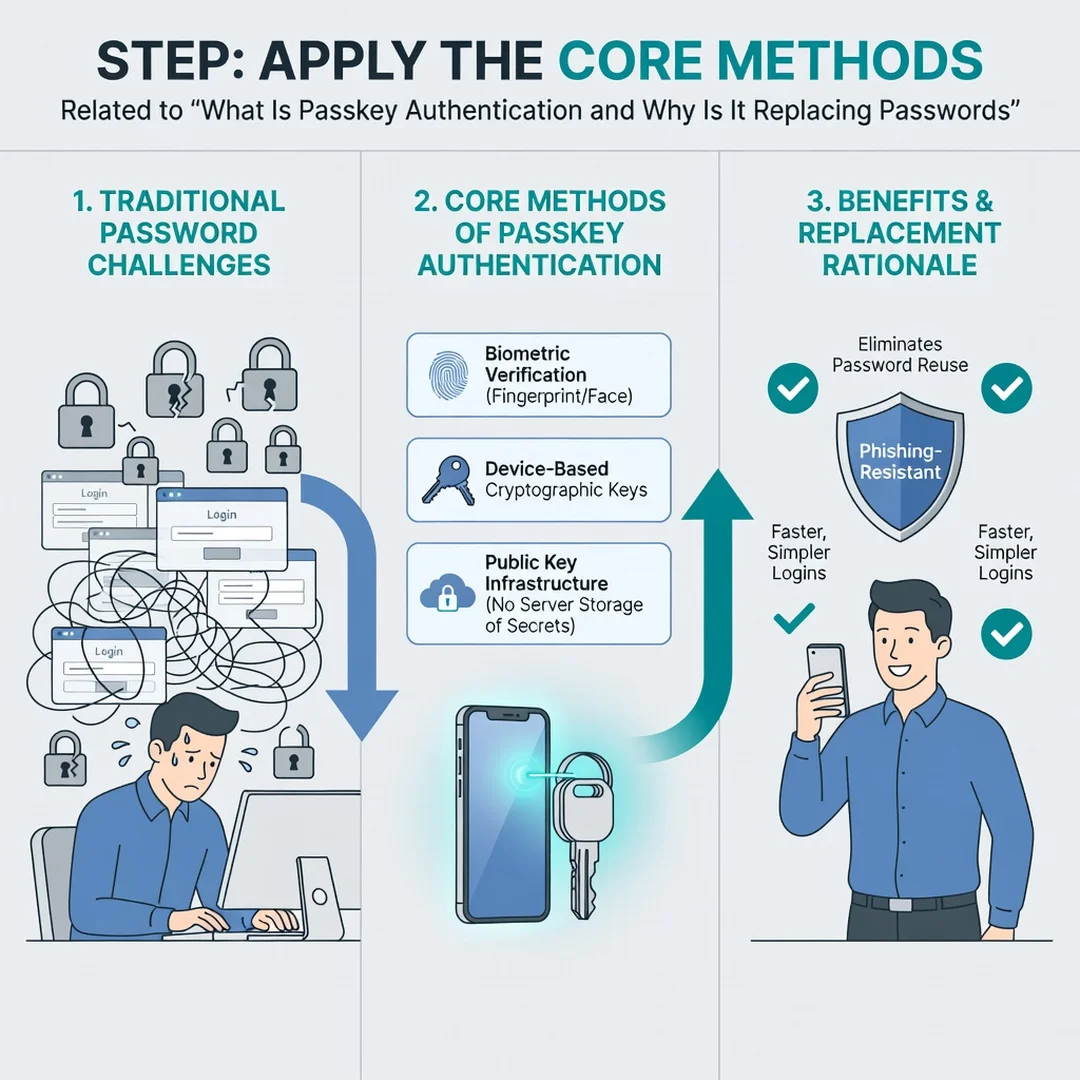
Step 5: Apply the core methods
Go to the security settings of your chosen account and look for the option to add a passkey. Follow the prompts to create your first passkey, then register a second one on another device. Test the login process to confirm it works. Repeat for each account on your list, and keep your existing password as a fallback until you are confident.
Step 6: Monitor your progress
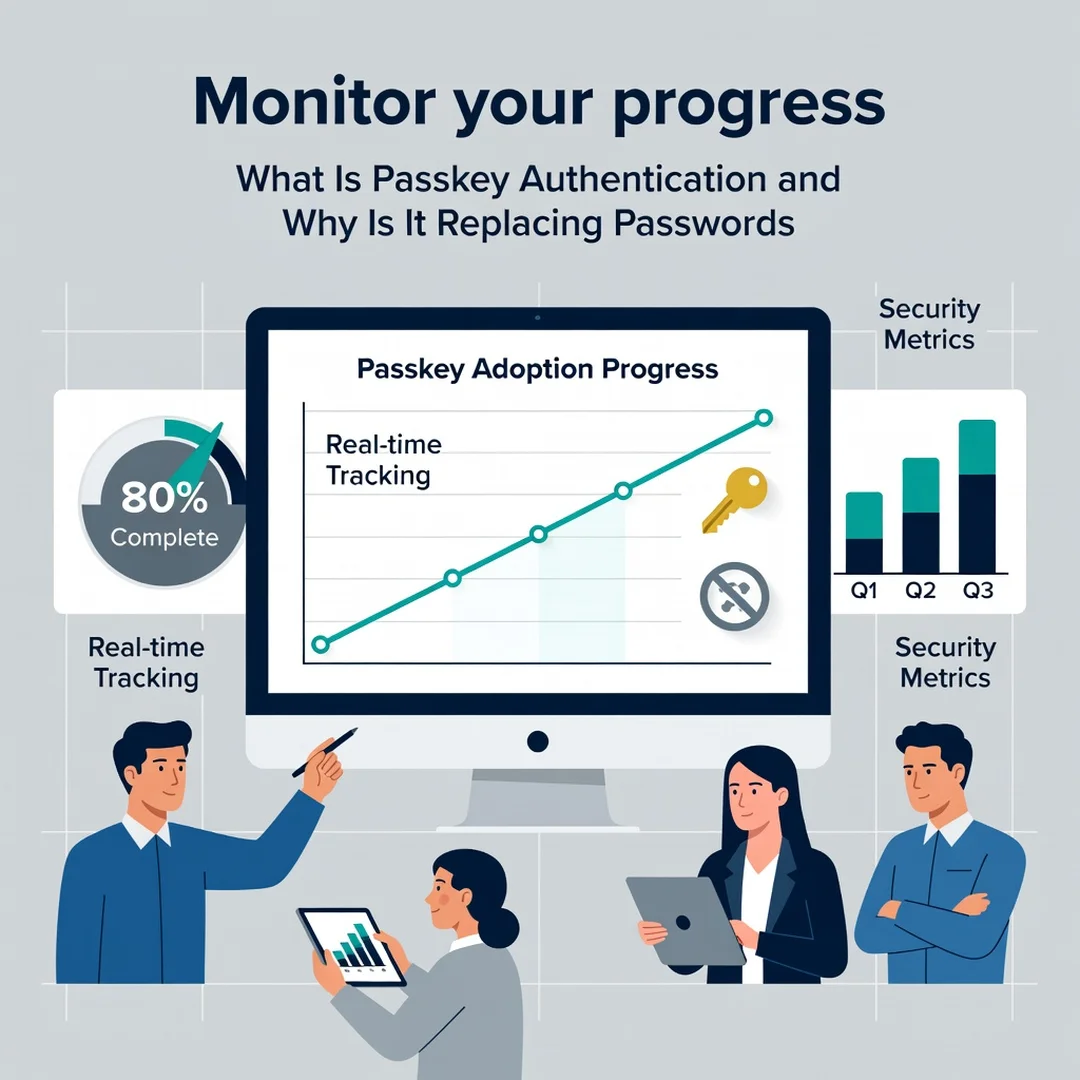
Review your accounts periodically to confirm passkeys are still active and recovery options are current. Watch for new services adding passkey support, and enable it when available. If you lose a device, revoke its passkey and register a new one. Monitoring turns a one-time setup into a lasting security habit.
FAQ
You now have a solid foundation for What Is Passkey Authentication and Why Is It Replacing Passwords. Apply the best practices above and revisit this guide as your needs evolve.