
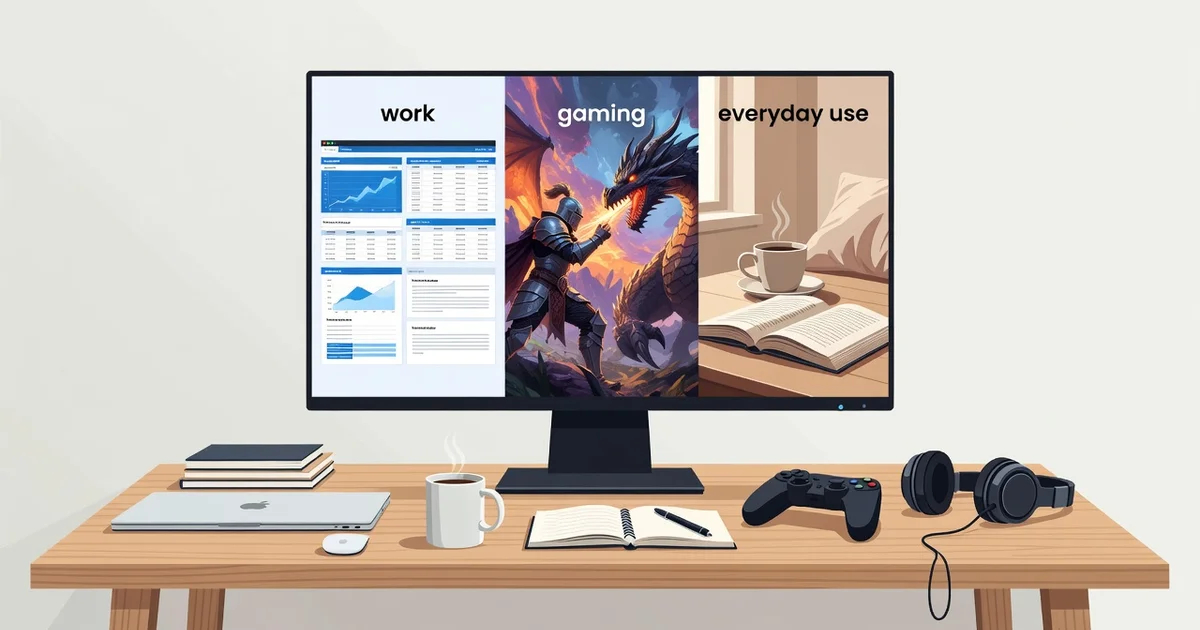
Choosing the right monitor can transform how you work, play, and unwind. Whether you need sharp text for spreadsheets, fast refresh rates for competitive gaming, or a comfortable screen for streaming and browsing, the right display makes every task easier on your eyes and more enjoyable overall.
This guide breaks down how to choose a monitor for work, gaming, and everyday use. You’ll learn which specs actually matter, how to match features to your budget, and simple steps to pick a screen you’ll be happy with for years.
Introduction to Choosing the Right Monitor
A monitor is the window through which you experience everything your computer does. Whether you spend eight hours a day in spreadsheets, compete in fast-paced shooter games, or simply browse the web and stream videos, the display you choose shapes your comfort, productivity, and enjoyment. Yet many people treat the monitor as an afterthought, grabbing whatever is on sale or bundling with a prebuilt PC. That approach often leads to eye strain, blurry text, sluggish gameplay, and buyer’s remorse.
This article explores How to Choose a Monitor for Work, Gaming, and Everyday Use with clear, practical guidance. The market offers hundreds of models with a dizzying array of specifications: panel types, resolutions, refresh rates, response times, color gamuts, and connectivity standards. Understanding the fundamentals of How to Choose a Monitor for Work, Gaming, and Everyday Use helps you make informed decisions rather than relying on marketing hype or a single reviewer’s opinion. Reliable information and consistent habits lead to better long-term outcomes, both for your eyes and for your wallet.
You do not need to be a technology expert to pick a great monitor. You need a structured way to think about your needs, your workspace, and your budget. The sections that follow break the process into digestible concepts, a step-by-step method, best practices, and answers to common questions. By the end, you will be able to walk into any store or online listing and evaluate a monitor with confidence.
Key Concepts in Monitor Selection
Before comparing specific models, you should understand the core terms that define a monitor’s performance and suitability. These concepts repeat across every buying guide, but they are rarely explained in plain language.
Panel Technology
The panel is the actual screen material that produces the image. Three main types dominate the consumer market:
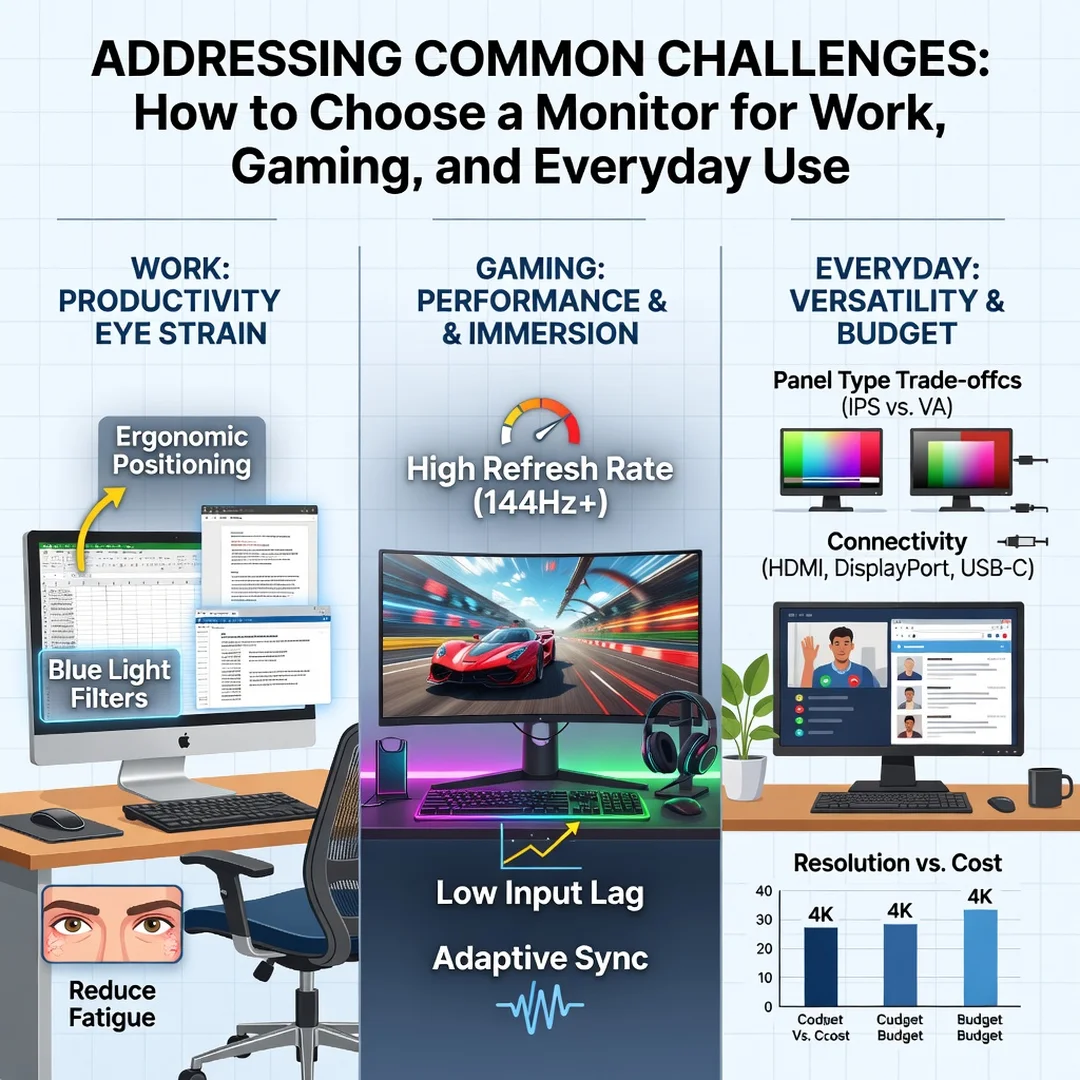
- IPS (In-Plane Switching): Offers the best color accuracy and widest viewing angles. Ideal for work, photo editing, and general use. Downsides include slightly lower contrast and occasional backlight bleed.
- VA (Vertical Alignment): Delivers deeper blacks and higher contrast, making it great for movies and immersive gaming. Viewing angles are narrower, and fast-moving scenes can show smearing.
- TN (Twisted Nematic): The fastest and cheapest panels, often used in competitive gaming. Color accuracy and viewing angles are poor, so they are less suited to creative work.
Newer options like OLED and Mini-LED offer exceptional contrast and speed but cost significantly more. For most people, IPS is the safest all-round choice.

Resolution and Screen Size
Resolution determines how much detail fits on screen. Common resolutions include 1920×1080 (Full HD), 2560×1440 (QHD), 3440×1440 (ultrawide QHD), and 3840×2160 (4K UHD). Higher resolution means sharper text and more workspace, but it also demands more graphics power. Screen size and resolution must be paired sensibly: a 27-inch 1080p monitor looks pixelated up close, while a 24-inch 4K monitor makes icons tiny without scaling.
- 24 inches: best at 1080p or 1440p
- 27 inches: sweet spot for 1440p
- 32 inches and above: consider 4K or ultrawide
Refresh Rate and Response Time
Refresh rate is how many times per second the screen updates, measured in hertz (Hz). A 60Hz monitor refreshes 60 times per second. Gamers benefit from 120Hz, 144Hz, or even 240Hz because motion looks smoother and input lag drops. Response time, measured in milliseconds, describes how quickly a pixel changes color. Lower is better for gaming, but advertised numbers are often misleading. For office work, 60Hz and a modest response time are perfectly adequate.
Color Accuracy and Brightness
If you edit photos, design graphics, or print documents, color accuracy matters. Look for coverage of sRGB, Adobe RGB, or DCI-P3 color spaces, and consider factory calibration. Brightness is measured in nits. A typical office monitor reaches 250 to 300 nits, while HDR-capable displays need 400 nits or more. Higher brightness helps in rooms with lots of daylight.
Connectivity and Ergonomics
Check which ports you need: HDMI, DisplayPort, USB-C, or Thunderbolt. USB-C is especially useful for laptop users because it carries video, data, and power over one cable. Ergonomics matter too. A stand with height, tilt, swivel, and pivot adjustment reduces neck and back strain. If the stand is flimsy, make sure the monitor supports a VESA mount.
Deep Dive: Matching Monitors to Real-World Use
Specifications only matter in context. A 240Hz TN panel is superb for esports but terrible for color grading. A 4K IPS display is wonderful for spreadsheets but may struggle in fast-paced games without a powerful GPU. The key is to prioritize the specifications that align with your primary activities.
For Work and Productivity
Office workers, programmers, writers, and analysts spend hours reading text and managing windows. Prioritize resolution, panel type, and ergonomics. A 27-inch 1440p IPS monitor offers sharp text and ample space for two documents side by side. Ultrawide monitors (34 inches and up) can replace dual-monitor setups and reduce cable clutter. USB-C connectivity with power delivery lets you dock a laptop with a single cable. Blue light filters and flicker-free backlights reduce eye fatigue during long sessions.
For Gaming
Gamers should prioritize refresh rate, response time, and adaptive sync technology. Adaptive sync, sold as AMD FreeSync or NVIDIA G-Sync, eliminates screen tearing and stuttering by matching the monitor’s refresh rate to your graphics card’s output. Competitive players often choose 24-inch 1080p TN panels at 240Hz for maximum speed. Casual and single-player gamers may prefer a 27-inch 1440p IPS or VA panel at 144Hz for a balance of visuals and smoothness. Console gamers should look for HDMI 2.1 support if they own a PlayStation 5 or Xbox Series X.
For Everyday Use
Students, families, and casual users need versatility. A 24-inch or 27-inch 1080p or 1440p IPS monitor with a 75Hz refresh rate covers browsing, streaming, video calls, and light gaming. Built-in speakers and a headphone jack add convenience. If the monitor doubles as a TV, consider a VA panel for better contrast in dark scenes.
For Creative Professionals
Photographers, videographers, and designers need wide color gamut coverage, high resolution, and hardware calibration support. Look for 4K resolution, 99% sRGB or higher, and Delta E values below 2. A matte screen finish reduces reflections, which is important when judging color.
Step-by-Step Guide to Choosing a Monitor
Follow this sequence to move from confusion to a confident purchase.
Step 1: Understand the fundamentals
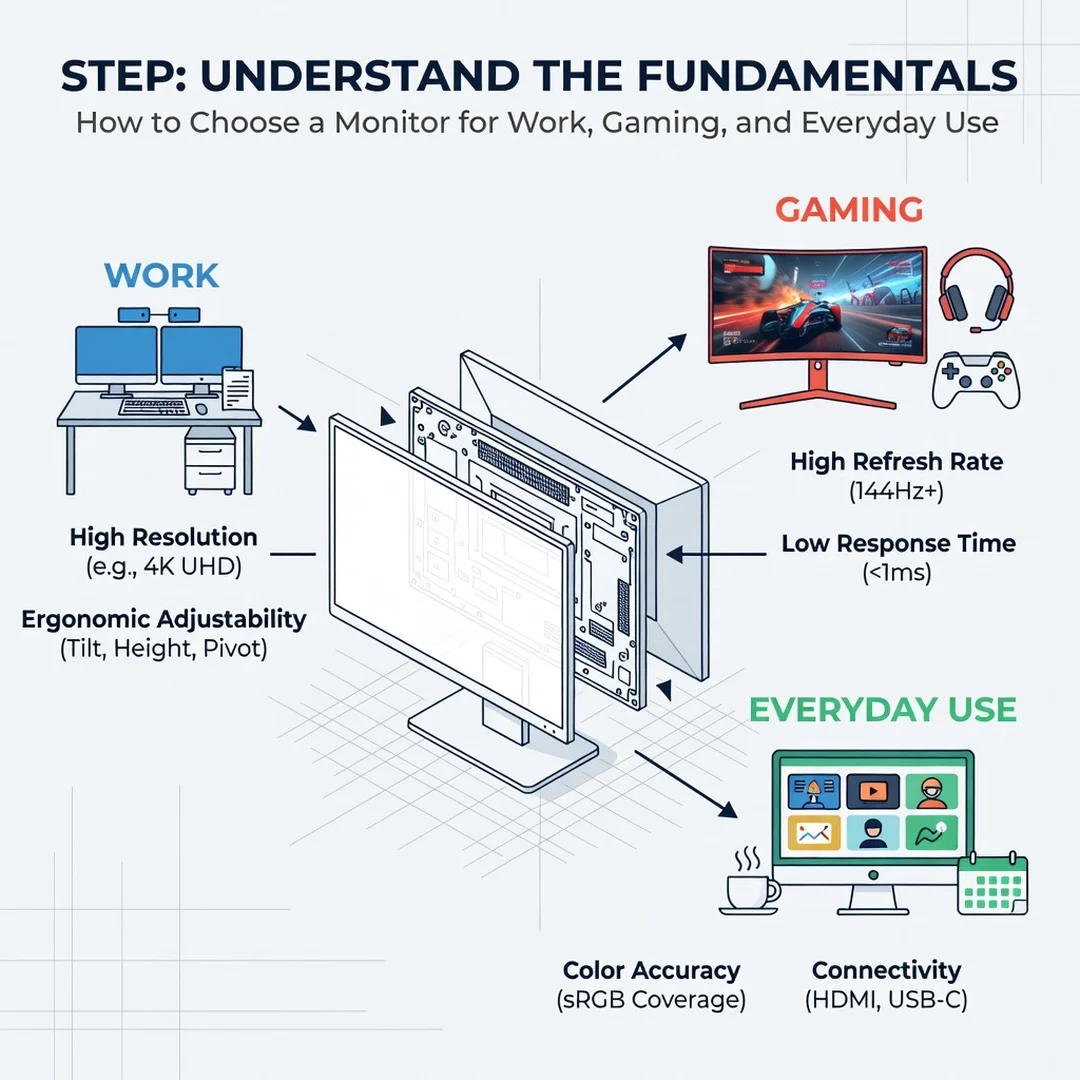
Review the key concepts above: panel types, resolution, refresh rate, response time, color, brightness, and connectivity. Without this foundation, you risk overpaying for features you will never use or missing a specification that matters daily. Write down the terms you do not fully understand and look them up. A few minutes of study saves hours of regret. Remember that marketing terms like “gaming mode” or “HDR ready” are often less important than the underlying panel quality.
Step 2: Assess your starting point
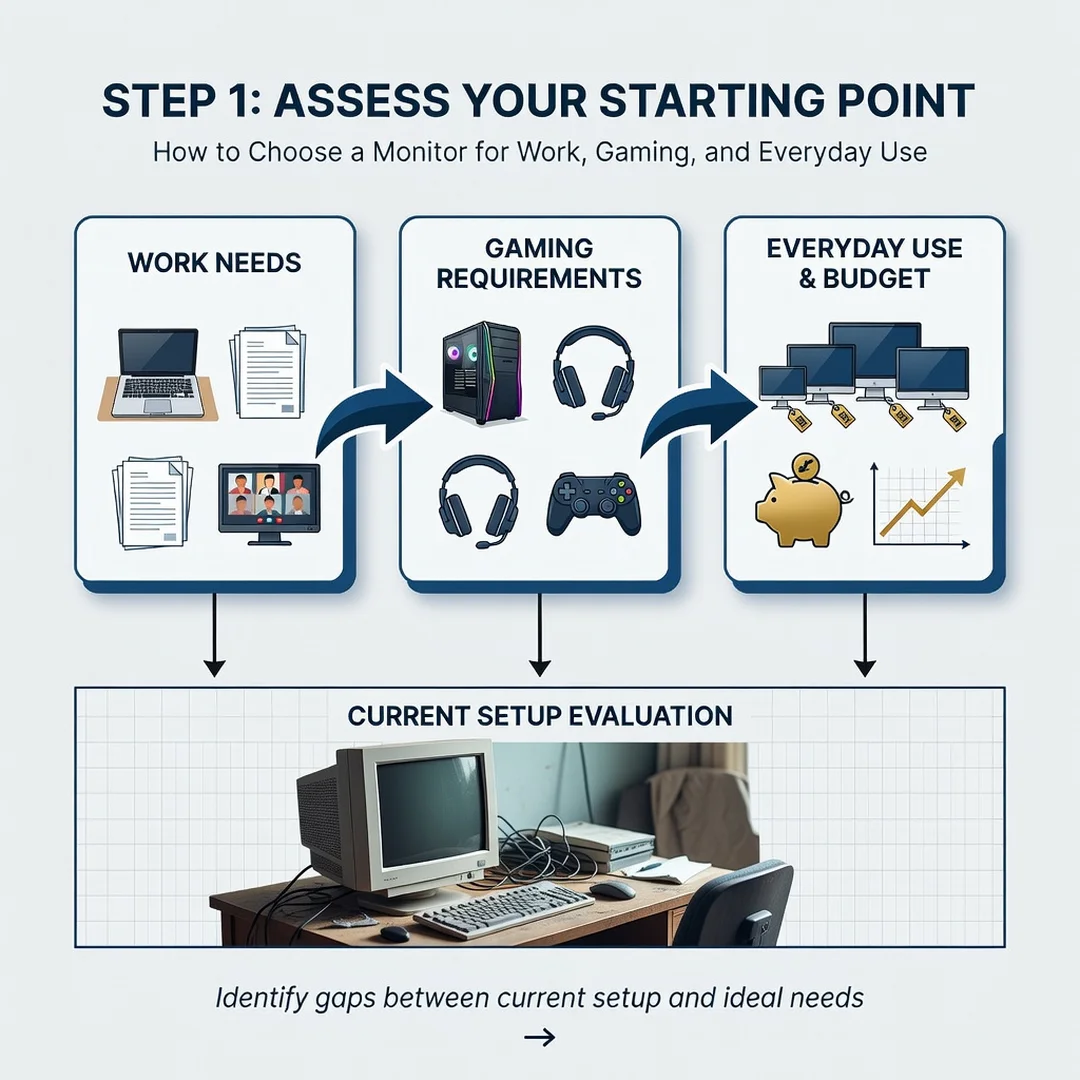
Evaluate your current setup honestly. What monitor do you have now, and what frustrates you about it? Is text blurry? Does the screen flicker? Do colors look washed out? Measure your desk space and note the maximum size that fits comfortably. Check your computer’s graphics card and ports. An older laptop may not drive a 4K display at 60Hz, and a budget GPU will struggle with high refresh rates at 1440p. Knowing your starting point prevents unrealistic expectations.
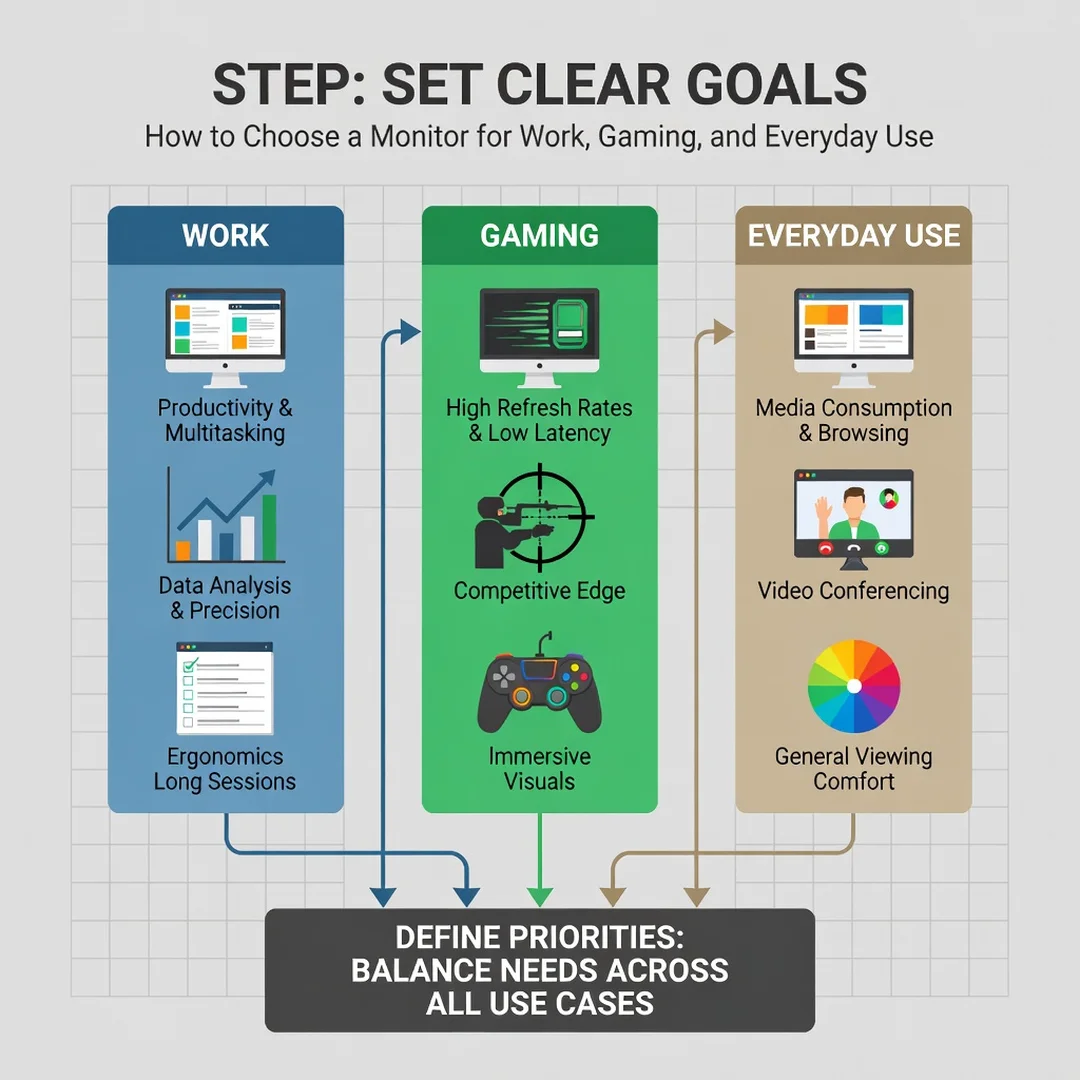
Step 3: Set clear goals
Define what you want the new monitor to accomplish. Rank your activities: work, gaming, streaming, creative editing, or general browsing. Decide on a budget range, including the cost of cables or a VESA mount if needed. Set measurable goals, such as “I want to fit three windows side by side” or “I want smoother motion in first-person shooters.” Clear goals narrow the field from hundreds of models to a shortlist. They also help you resist upsells for features you will not notice.
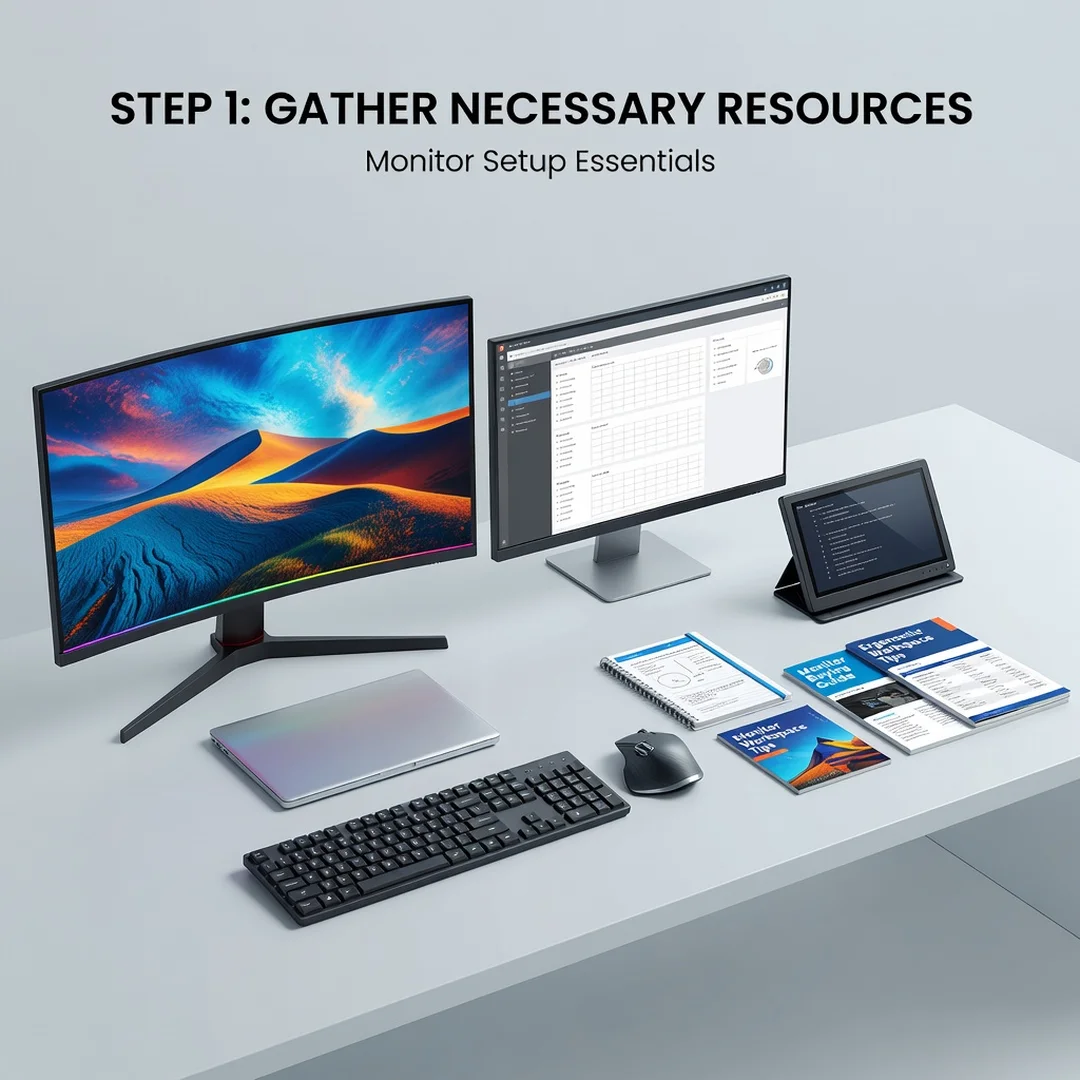
Step 4: Gather necessary resources
Collect the information and tools you need to compare options. Read professional reviews from sites that measure color accuracy and response time with instruments, not just opinions. Visit a local store to see monitors in person if possible. Check return policies, especially for online purchases. Gather your computer’s specifications, including GPU model and available ports. If you use a laptop, confirm whether it supports DisplayPort over USB-C. Create a simple comparison spreadsheet with columns for price, size, resolution, panel type, refresh rate, and ports.
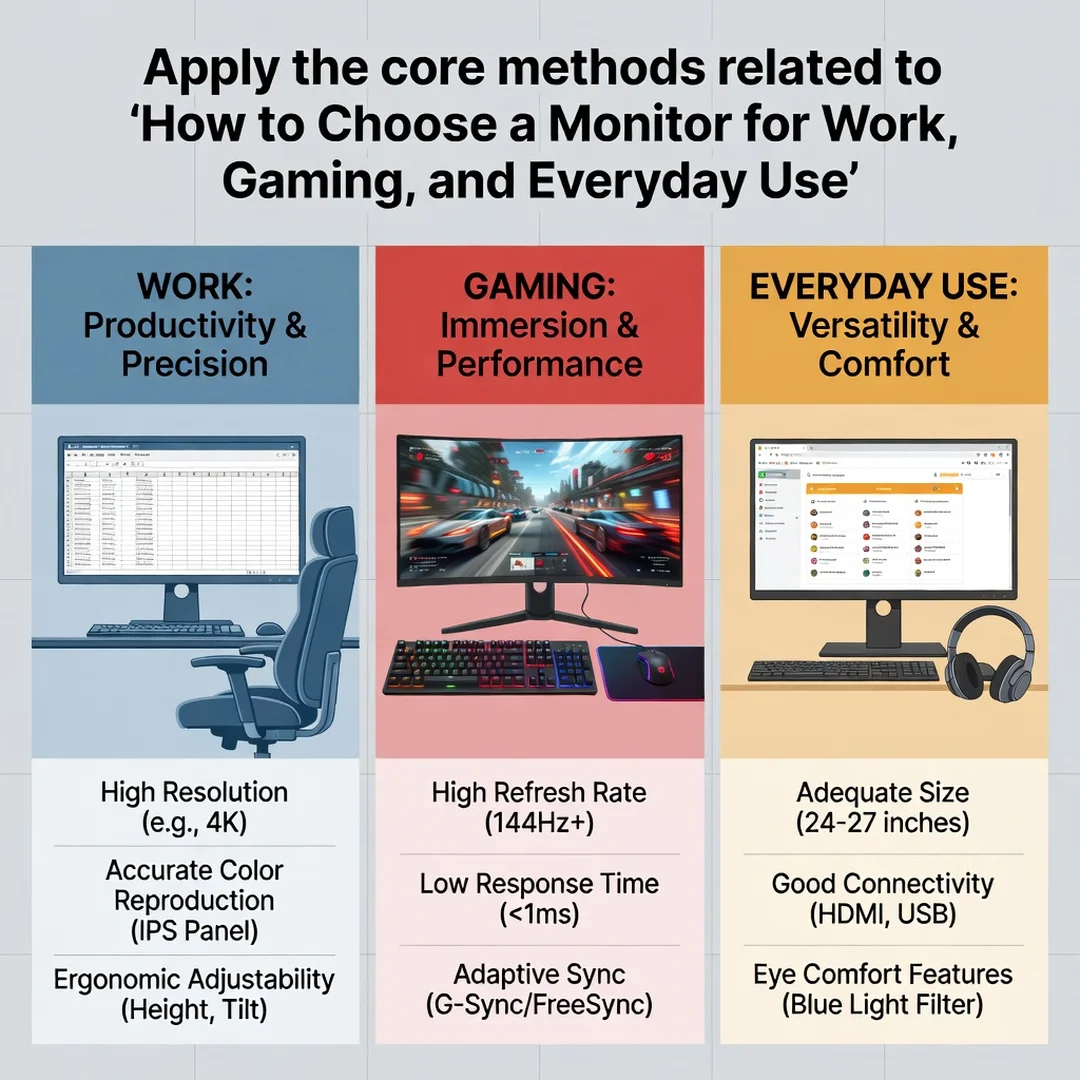
Step 5: Apply the core methods
Use a weighted scoring approach. Assign importance values to your top criteria, such as resolution, refresh rate, color accuracy, and ergonomics. Score each candidate monitor on a scale of one to five for each criterion, then multiply by the weight. This method forces you to prioritize objectively rather than being swayed by a single impressive specification. Also apply the “real-world test”: read user reviews that mention long-term reliability, dead pixels, and customer service. A monitor with perfect specs but poor quality control is a poor choice.
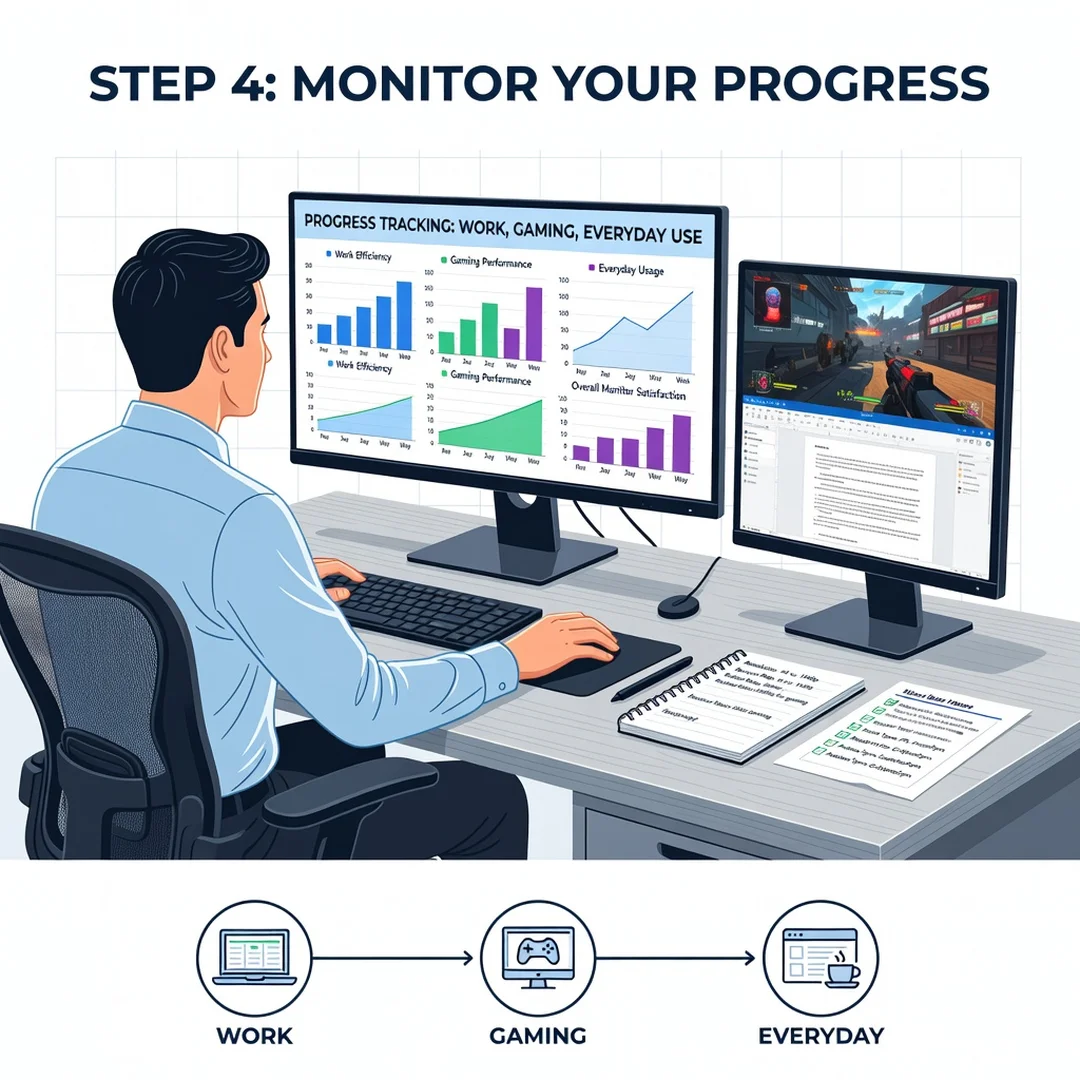
Step 6: Monitor your progress
After purchase, evaluate your decision over the first few weeks. Are you experiencing less eye strain? Is gaming smoother? Does the monitor fit your workspace ergonomically? Adjust brightness, contrast, and color temperature to match your environment. Use the monitor’s built-in settings or operating system calibration tools. If the monitor does not meet your goals, return it within the return window. Treat this as an ongoing process: as your work or hobbies change, your monitor needs may change too. Reliable information and consistent habits lead to better long-term outcomes.
Best Practices for Monitor Buying and Use
Even with a great monitor, how you set it up affects your experience. Follow these best practices to get the most from your investment.
- Position the monitor at eye level. The top of the screen should be at or slightly below eye level to reduce neck strain. Use a stand or books to raise it if needed.
- Maintain proper distance. Sit about an arm’s length away, roughly 20 to 30 inches, depending on screen size.
Manage lighting. Avoid placing the monitor directly in front of a window or bright light source. Use bias lighting behind the monitor to reduce eye fatigue in.
You now have a solid foundation for How to Choose a Monitor for Work, Gaming, and Everyday Use. Apply the best practices above and revisit this guide as your needs evolve.