
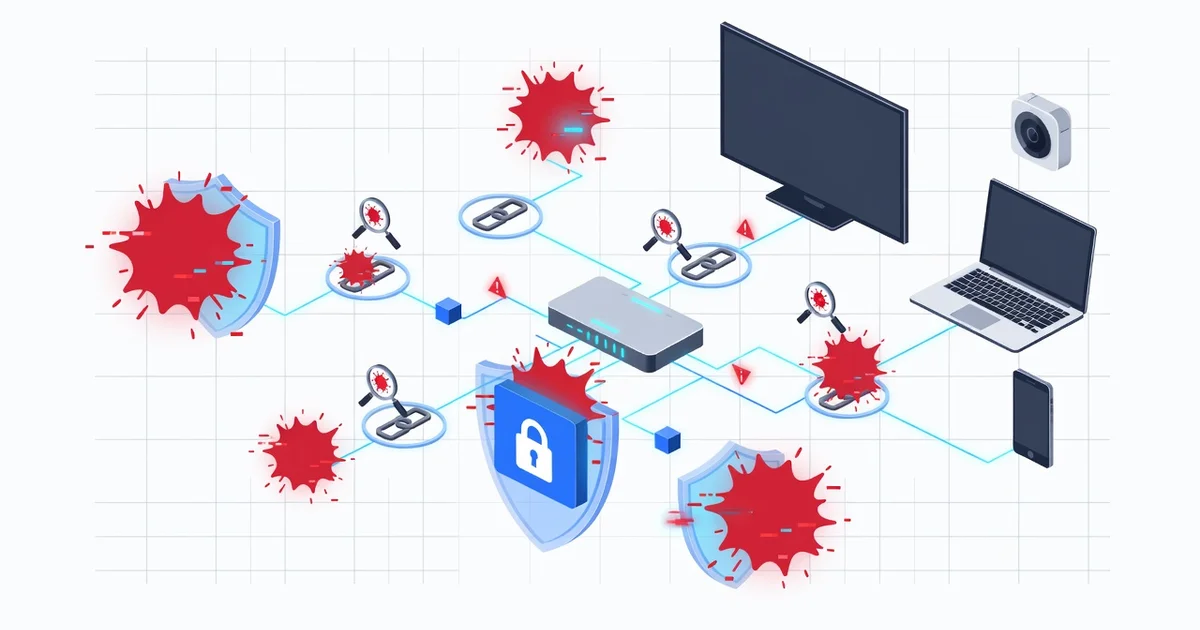
Your home network is the front door to everything you do online—banking, working, streaming, and connecting with family. Yet most people never think about securing it until something goes wrong. Cybercriminals actively scan for weak routers, outdated firmware, and default passwords, turning an unprotected network into an open invitation.
The good news? You don’t need to be a tech expert to protect your home network from cyber threats. With a few straightforward steps, you can lock down your Wi-Fi, secure your devices, and keep intruders out. Here’s how to get started.
Introduction
Your home network is the digital front door to your personal life. It connects your laptops, phones, smart TVs, gaming consoles, and even your thermostat and doorbell to the internet. When that network is compromised, the consequences can range from a slowed-down connection to stolen banking credentials, hijacked smart devices, or ransomware locking your family photos. This article explores How to Protect Your Home Network From Cyber Threats with clear, practical guidance. You do not need to be a security engineer to make a meaningful difference. Most successful attacks exploit basic weaknesses—default passwords, outdated firmware, and careless browsing habits—so the fixes are equally basic and well within reach.
Understanding the fundamentals of How to Protect Your Home Network From Cyber Threats helps you make informed decisions instead of reacting in a panic after something goes wrong. Reliable information and consistent habits lead to better long-term outcomes. A single afternoon spent securing your router and devices can protect your household for years. Throughout this guide, you will find step-by-step instructions, plain-language explanations, and answers to common questions so you can take action today.
Key Concepts
Before diving into settings and software, it helps to understand a few terms that appear in almost every home network security discussion. These concepts form the vocabulary you will use to evaluate risks and choose tools.
- Router: The central device that connects your home to your internet service provider (ISP) and directs traffic between your devices and the internet. It is the primary gatekeeper of your network.
- Firmware: The software built into your router and other devices. Manufacturers release firmware updates to patch security holes. Running outdated firmware is like leaving a window unlocked.
- Wi-Fi encryption: The method that scrambles data sent over the air. Modern routers support WPA3 or WPA2. Older WEP encryption is easily broken and should never be used.
- Firewall: A barrier that filters incoming and outgoing traffic based on rules. Most home routers include a basic firewall, but it must be enabled and configured.
- Malware: Malicious software such as viruses, spyware, or ransomware that can infect a device and then spread across your network.
- Phishing: Fake emails, texts, or websites designed to trick you into revealing passwords or installing malware. Phishing is one of the most common ways attackers gain a foothold.
- Guest network: A separate Wi-Fi network for visitors and smart home devices that keeps them isolated from your primary computers and phones.
- VPN (Virtual Private Network): A tool that encrypts your internet traffic, especially useful when working remotely or using public Wi-Fi.
These concepts connect directly to the practical steps later in this article. For example, updating firmware addresses the vulnerability of outdated software, while a guest network limits the damage if a smart plug is compromised. By grasping these basics, you can prioritize which actions matter most for your specific household.
Deep Dive
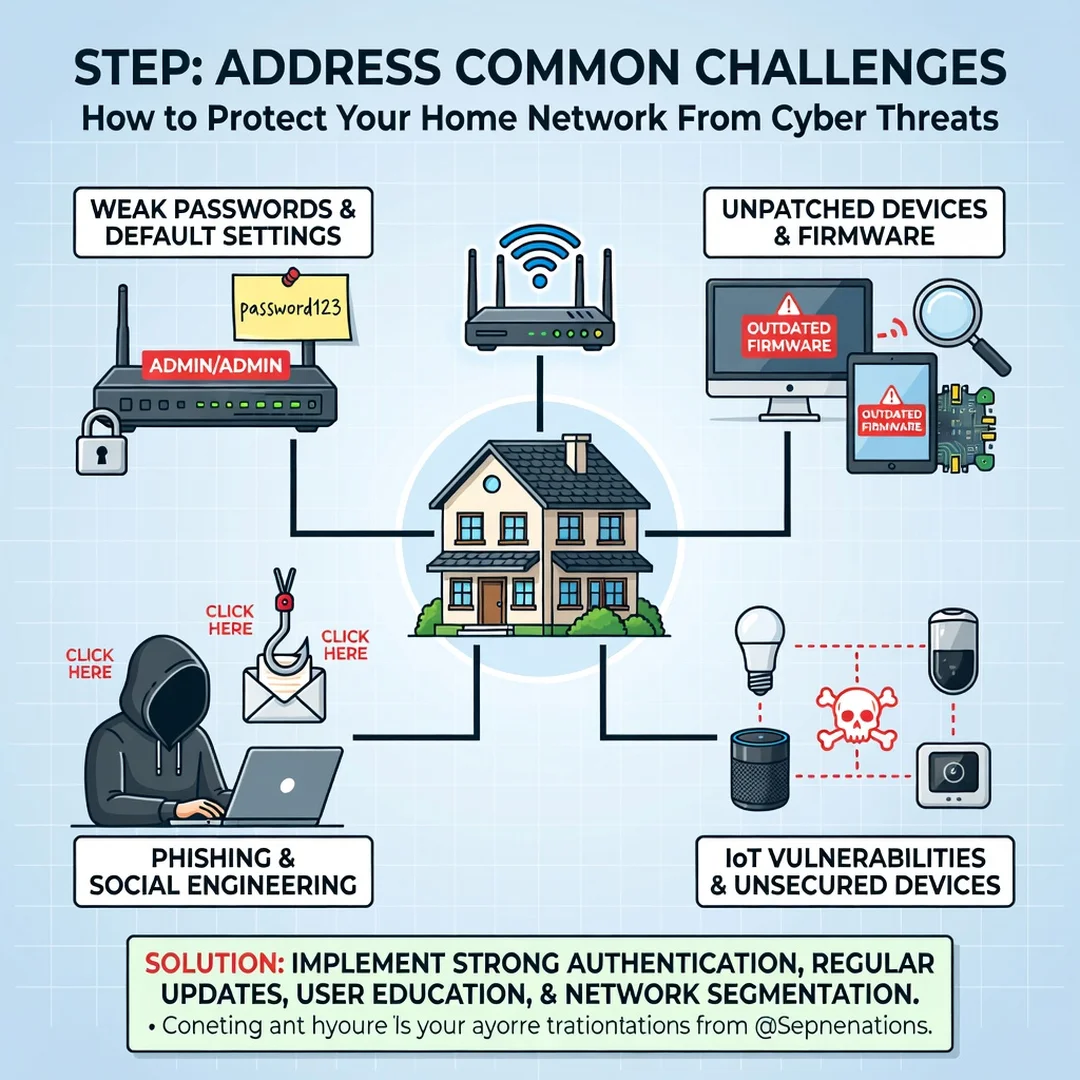
The threat landscape for home networks has changed dramatically. A decade ago, most attacks targeted large corporations. Today, automated bots scan the internet for home routers with weak passwords and known vulnerabilities. Once inside, attackers can redirect your traffic to fake banking sites, use your network to launch attacks on others, or hold your files hostage. The average household now has more than a dozen connected devices, each one a potential entry point.
One of the most overlooked risks is the “internet of things” (IoT) explosion. Smart bulbs, baby monitors, robot vacuums, and security cameras often ship with default credentials and rarely receive security updates. An attacker who compromises a cheap smart plug can pivot to your laptop within minutes if both are on the same network. This is why network segmentation—separating IoT devices from personal computers—is a powerful defense.
Another common misconception is that your internet service provider protects you. While ISPs block some malicious traffic, they cannot secure your router’s admin password or stop you from clicking a phishing link. Security is a shared responsibility, and the home side of the connection is yours to manage.
Human behavior remains the weakest link. A 2023 report found that over 80% of data breaches involved phishing or stolen credentials. In a home setting, that might look like a teenager downloading a “free” game that installs spyware, or a parent reusing the same password across email and shopping sites. Technical controls like firewalls and encryption are essential, but they cannot fully compensate for risky habits. The good news is that habits can be changed with simple routines, which the next section covers.
Finally, consider the physical layer. If someone can physically access your router, they can press the reset button and take over your network. Keep your router in a locked or supervised area, and never leave default admin credentials in place. Physical security is often forgotten in digital guides, but it is a real risk, especially in shared living situations or rental properties.
Best Practices
These best practices are organized as a step-by-step process. Follow them in order for the smoothest experience, or jump to the steps that address your most urgent concerns.
Step 1: Understand the fundamentals
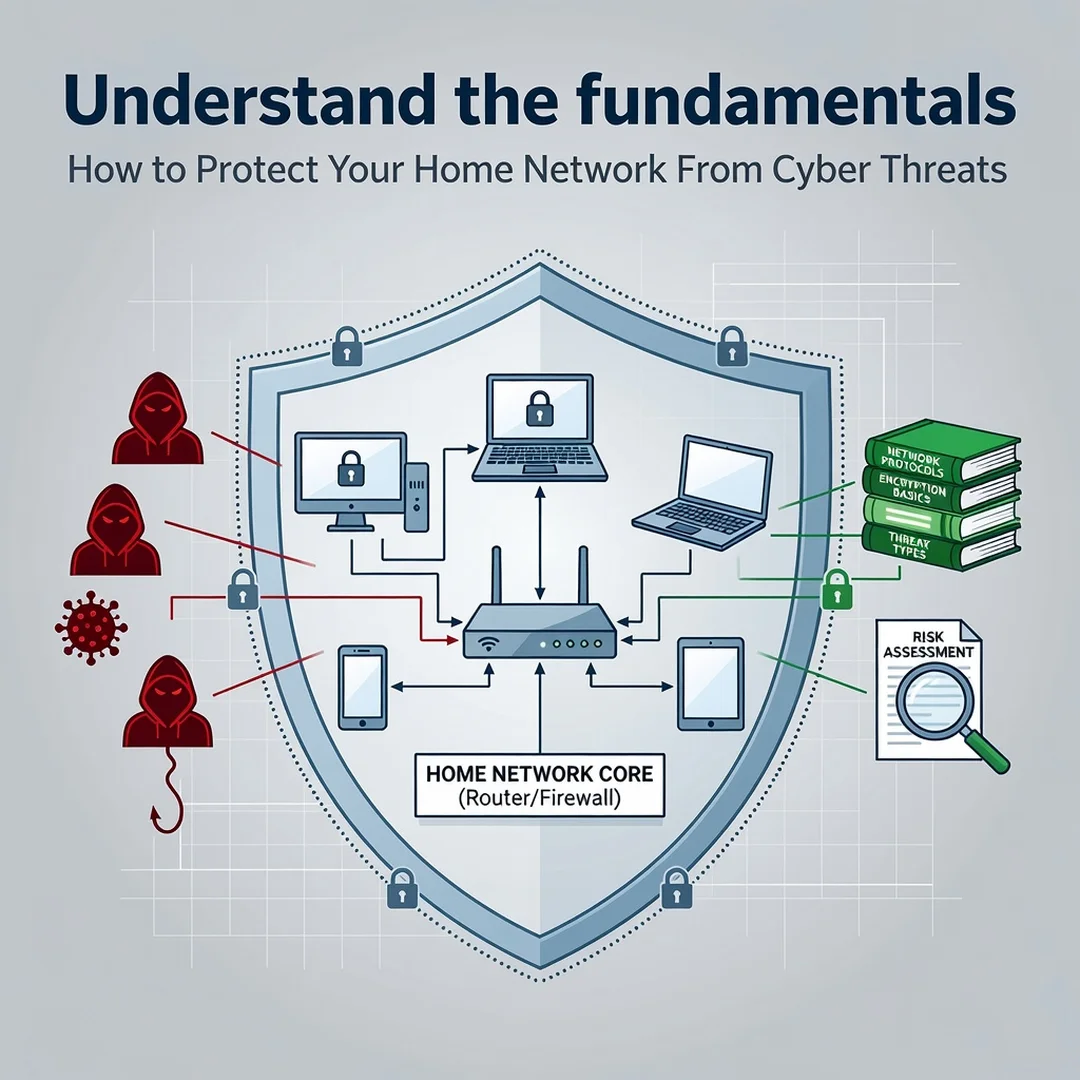
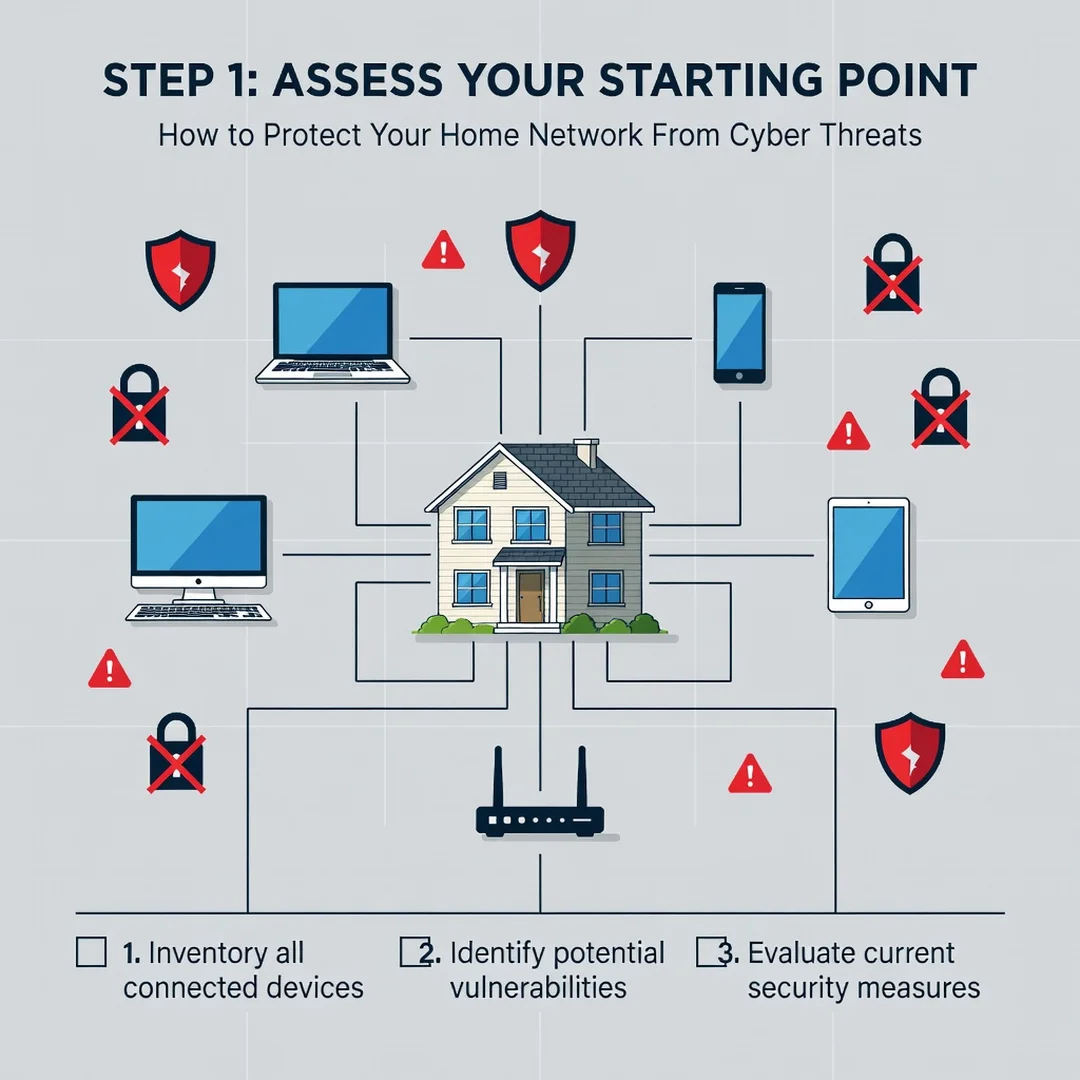
Start by identifying what you are protecting. Make a list of every device that connects to your Wi-Fi: phones, laptops, tablets, smart speakers, cameras, printers, and gaming consoles. Note which ones store sensitive data (banking apps, work files) and which are “nice to have” (smart lights). This inventory helps you decide where to focus. Also, locate your router’s model number and ISP account details. You will need them for firmware updates and support calls. Understanding the fundamentals of How to Protect Your Home Network From Cyber Threats means knowing that every device is a potential door, and your router is the lock on the main gate.
Step 2: Assess your starting point
Log into your router’s admin panel. The address is usually something like 192.168.1.1 or 192.168.0.1, printed on a sticker on the router. Check the following settings: Is the admin password still the default “admin/admin”? Is Wi-Fi encryption set to WPA2 or WPA3? Is the firewall enabled? Are there any unknown devices connected? Write down your findings. Also, check when your router’s firmware was last updated. If you cannot remember or it has been over a year, that is a red flag. This assessment gives you a baseline so you can measure progress.
Step 3: Set clear goals
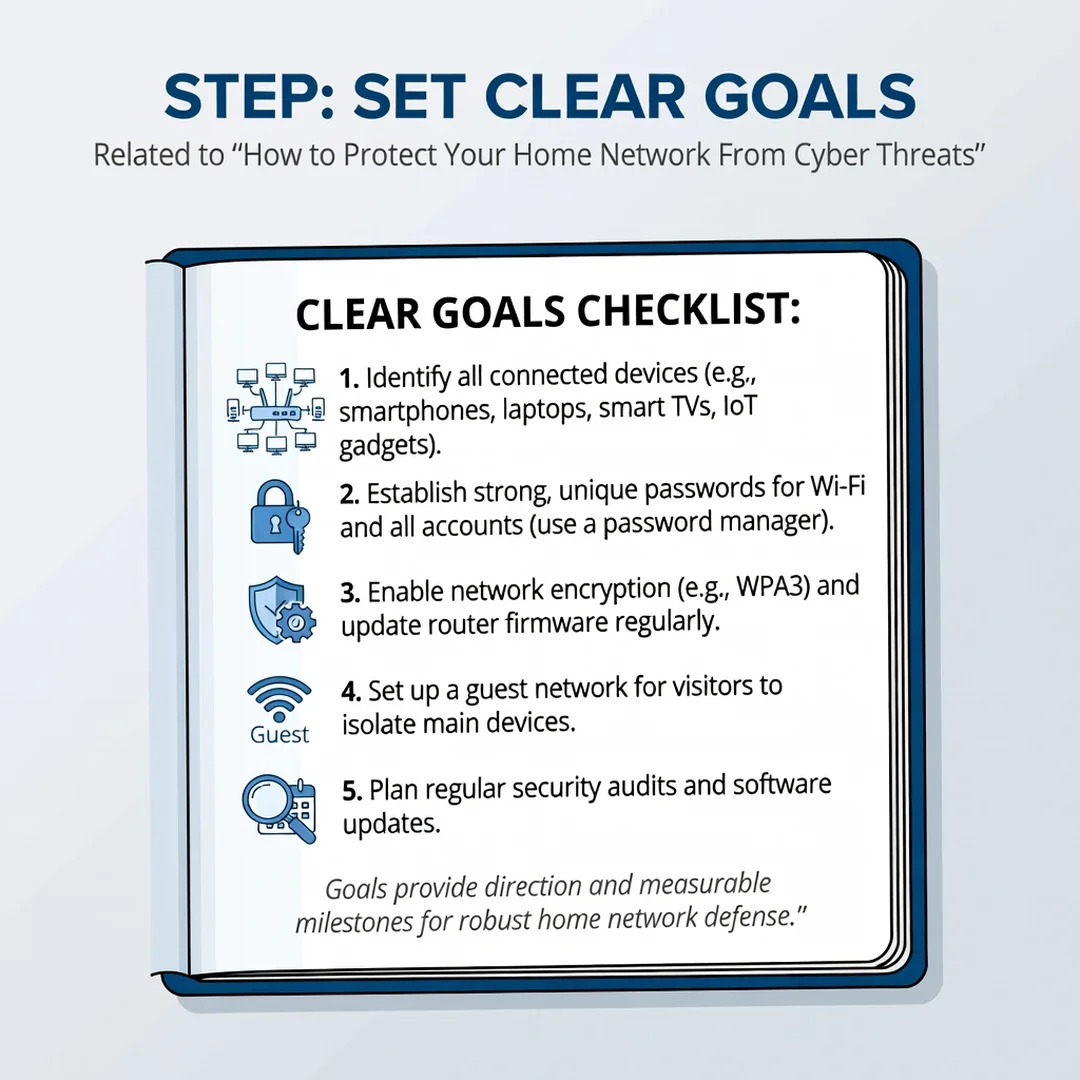
Based on your assessment, set two or three specific, achievable goals. Examples: “Change the router admin password to a unique 16-character passphrase by this weekend,” “Enable WPA3 encryption and create a separate guest network for IoT devices,” “Update firmware on the router and all smart devices within 30 days.” Avoid vague goals like “be more secure.” Specific goals let you track completion and build momentum. If you share your home with others, discuss these goals together so everyone understands the changes and follows the new rules.
Step 4: Gather necessary resources
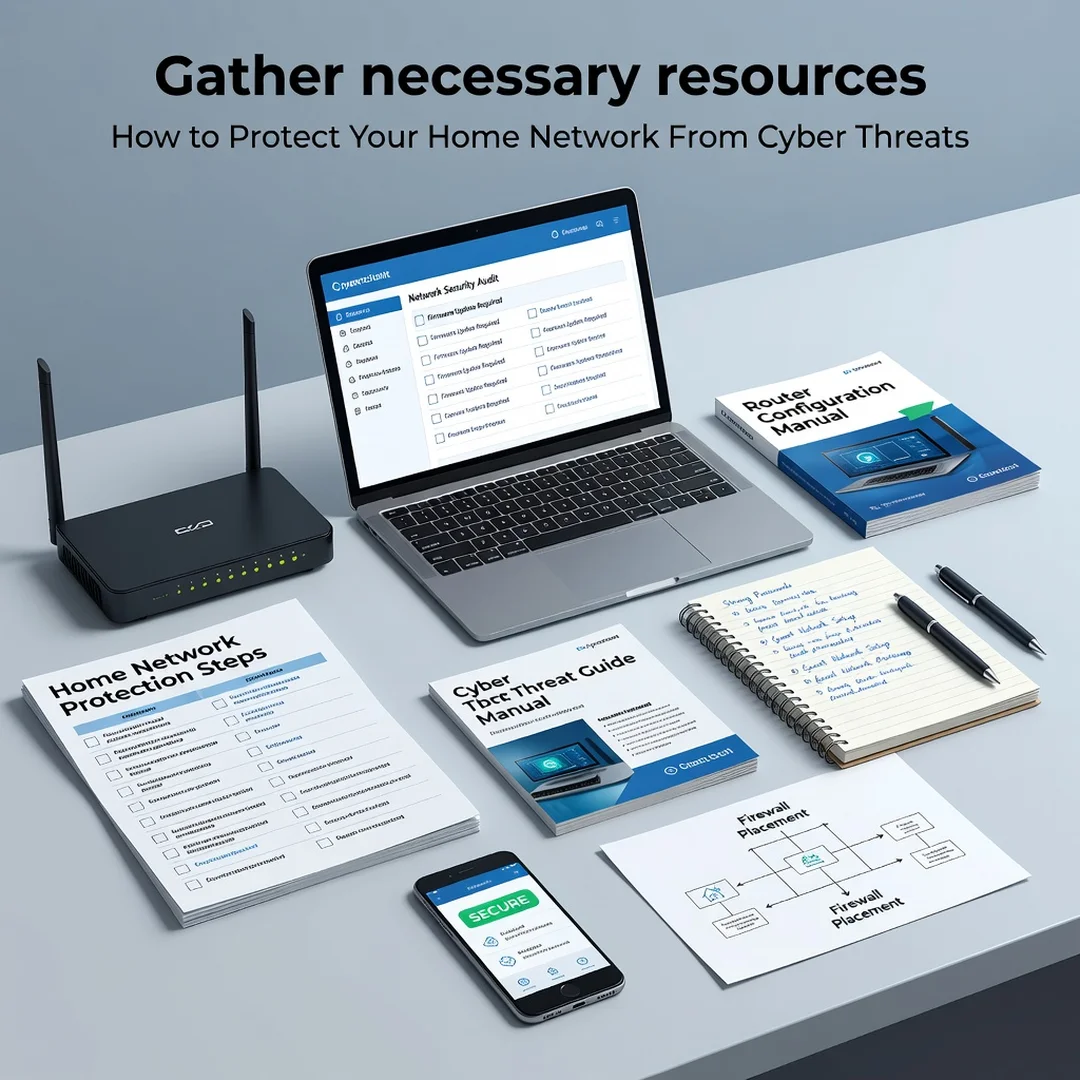
You will need a few tools and pieces of information. Your router’s manual (often available online) explains menu options. A password manager (such as Bitwarden, 1Password, or KeePass) helps you create and store strong, unique passwords. A notebook or digital note for recording your network inventory and settings changes is useful. If your router is older than five years and no longer receives firmware updates, consider budgeting for a new router that supports WPA3 and automatic updates. Many ISPs now provide modern routers for a small monthly fee, which can be a simple upgrade path.
Step 5: Apply the core methods
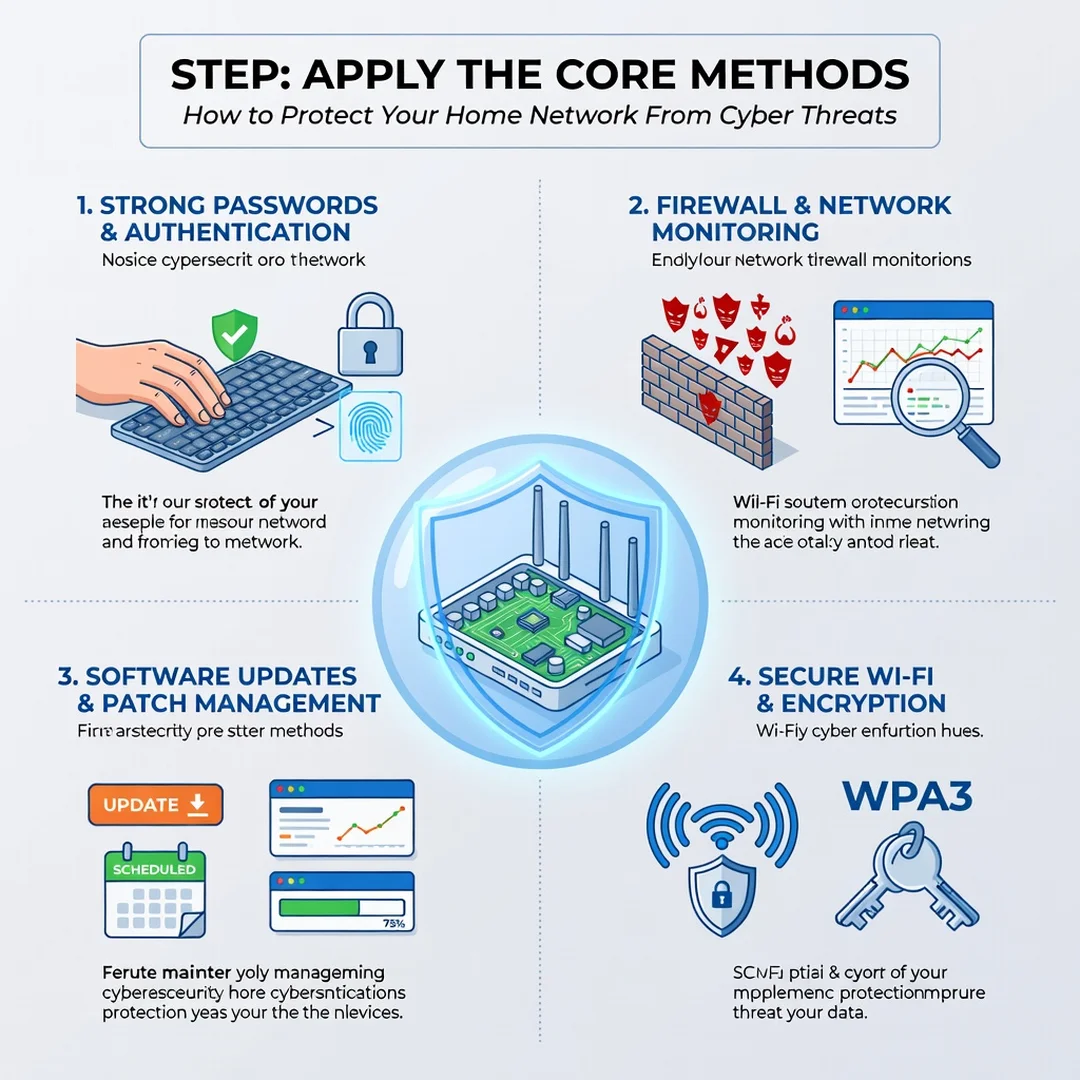
Now execute the changes. First, change the router’s admin password to a long, unique passphrase. Second, set Wi-Fi encryption to WPA3 (or WPA2 if WPA3 is unavailable). Third, update the router’s firmware through its admin panel. Fourth, disable remote administration and UPnP (Universal Plug and Play) unless you specifically need them, as both can be exploited. Fifth, create a guest network for visitors and smart home devices. Sixth, enable the firewall and, if available, turn on automatic security updates. Seventh, install a reputable antivirus or anti-malware tool on your computers and phones, and enable automatic updates for all operating systems and apps. Finally, use a password manager to replace reused passwords with unique ones, starting with your email and banking accounts.
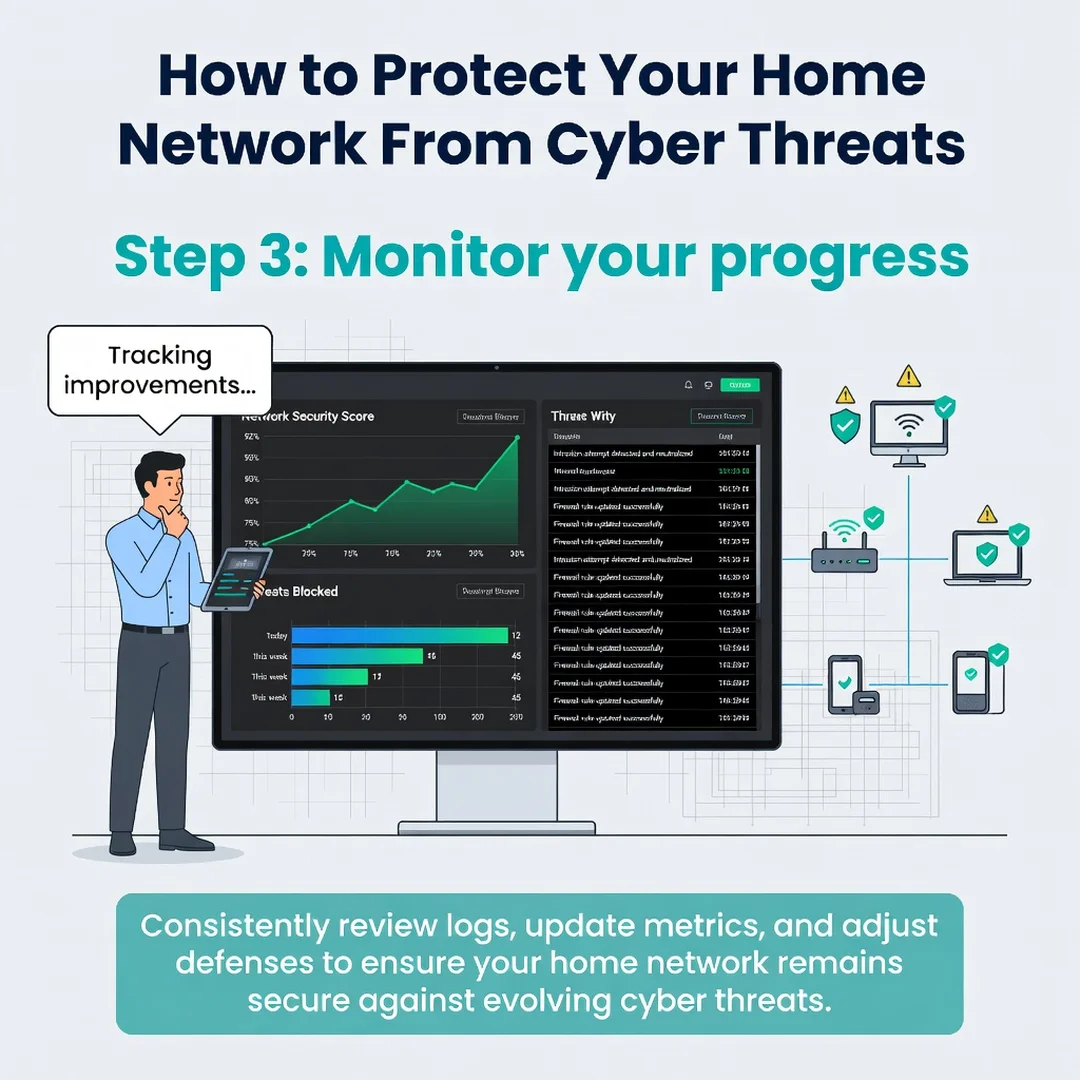
Step 6: Monitor your progress
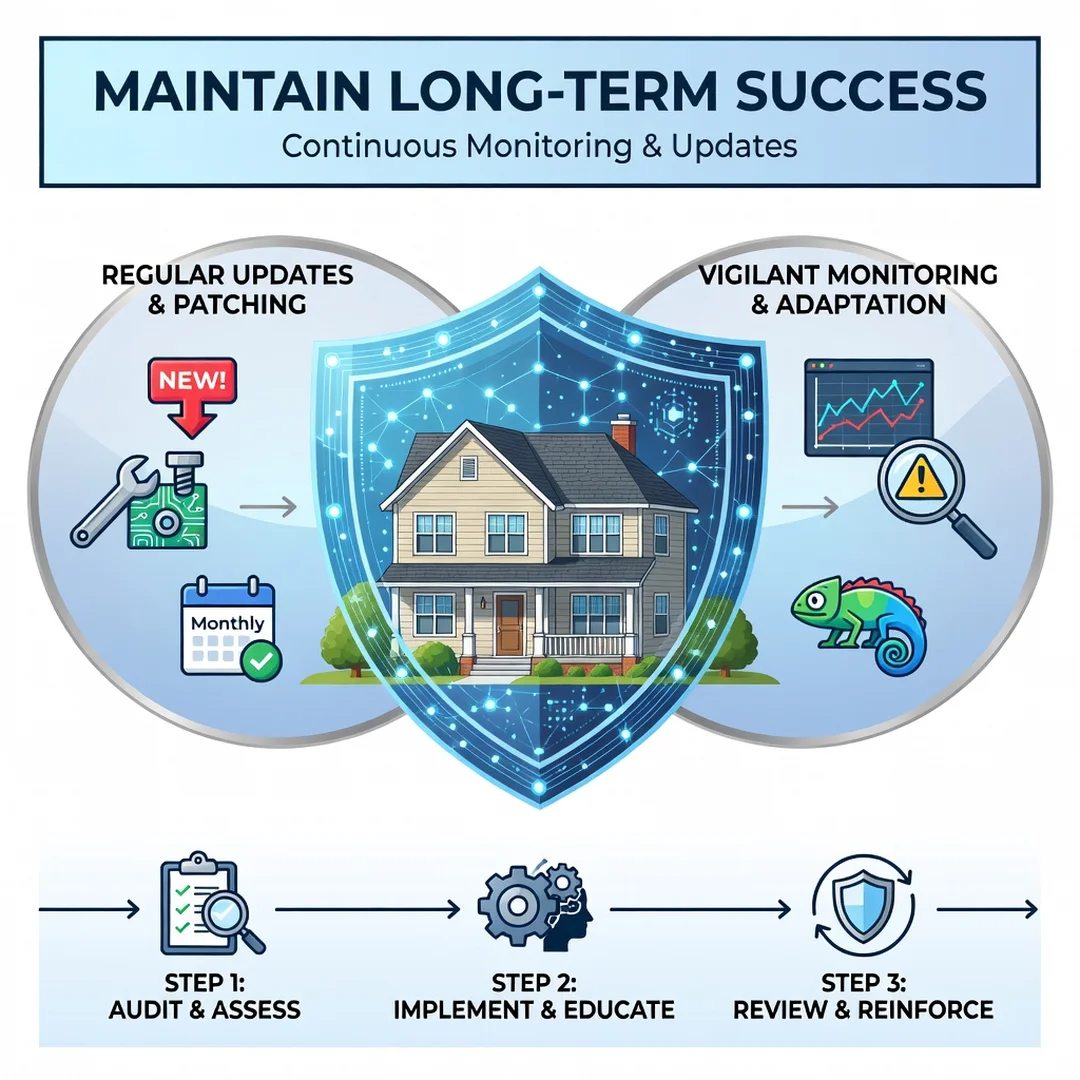
Security is not a one-time task. Set a monthly reminder to check for firmware updates, review connected devices for anything unfamiliar, and confirm that automatic updates are still enabled. Many routers have a log or “connected devices” list where you can spot intruders. If you see an unknown device, change your Wi-Fi password immediately and investigate. Also, pay attention to slower-than-usual internet speeds or unexpected pop-ups, which can indicate a compromised network. Keep your inventory list updated as you add new gadgets. Consistent monitoring turns a one-time cleanup into lasting protection.
FAQ
What should I know about How to Protect Your Home Network From Cyber Threats?
The most important thing to know is that basic actions deliver the biggest returns. Changing default passwords, updating firmware, and using WPA3 encryption stop the vast majority of automated attacks. You do not need expensive enterprise equipment. You also need to know that threats evolve, so occasional check-ins matter. A router that was secure two years ago may have new vulnerabilities today. Finally, understand that your behavior—clicking links, reusing passwords, ignoring updates—is as important as any technical setting. The combination of good tools and good habits is what keeps you safe.
Who is this guide for?
This guide is for anyone who manages a home internet connection, regardless of technical skill. That includes renters, homeowners, families with children, remote workers, and people who simply want to protect their personal data. If you have ever wondered whether your Wi-Fi is secure or felt overwhelmed by security jargon, this guide is for you. It assumes no prior networking knowledge and explains each step in plain language. Small business owners who work from home will also find the practices useful, though they may need additional measures for compliance or client data.
Conclusion
Protecting your home network from cyber threats is a journey, not a destination. By understanding.
You now have a solid foundation for How to Protect Your Home Network From Cyber Threats. Apply the best practices above and revisit this guide as your needs evolve.